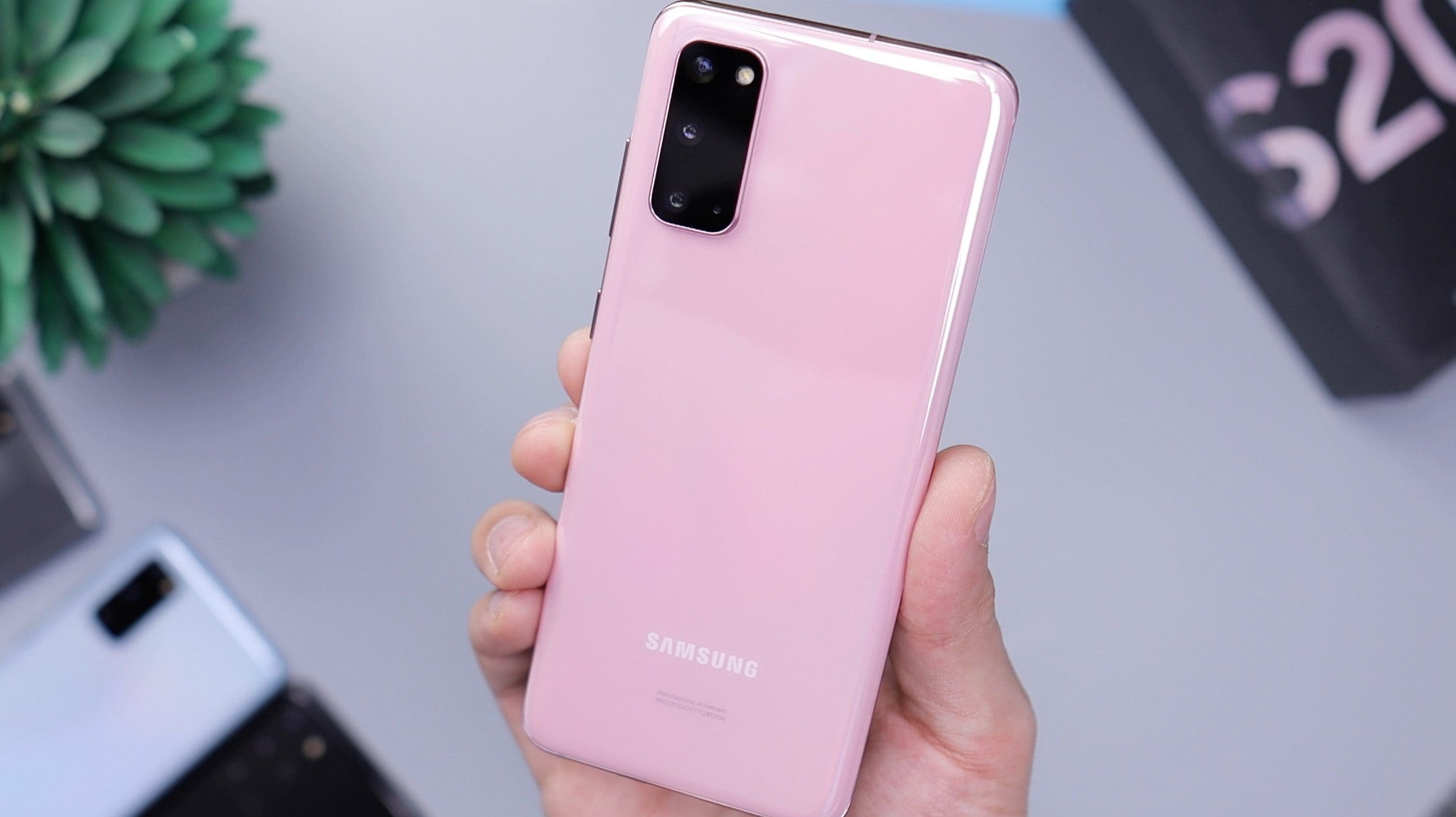
The Samsung Galaxy S20 phone is the latest in the new and upcoming phones in the Samsung Galaxy S series of mobile products. If you’re lucky enough to have one, you might still be figuring out everything it can do. With its usage growing quickly already in 2020, many people are curious about how the activation settings function for restarting or turning their new phones on and off.
If you are the proud owner of a new Samsung Galaxy S20, here is what you need to know with regards to your phone’s power and restart settings and their functionality.
Contents
Restarting Samsung Galaxy S20 Phones
Whether you’re on a phone or other internet devices, the restart setting is how you are able to turn your device’s power on or off in one move. It allows you to refresh your device, often after the download of different applications or updates.
Many apps will automatically restart your device or phone for a new download due to the size of apps being downloaded. However, you can also do this manually on the body of the phone.
To restart your Samsung Galaxy S20, press and hold down both the power button and the volume button at the same time for several seconds. Your phone will then restart, powering off before powering back on. As an alternative to this, you can quickly press the power button on the side of your phone and then press the green restart option that will appear on the screen of your phone.
Turning off Samsung Galaxy S20 Phones
Power buttons turn the power on and off of all electronic devices. This is different from restarting your device by not being able to be turned back on after you turn it off; it simply turns your phone off. To turn your phone off, simply click the power button of your phone or the small button on either the top right or the bottom left side of the body of your phone.
Clicking it will bring you to some of the general phone settings, including power off, mute notifications, and restart. Then press the power option to turn your phone off.
Another way to power off your device is to hold the power button on the side of your phone for several seconds, after which it will power off automatically.
The Power is in Your Hands
If you just got your Samsung S20 you might not understand how everything works just yet – especially if you’re switching from Apple to Android. Knowing how to restart and turn this phone off is an important function, and it’s something every phone owner should be aware of.
When you know and can use all the features your phone as to offer, you can actually see some great benefits on the phone itself. When you know how to restart your phone, it can help it to retain memory, prevent crashes, and run more effectively. It can even prolong or save on battery life.
Additionally, this can be a big help if you ever run into issues with your phone. One of the first steps that Samsung will usually recommend for any problem is a soft reset, or manually restarting your phone. If you know how to do this on your own, you might save yourself the hassle (and cost) in the future of having someone do it for you.