Skip to content
LogoTechnipages
LogoTechnipages
  • Topics
        • Android
        • Browsers
        • Gaming
        • Hardware
        • Internet
        • iPhone
        • Linux
        • macOS
        • Office
        • Reviews
        • Software
        • Windows
        • Definitions
        • All Recent Posts
  • Product Reviews
  • About

Fix Roku App Not Working in Eco Mode

Madalina DinitaNovember 16, 2020 Comments (0)
Fix Roku App Not Working Eco Mode

Many users who decided to enable Eco Mode on Roku noticed that sometimes the device failed to work as intended. In the worst-case scenario, Roku stopped working altogether.

Contents

  • 1 Troubleshooting Roku Eco Mode
    • 1.1 Use the same WiFi connection
    • 1.2 Change the picture settings to normal
    • 1.3 Turn off auto power settings
    • 1.4 Restart the device

Troubleshooting Roku Eco Mode

Use the same WiFi connection

Users suggested the devices should be connected to the same network and connection type in order to work flawlessly.

So, if one of your devices is using a cable connection, while the other one is connected to the wireless network, that might trigger various glitches.

So, ensure all of your devices are connected to the same network type and check if Eco Mode is working properly.

Change the picture settings to normal

Interestingly enough, some users confirmed that after changing the picture setting from low power mode to normal, the problem was gone and Roku started working normally.

The method that worked is this: click on a channel, watch something for a few minutes and then press the Options button on your remote. This will bring up the picture settings.roku tv picture settings
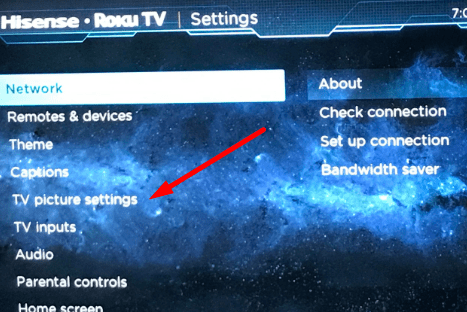
Go ahead and change the picture setting to normal.

Turn off auto power settings

If you already enabled the device to save power, try to disable this feature by going to Settings → System → Power → Auto power savings → turn off the Reduce power after 15 min option.

This should give your device enough power to function properly.

Restart the device
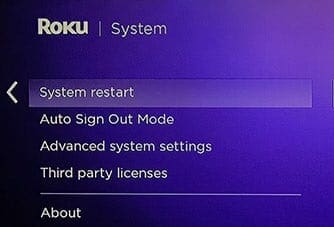
restart roku device

Other users said that simply restarting the device worked for them. Disconnect the power cord, wait one minute, and then power up your device.

If that did not work, consider performing a soft or hard reset on your Roku device. For more information on what that means and the steps to follow, see How to Hard and Soft Reset the Roku.

Use the comments below and let us know if you managed to solve this problem for good.

Categories: Hardware

Author Madalina Dinita

Madalina has been a Windows fan ever since she got her hands on her first Windows XP computer. She is interested in all things technology, especially emerging technologies -- AI and DNA computing in particular.

You Might Also Like

  • Oculus

    VR Oculus Quest 2: How to Play Steam Games

    Mel HawthorneGaming
  • 3D printing header

    3D Printing: Troubleshooting Resin Prints Not Printing

    Mel HawthorneHardware
  • If you are restarting your phone after running in safe mode

    What Is Safe Mode on Android and What You Can Do

    Judy SanhzHardware

Leave a Reply

Your email address will not be published. Required fields are marked *

  • battery issues after windows 11 update

    Battery Issues After Windows 11 Update? Here’s the Fix

  • why is ram so expensive

    Why Is RAM Suddenly So Expensive?

  • how to fix error code 0x800f0922 windows 11

    How to Fix Error Code 0x800f0922 in Windows 11

  • service outage message on Xbox

    What to Do With a Service Outage Message on Xbox

  • signs your hdd is failing

    Signs That Your HDD Is Failing

profile pic

The Experts Behind Technipages

My name is Mitch Bartlett. I've been working in technology for over 20 years in a wide range of tech jobs from Tech Support to Software Testing. I started this site as a technical guide for myself and it has grown into what I hope is a useful reference for all.

Learn More

technipages logo white
linkedin icon

Technipages is part of Guiding Tech Media, a leading digital media publisher focused on helping people figure out technology. Learn more about our mission and team here.

© 2026 Guiding Tech Media All Rights Reserved

  • About Us
  • Contact
  • Terms of Use
  • Privacy Policy

© 2026 Guiding Tech Media All Rights Reserved

Information from your device can be used to personalize your ad experience.
Do not sell my personal information.

Last Updated on November 16, 2020 by Mitch Bartlett