
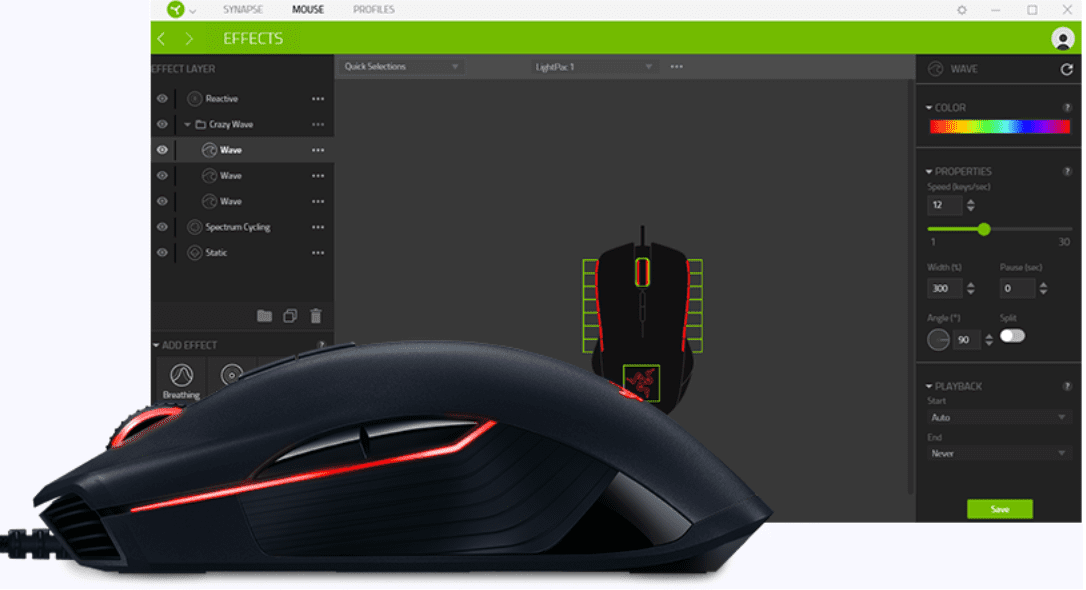
Razer offers a broad range of keyboards that call all be managed with its Razer Synapse 3.0 software. This software allows you to manage everything on the keyboard including backlighting options, integrations with applications, and the action bound to the keys. Managing these functions may appear a little daunting at first but is actually relatively simple.
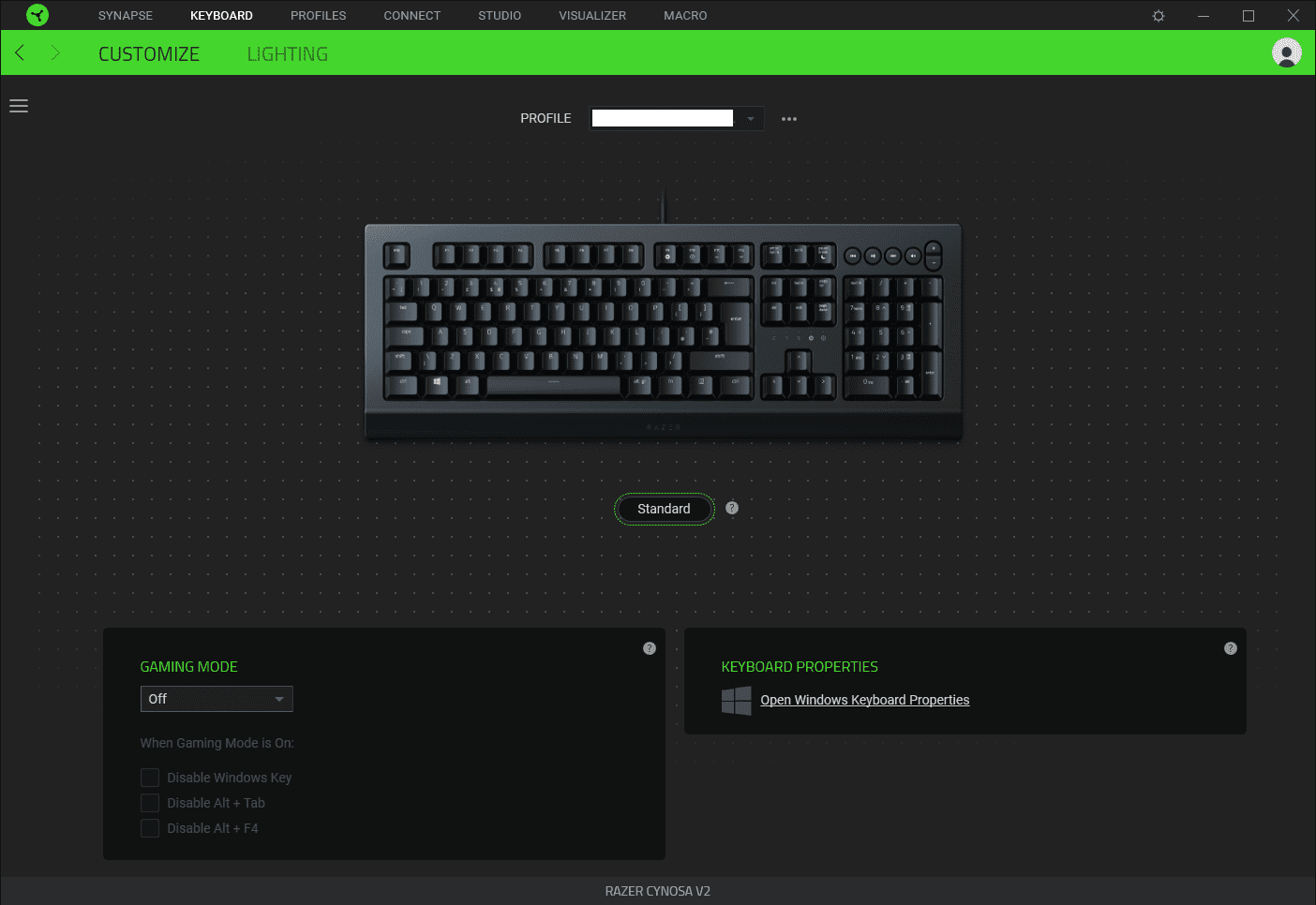
To rebind a key, you first need to open Razer Synapse 3.0, then browse to the “Customize” sub-tab of the “Keyboard” tab. On this tab, you’ll see a representation of your keyboard, click on the key you want to rebind.
Tip: Two keys can’t be rebound, the Windows key and the Function key “fn” used for the Hypershift functionality.
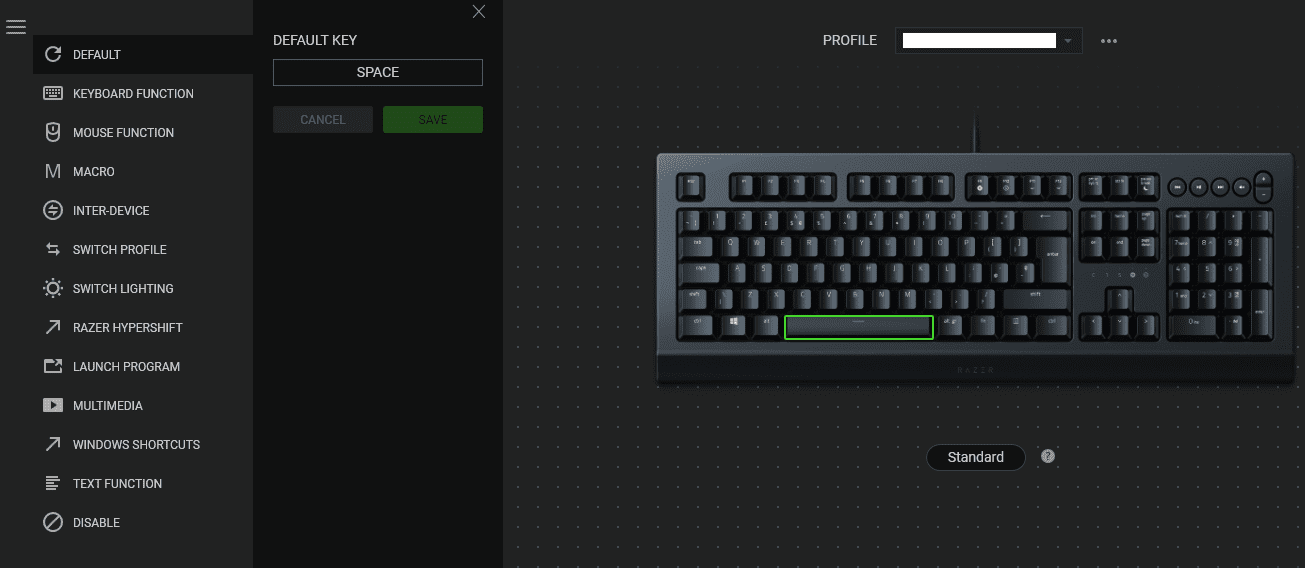
Once you’ve selected a key you want to rebind two columns will appear on the left, allowing you to choose the category of function you want to set and then the specific binding.
Functionality categories
The top category is “Default” which allows you to easily set a key back to its default setting. Below that are “Keyboard function” and “Mouse function” which allows you to set the key to another keyboard key or a mouse button. “Macro” allows you to configure the key to activate a pre-configured macro and provides a link to the macro creation page.
“Inter-device” requires a second Razer Synapse 3.0 compatible device and allows you to change settings on that second device; for example, you could change the sensitivity of your mouse. “Switch profile” allows you to switch to a different keyboard profile, which could be more customised. Switch lighting allows you to pick a basic backlighting option but not any of the advanced custom options. “Razer Hypershift” binds the key to act as another Hypershift activation key.
Tip: “Hypershift” is the brand name for the secondary functionality, it allows you to bind a second function to a key.
“Launch program” allows you to configure a key to launch an application or to open a website. “Multimedia” allows you to configure a multimedia option such as changing the volume, pausing, or muting your microphone. “Windows shortcuts” provides a list of common Windows actions such as copy and paste. “Text function” gives you the ability to have the key type out a customisable message including emoji. Finally, “Disable” completely disables the key.
Once you’ve decided which function to bind the key to, click “Save” and the function will be applied. When a key has been rebound from its original function, it will be highlighted green on the keyboard image, too allow you to easily see which keys have been rebound.



Hallo why cant i bind the macro / shortcut [Ctrl]+[Windows Key]+[Left] or [Right] ???
The fact you cannot remap a windows or a function key is so dumb.
Where did the extra keys on the left (macro keys) go? They are the hole reason I bought razer in the first place: To have more keys to the left of WASD. The “any key is a macro key” doesnt solve this at all. I didnt use them for macros anyway, just to move some keys from the right, unused part of the keyboard over the the left where i can access them without lifting my keyboard hand from the WASD keys (where they need to stay).
Nayro, I found a solution!
You need to add the “Macro” module, and then record it as a macro (you can set delay to 0 afterwards)
And then assign the macro to what key you want :)
Nayr, I want exactly the same!
Please let me know if you found something :)
Hallo why cant i bind the “windows” key?
I need it to switch betw. Desctops ( “Ctrl” + “Win key” + “->”) with my mouse.
And there is no alternative option or anything….