Skip to content
LogoTechnipages
LogoTechnipages
  • Topics
        • Android
        • Browsers
        • Gaming
        • Hardware
        • Internet
        • iPhone
        • Linux
        • macOS
        • Office
        • Reviews
        • Software
        • Windows
        • Definitions
        • All Recent Posts
  • Product Reviews
  • About

PayPal: How to Review Your Recent Logins

Mel HawthorneNovember 27, 2020 Comments (9)

PayPal is a huge online payment provider. As an account that involves dealing with your money, you probably want to keep as on top of its security as possible. The single most important thing you can do to secure your account is to make sure that you’ve got a long, strong, and unique password to access your account. Other important steps include Two-Factor Authentication aka 2FA, ensuring the email account associated with your PayPal account has a secure password, and occasionally reviewing your login activity.

PayPal offers you the ability to look through a historical list of where and when your account has been logged into. By reviewing this information, you may be able to spot a suspicious login, alerting you to the fact that your account may have been compromised.

To review your login history, you need to open PayPal’s settings. To do so, click the cogwheel icon in the top-right corner.

Click the cogwheel icon in the top-right corner to open PayPal’s settings.

Once you’re in PayPal’s settings, switch to the “Security” tab, then click on “Manage your logins” to review your login activity.
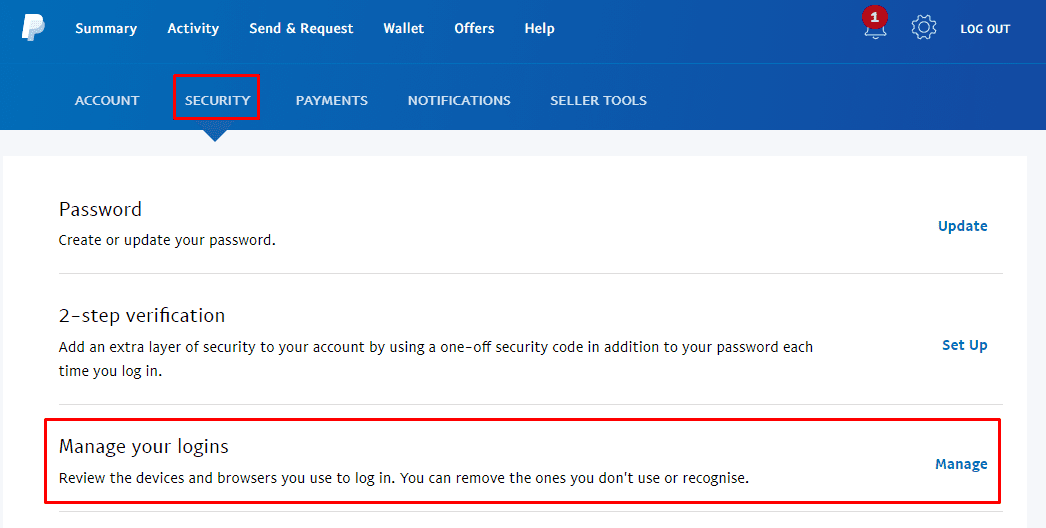
Switch to the “Security” tab, then click on “Manage your logins” to review your login activity.

In the popup, you can then review recent logins. The information included about the logins includes the browser used, the operating system used, as well as the date and time of the login.

Note: It’s possible for the browser and operating system information to be incorrect as this will be based on the self-reported browser user agent which can be highly confusing and is not 100% reliable. For example, Windows 10 is sometimes detected as Windows 8.

If any of the logins look suspicious, especially based on the date and time of login, then you should click the respective “Remove” link to disable that session, then immediately change the password to your PayPal account.
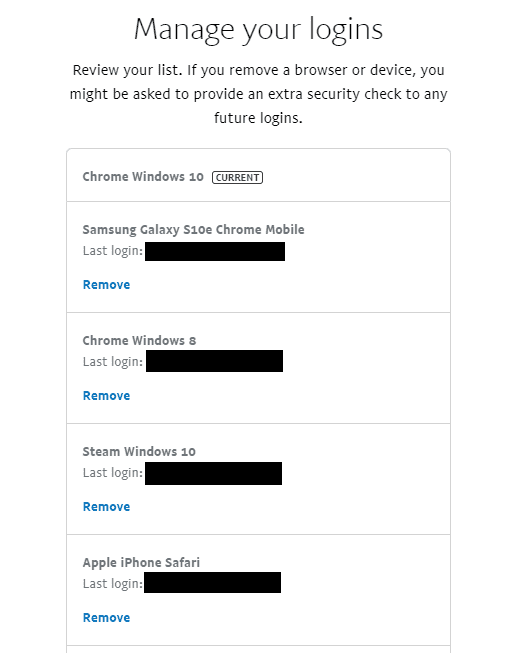
Review the entries in the list for any suspicious entries.

Categories: Internet

Author Mel Hawthorne

You Might Also Like

  • LinkedIn

    How to Change Your Email Account on LinkedIn

    Mel HawthorneInternet
  • How to Play Chrome’s Secret Dino Game

    Judy SanhzInternet
  • Dolphin for Android: How to Change Homepage

    Mel HawthorneAndroid
  • Deep Web Search Engines DuckDuckGo

    DuckDuckGo News: Block Google’s Annoying Pop-Up

    Aaron KimBrowsers

Comments

  1. sir mohamed amiin mukhtar hussein says:
    November 30, 2022 at 2:57 pm

    hello my pay pal is not long in to day i dont what happen pls can u tel me

  2. Sandra Mitchell says:
    November 28, 2022 at 9:43 am

    I can’t access my account on my laptop anymore. What happened and how do I fix this?

  3. Mike Brewer says:
    April 8, 2022 at 1:09 pm

    i want to check on an order that i place

  4. Dez says:
    October 18, 2021 at 8:59 pm

    You now have to enable auto login to see what devices are currently logged in.

  5. David Lute says:
    September 9, 2021 at 4:43 pm

    I forgot my password. You cannot send me the security code because it’s going to my old home phone number. That I do not have anymore. I need to change this phone number to my mobile number to receive the security code.

  6. Tara says:
    July 15, 2021 at 5:58 am

    It’s in the same spot as mentioned in the article, but it’s now called ‘Auto Login’. Still directly underneath the ‘2-Step Verification’ link. Took me forever to accidently stumble on it – I’d clicked on virtually everything else looking for a ‘Manage Logins/Devices’ options, didn’t expect to find it where I did, lol!

  7. Tyler says:
    May 19, 2021 at 9:50 pm

    Manage logins doesnt exist anymore. Now what?!?!

  8. Julie says:
    February 23, 2021 at 8:58 pm

    Paypal removed the “Manage your logins” section. I’ve hinted all over the site and I can’t find where they moved it to! This article is no longer beneficial.

  9. Jireh Hinton says:
    February 23, 2021 at 8:36 pm

    This option no longer exists, please clrify how to do this as of 2.23.21.

Leave a Reply

Your email address will not be published. Required fields are marked *

  • no graphics signal on first boot

    No Graphics Signal on First Boot – How to Fix

  • system32 folder opens on startup

    System32 Folder Opens on Startup – How to Fix

  • browser keeps opening hp support

    Browser Keeps Opening HP Support Assistant Tabs 

  • camera not working in vmware

    Camera Not Working in VMware – How to Fix

  • browser screen goes black

    Browser Screen Goes Black Intermittently 

profile pic

The Experts Behind Technipages

My name is Mitch Bartlett. I've been working in technology for over 20 years in a wide range of tech jobs from Tech Support to Software Testing. I started this site as a technical guide for myself and it has grown into what I hope is a useful reference for all.

Learn More

technipages logo white
linkedin icon

Technipages is part of Guiding Tech Media, a leading digital media publisher focused on helping people figure out technology. Learn more about our mission and team here.

© 2026 Guiding Tech Media All Rights Reserved

  • About Us
  • Contact
  • Terms of Use
  • Privacy Policy

© 2026 Guiding Tech Media All Rights Reserved

Information from your device can be used to personalize your ad experience.
Do not sell my personal information.

Last Updated on November 27, 2020 by Mitch Bartlett