Skip to content
LogoTechnipages
LogoTechnipages
  • Topics
        • Android
        • Browsers
        • Gaming
        • Hardware
        • Internet
        • iPhone
        • Linux
        • macOS
        • Office
        • Reviews
        • Software
        • Windows
        • Definitions
        • All Recent Posts
  • Product Reviews
  • About

Microsoft Teams Notifications Not Working on iPhone

Madalina DinitaJanuary 20, 2021 Comments (0)
fix microsoft teams ios app notifications not working

If you use an iPhone as your work phone, you want to receive all the work-related notifications as soon as they’re available. Even a short delay of only five minutes may push your employer or collaborators to give you a quick call.

Well, if your iPhone fails to deliver Microsoft Teams notifications, use this guide to fix the problem.

Contents

  • 1 Fix Microsoft Teams iOS App Notifications Not Working
    • 1.1 Check Your iPhone Settings
      • 1.1.1 Enable Notifications
      • 1.1.2 Disable Do Not Disturb Mode
    • 1.2 Check Your Microsoft Teams Settings
      • 1.2.1 Enable Notifications on the Teams App
      • 1.2.2 Display Notifications as Permanent Banners
    • 1.3 Are You Active on Your Computer?

Fix Microsoft Teams iOS App Notifications Not Working

Check Your iPhone Settings

Enable Notifications

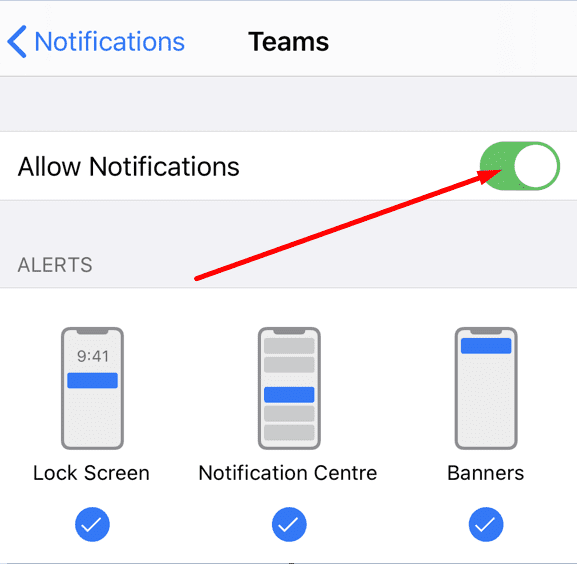
If you accidentally disabled the notifications for Microsoft Teams, don’t be surprised if your iPhone does not deliver them. Go to Settings → Notifications. Scroll down to the Teams app and enable notifications and alerts.allow teams notifications iphone
Disable Do Not Disturb Mode

Make sure this mode is not active. Go to Settings → , tap Do Not Disturb and turn off this option if it’s on.

iphone do not disturb settings

Check Your Microsoft Teams Settings

Enable Notifications on the Teams App

  1. Tap the Teams app and go to Settings.
  2. Then select Notifications and enable the option if it’s off.
Display Notifications as Permanent Banners

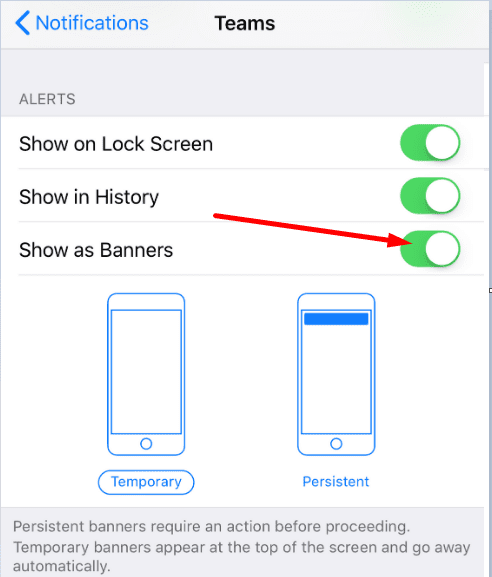
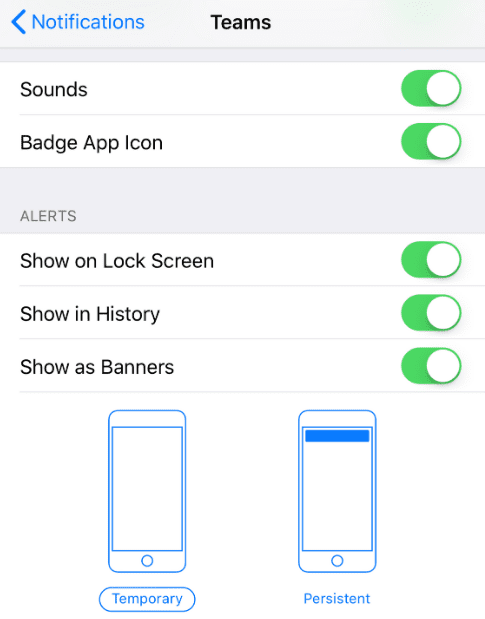
Select how you want your iPhone to display Teams notifications. If they’re displayed as temporary banners, they’ll go away automatically. If you check your iPhone a few minutes after receiving the notifications, you won’t see any.

Set your iPhone display to display Teams notifications as permanent banners. In this manner, the notifications will remain visible until you take action. So, you won’t miss any of them.

  1. Launch Teams, go to Settings and select Notifications.
  2. Under Alerts, toggle on Show as banners.microsoft teams notifications as banners iphone

Check if You Filtered Out Certain Notifications

Microsoft Teams lets you filter what kind of notifications you want to receive. If you’re getting some notifications, but not all of them, maybe you simply filtered them out.

  1. Launch Teams and tap on the app menu.
  2. Go to Notifications and check the notification settings for the following categories: General activity, Channels, and Meetings.general notification settings teams
  3. Then navigate to the Block notifications section and check if you blocked notifications during quiet time or during meetings.

Are You Active on Your Computer?

If Microsoft Teams is active on your computer, the service automatically suppresses notifications on your iOS device. This setting is active by default. It does not matter if you’re using the desktop app or the web version of Teams. As long as you remain active on your computer, you won’t receive any Teams notifications on your mobile device. Microsoft Teams considers you inactive on your desktop app after three minutes of inactivity.

The company adopted this strategy to reduce distractions and focus on the tasks at hand. However, you can opt to get Teams notifications on your iPhone even when you’re active on your computer.

  1. Launch Teams on your iPhone and tap the app menu.
  2. Go to Notifications and locate Block notifications.
  3. Select When active on desktop.microsoft teams notifications when active on desktop
  4. Enable notifications when active on desktop.

We hope that the notification problem has successfully been resolved after checking your notification settings. Found other solutions to fix this issue? Do let us know in the comments below.


Categories: Software

Author Madalina Dinita

Madalina has been a Windows fan ever since she got her hands on her first Windows XP computer. She is interested in all things technology, especially emerging technologies -- AI and DNA computing in particular.

You Might Also Like

  • How to Always Make Microsoft Edge Open in Private Mode

    Judy SanhzSoftware
  • How To Integrate Monday.com Into Microsoft Teams

    MonaSoftware
  • How to Move the Install Folder for a Steam Game

    Mel HawthorneSoftware
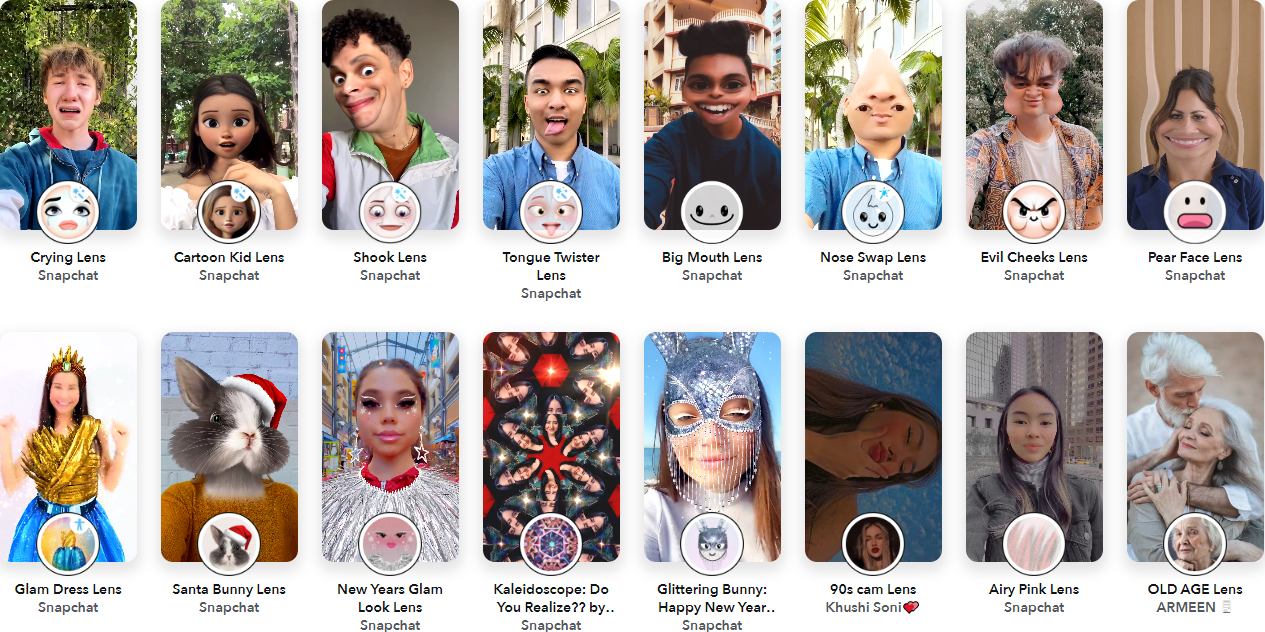
  • 100+ Best Snapchat Lenses for Cool Selfies in 2023

    100+ Best Snapchat Lenses for Cool Selfies in 2023

    Tamal DasAndroid

Leave a Reply

Your email address will not be published. Required fields are marked *

  • system32 folder opens on startup

    System32 Folder Opens on Startup – How to Fix

  • browser keeps opening hp support

    Browser Keeps Opening HP Support Assistant Tabs 

  • camera not working in vmware

    Camera Not Working in VMware – How to Fix

  • browser screen goes black

    Browser Screen Goes Black Intermittently 

  • computer heating up in hyper v

    Computer Heating Up When Using Hyper-V – How to Fix 

profile pic

The Experts Behind Technipages

My name is Mitch Bartlett. I've been working in technology for over 20 years in a wide range of tech jobs from Tech Support to Software Testing. I started this site as a technical guide for myself and it has grown into what I hope is a useful reference for all.

Learn More

technipages logo white
linkedin icon

Technipages is part of Guiding Tech Media, a leading digital media publisher focused on helping people figure out technology. Learn more about our mission and team here.

© 2026 Guiding Tech Media All Rights Reserved

  • About Us
  • Contact
  • Terms of Use
  • Privacy Policy

© 2026 Guiding Tech Media All Rights Reserved

Information from your device can be used to personalize your ad experience.
Do not sell my personal information.

Last Updated on January 20, 2021 by Judy Sanhz