
Some books are available for free in PDF format. If you have a PDF file that you wish to read on your Amazon Kindle Fire, there are two ways you can transfer them over.
Option 1 – Using USB Connection
- Connect the device to your computer using a USB cable. Since it doesn’t come with one, you will need to either purchase one or use one you may have from another device like your smartphone.
- Unlock the screen and the Kindle Fire should mount to the computer.
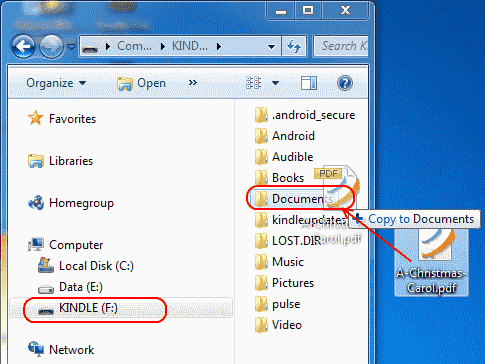
- A drive called “KINDLE” or “Fire” should now be available on your computer. Windows users can check under “Computer“. Mac users can check on the “Finder“. Linux users shouldn’t need to ask. Open the “KINDLE” drive and drag your PDF files to the “Documents” folder.

- Once you’re done transferring files, tap “Disconnect” on the screen.
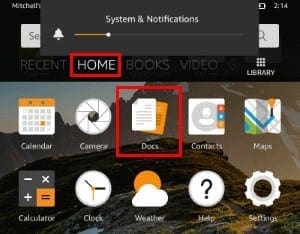
- Select “Docs” from the home page.

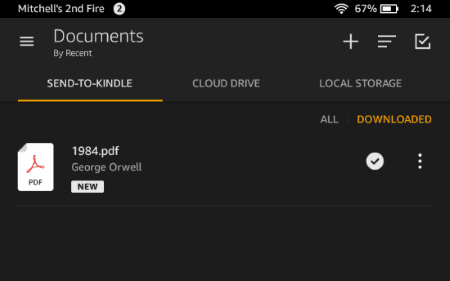
- The PDF file is now available. Tap it to open the file and read it.

Option 2 – Using Email
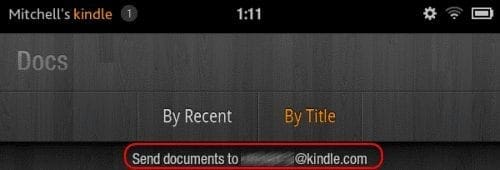
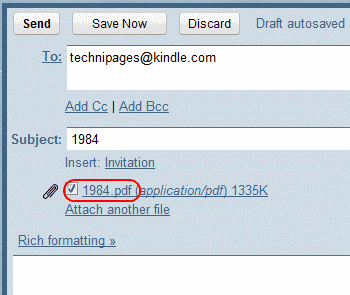
- Access the email account you used to register your Kindle Fire. Send an email to your kindle address with the PDF file as an attachment. You can locate your kindle email address by visiting the Settings page for Manage Your Content and Devices.

- Wait for about 5 minutes for the device to sync.
- Tap “Docs” on the home screen.
- The PDF file you sent should appear in the list. If not, try step 2 again after 5 more minutes and try again.
You’ve successfully learned the 2 ways to transfer a PDF file to your Kindle Fire. Happy reading!
FAQ
The PDF file is on my Kindle Fire, why is not showing up under “Docs”?
Be absolutely sure the file has “.pdf” as an extension and is placed in the “documents” folder on the device. You will not be able to see it otherwise.
I can see the file, it doesn’t open and I receive an error. Why does this happen?
The PDF may be protected with encryption or DRM. These cannot be read under Docs, but you may be able to use a third-party app to read it.
This tutorial was built off the Kindle Fire HD8 version, but should apply to any version.




I often download sewing patterns and am able to print them but sometimes they come up as a pdf file that I can’t print…pages to print are empty. How do I print from pdf files?
I had better luck finding out by myself (like President Lincoln) how to save a pdf from an email than I did from reading this article. I actually had to go to the ‘Downloads/Attachments folder to get the pdf. Also the ‘Save’ button was hidden on the bottom of the screen.
Okay….I don’t get this. If I have to to a computer to get the PDF file I want to read doesn’t that defeat the purpose? Then I would just read it on the computer! I want to be able to open/read the file right away especially if attached to an email. Is that possible without doing the computer connection step? My old Fire HD8 used to open them just fine.
Nope, file is too small to read. Can not enlarge.
No. The pdf files are so small they are unreadable and cannot be enlarged. I took my fire tablet to Best Buy’s Geek Squad and they had no idea how to enlarge the pdf files either. There must be a way of the feature is use less.
Yes, thank you very much.using usb cable I was able to transfer PDF file to fire tablet and open and read.
I have found the best solution is to not use kindle e-reader for personal books. I have tried many avenues and e-readers and this is the best solution I have found. This will also allow you to use documents stored on external drives(microsd).
Take note, some documents would crash in certain pdf readers but the option below I have never had an issue with. I am not associated with these apps, I am just trying to help others.
Download ES File Explorer File Manager – FREE
Download EZPDF Reader – $3.99
ES File Explorer is not strictly needed as EZPDF viewer will scan your drives and provide a quick listing of all readable documents on your device on the ‘All PDF’ tab. However if you have a lot, ES File Explorer can help you manually find the file you are looking for. Also, once you have opened a pdf in EZPDF for the first time, EZPDF has an awesome bookshelf listed as ‘Recent’ you can use in the future to quickly access your document.
The only issue i have found with EZPDF reader is the helpful markup tools that take up some real estate at the top. For people who just want to read pdfs, you can however go into the gear icon shown and turn all of them off except the gear icon itself. for that go into the three dots option at the bottom, Select settings, then scroll to the bottom and reduce toolbar item size to 25 DIP and toolbar opacity to 20%. That should get it out of your way for the most part.
If you found this solution helpful please let me know. – Quentin
‘Linux users shouldn’t need to ask. Open the “KINDLE” drive’
No signs of any such drive. It seems as if Linux does not automatically detect the Kindle Fire. What is the next step to enable the drive detection?
“Once you’re done transferring files, tap “Disconnect” on the screen.”
Can’t find any “Disconnect” to tap on either my desktop computer or my kindle.
I do not have a documents ICON on my screen and can not activate it. I did load a file from my PC but have no ICON to access it on my HD8
Yes, James from April of 2018, my husband and I have the same issue! Anny ideas out there as to how to reformat so we xan see an entire page at a time rather an a screen of thumbnails?
Hi, is there any way to organise PDFs into subfolders?
I accidently delete the document folder and now cant see any file when I transfer PDF to kindly…How can I replace that ‘ document’ folder
I tried , managed to find the pd f hiding in documents but still can’t open them.
Tried downloading a pd f reader, still no luck , as I travel a lot i have previously downloaded knitting patterns on my old Hudl with no problems , this tablet is driving me crazy.
No help with my issue. I can find and open the pd f menu, but all I get is the little pages, 12 to a screen, which are unreadable. When I try to click on a specific page, it will not open further, so I cannot actually read any type of pdf file.
Thank you for explaining how it works. Very helpful
This is why a person should not buy a Kindle.
It should be a simple tap to download a book that is not purchased through Amazon.
Thank you, it worked! I can read my books now.
No help. I have my own PDF. Could not find away to import or any other way to open one.