The benefit of sleep mode on your Windows 11 computer is that it lets you quickly pick up from where you left off. But if you’re in the middle of a big download, you should avoid going into sleep mode on your computer. Plus, some users like to come back to a screen that’s already on and not have to log in again. Please keep reading to see how you put your computer into sleep mode and how to prevent it from sleeping. You’ll see the options only to put it to sleep after a while or keep it awake indefinitely.
Contents
How to Put Your Windows 11 Computer Into Sleep Mode
You can put your Windows 11 computer into sleep mode in various ways. One way is to right-click the Windows Start menu and place the cursor on the Shut Down or Sign Out option. When the side menu appears, click on the Sleep option.
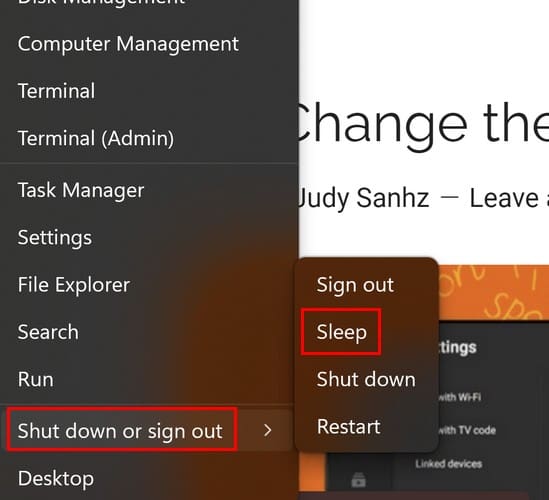
You can also click on the Windows Start Menu option and the power button. The power button will show you various options, and sleep will be one of them.
Putting Your Windows 11 Computer to Sleep Using Settings
Another option you can use to put your computer into sleep mode is Settings. Press the Windows + I keys, and once in Settings, go to:
- System
- Power and Battery
- Screen and sleep

When the options appear, you’ll see a dropdown menu for options such as:
- On battery power, turn off my screen after
- When plugged in, turn off my screen after
- On battery power, put my device to sleep after
- When plugged in, put my device to sleep after
Since we’re considering putting or not your computer to sleep, the last two options are the ones needed. In the dropdown menu, you can choose options from as little as one minute to as much as never. So, you can use this option to put your computer into sleep mode and prevent it from sleeping. You can go back at any time and change the options again.
If you like keyboard combinations, simultaneously press the Ctrl + Alt + Delete buttons. Click on the power button at the bottom right and choose sleep. You can also press the power button on your computer for a few seconds, putting it to sleep. Be careful not to press it for too long; you could turn your computer off.
How to Put Your Windows 11 Computer to Sleep Using the Control Panel
If you feel Comfortable Using the Control Panel, you can put your computer to sleep through it. Open the Control Panel by typing its name in the search field and choosing the best result. Once it’s open, go to:
- System and security
- Power options
- Change plan settings
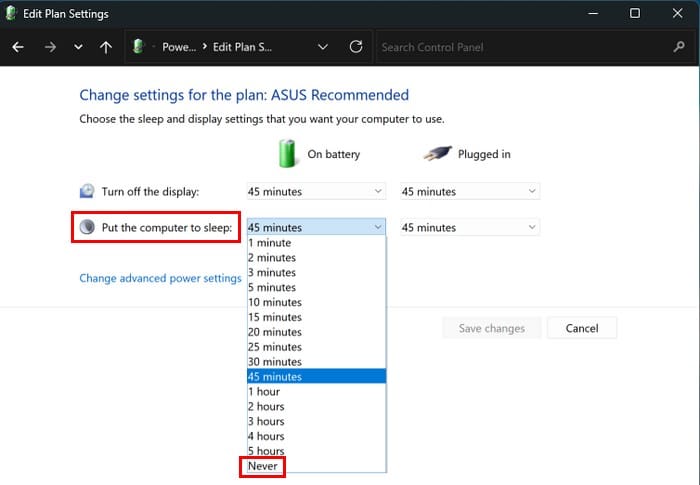
The second option will be the Put the computer to sleep. Click on the dropdown menu and choose to put it to sleep quickly. Or, if you don’t want it ever to sleep, you can also select the Never option. You’ll need to choose the same option for when your computer is plugged in and on battery. When you make the changes, click on the Save Changes button to save your changes.
How to Stop Your Windows 11 Computer from Sleeping
In the previous section, you saw how to put your Windows 11 computer into sleep mode. You can follow the exact instructions, but choose the Never options in Settings when you’re in Power and Battery.
- Settings
- System
- Power and Battery
- Choose never for the last two options (On battery power, put my device to sleep, and When plugged in, put my device to sleep after).
In the Control Panel, follow the exact instructions and choose the Never option.
- Open Control Panel
- System and Security
- Power Options
- Change plan settings
- Put the computer to sleep
- Never
You can also prevent your computer from sleeping by using Microsoft PowerToys. Once you install it, click the Awake option on the left and toggle on the option. Under the Behavior options, you’ll see a Mode option. Click on the dropdown menu and choose the option to keep awake indefinitely. You’ll also need to toggle on the option for Keep screen on. That’s all there is to it.
Further Reading
You never know what problems you’ll encounter on your Windows computer. If your computer won’t go to sleep mode, here are some useful tips you can try. Or, if you only want to put some Windows apps to sleep but not the computer, we’ve also got you covered. You can track how you sleep; in that case, you can track sleep with a Google Pixel watch.
Conclusion
Putting your computer to sleep has benefits, but some users always want to return to a screen that’s always on. In that case, the steps mentioned in this guide will help you with that. You won’t have to sign in again and instantly pick up where you left off. Which method is best for you? Let me know in the comments below, and remember to share the article with others on social media.