Skip to content
LogoTechnipages
LogoTechnipages
  • Topics
        • Android
        • Browsers
        • Gaming
        • Hardware
        • Internet
        • iPhone
        • Linux
        • macOS
        • Office
        • Reviews
        • Software
        • Windows
        • Definitions
        • All Recent Posts
  • Product Reviews
  • About

How to Turn Outlook Emails into Tasks

Madalina DinitaJanuary 11, 2021 Comments (0)

Did you know that you can quickly turn Outlook emails into tasks? If your boss is constantly bombarding you with new tasks via email, feel free to use this productivity tip. You can add those tasks to your to-do list with a single click.

How to Convert Outlook Emails into Tasks

First, connect to Outlook Live. Then, click on the To-Do icon. Please select the email you want to turn into a task and drag it to the Add as a task area.add outlook email as task
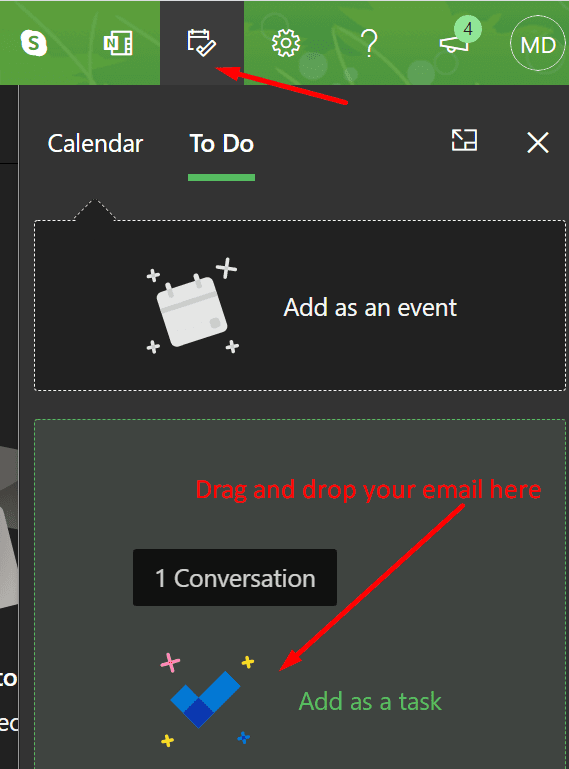
The email subject becomes the title of your task. The body of the email becomes the task details. And that’s the beauty of this method. You don’t need to retype the whole email body manually. Outlook will take care of that.

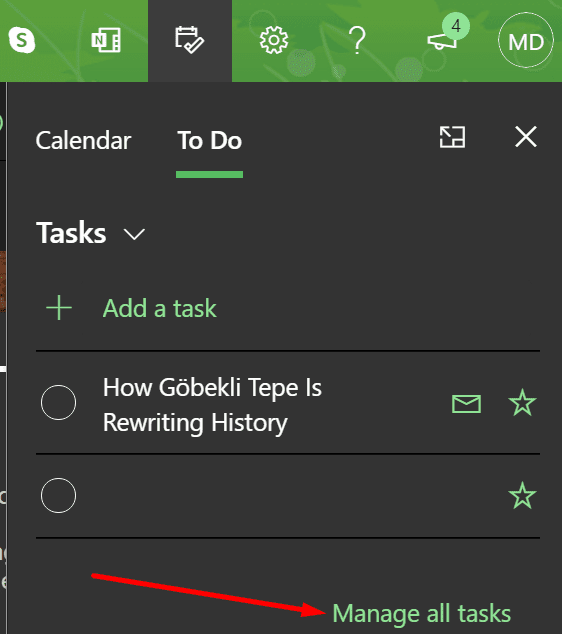
To add additional task details, click on Manage all tasks. This option is visible in the lower right-hand corner of the screen. Click on it to open the To-Do Live page.manage all tasks outlook
Click on the task to open additional options. You can manually add the start date and the end date for that task. Of course, you can also clean up the task details by removing non-essential information. Keep the description short and simple.add task details outlook
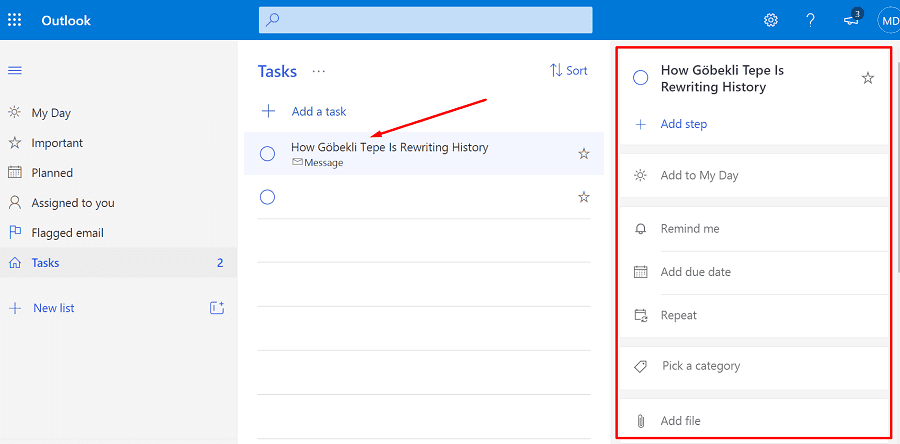
You can also list the steps you need to follow to complete the task. Or set a reminder to make sure you meet the deadline for that task. Additionally, you can pick a category and add file attachments related to that task.

You can always open the original email by clicking on the Open in Outlook link from the task’s detail view.

How to Create Tasks from Flagged Emails

Another method consists of creating tasks from flagged emails. If you’re using the stand-alone Outlook app, click on the To-Do icon.create tasks from flagged emails outlook app
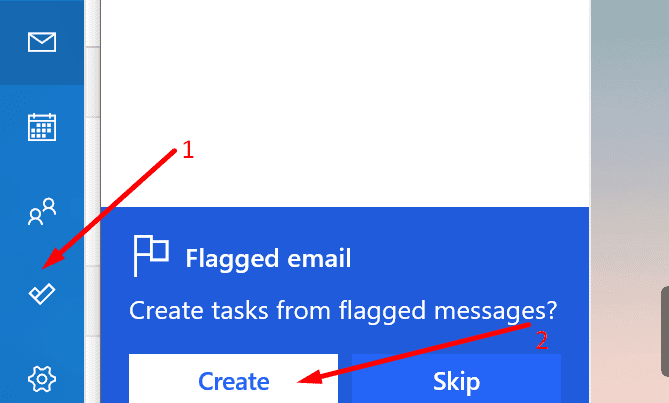
If you’re using Outlook in your browser, go to the To-Do Live page and click on Flagged email (left pane). Outlook will automatically turn your flagged emails into tasks.
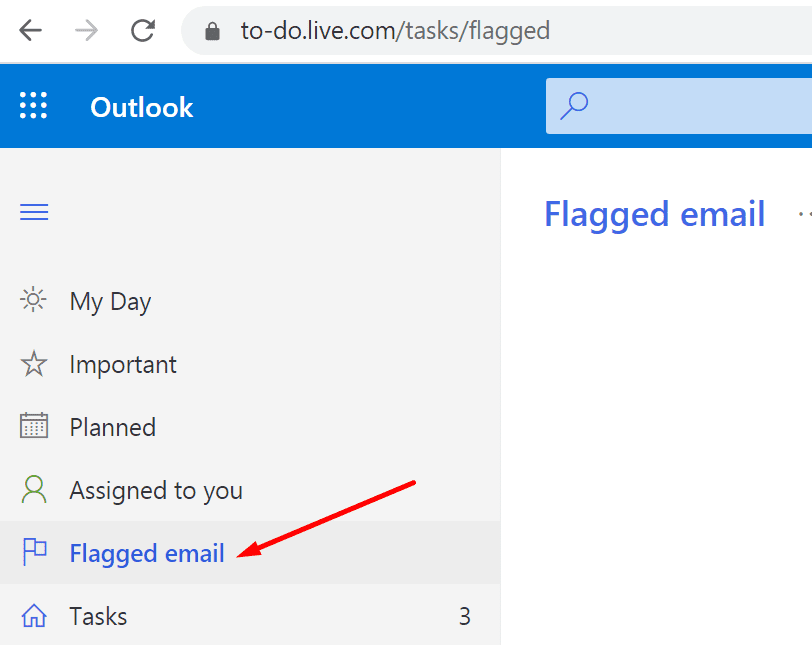
flagged email create tasks outlook

Keep in mind that you can only use this option for the emails flagged in the last 30 days. Additionally, there’s a maximum number of 100 flagged emails that you can turn into tasks.


Categories: Software

Author Madalina Dinita

Madalina has been a Windows fan ever since she got her hands on her first Windows XP computer. She is interested in all things technology, especially emerging technologies -- AI and DNA computing in particular.

You Might Also Like

  • Google Chrome Logo Header

    How to Add Print Button to Bookmarks Bar in Google Chrome

    Mitch BartlettSoftware
  • Visual Studio Logo

    Visual Studio: Disable Precompiled Headers

    Mitch BartlettSoftware
  • powerpoint reverts to first slide fix

    How to Turn Text Upside Down in Microsoft PowerPoint

    Judy SanhzSoftware
  • Zoom

    How to Easily Create a Quiz on Zoom

    Judy SanhzSoftware

Leave a Reply

Your email address will not be published. Required fields are marked *

  • error 400 when signing in

    Encountered Error 400 When Signing In to Microsoft? Here’s What You Can Do 

  • unable to create notebook error in onenote

    We Were Unable to Create Your Notebook Error in OneNote – Common Fixes 

  • error code 0x800704f8 fix

    Error Code 0x800704f8 – How to Fix 

  • back button in browsers doesnt work

    What to Do if the Back Button in Browser Doesn’t Work 

  • could not find this item

    “Could Not Find This Item” When Trying to Remove Files

profile pic

The Experts Behind Technipages

My name is Mitch Bartlett. I've been working in technology for over 20 years in a wide range of tech jobs from Tech Support to Software Testing. I started this site as a technical guide for myself and it has grown into what I hope is a useful reference for all.

Learn More

technipages logo white
linkedin icon

Technipages is part of Guiding Tech Media, a leading digital media publisher focused on helping people figure out technology. Learn more about our mission and team here.

© 2026 Guiding Tech Media All Rights Reserved

  • About Us
  • Contact
  • Terms of Use
  • Privacy Policy

© 2026 Guiding Tech Media All Rights Reserved

Information from your device can be used to personalize your ad experience.
Do not sell my personal information.

Last Updated on January 11, 2021 by Judy Sanhz