
Move over Google and Bing, there’s a new competitor in town. ChatGPT and other AI tools have quickly become the go-to search engine of choice for many users, in addition to all their other functions. But constantly having to swap tabs to search can get a bit tiring.
Thankfully, there’s a way to make ChatGPT your default search engine on all major browsers and skip that extra step. This article will be looking at how to set ChatGPT as default search engine on both Chrome and Edge.
Contents
ChatGPT as Default Search Engine for Mozilla Firefox
When it was first introduced, ChatGPT made its browser search option available only to paying members. OpenAI (its parent company) has since made it free to all. Apparently, it only made sense to enable more seamless integration for an indispensable tool used by many.
Edge and Chrome are both Chromium browsers and have many similarities. Which means ChatGPT works with both. We’ll be showing you how to add ChatGPT both manually and as an add-on for both browsers.
How to Set ChatGPT as Default Search Engine Manually
Here’s how to replace your search engine with ChatGPT in both browsers:
Google Chrome
Here’s what to do for Chrome:
1. Click the hamburger menu (three dots) on the right side of the search bar and choose Settings.

2. In the Settings menu, choose “Search Engine” from the sidebar.
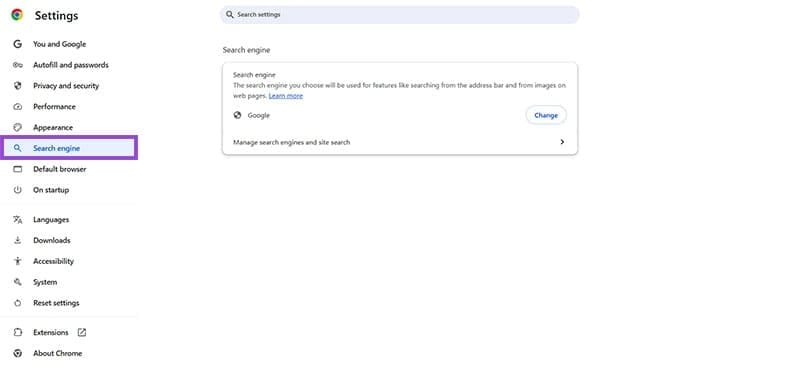
3. Under the “Search Engine” group, click the “Manage search engines and site search.”
4. Scroll down to the “Site search” subgroup and click the “Add” button.

5. A new window will pop up. Name it “ChatGPT” and input the shortcut (a term to use when you want to trigger the ChatGPT Search quickly in the Search Bar) as “@ChatGPT.”
6. Input the URL as https://chatgpt.com/?q=%s and click “Add” to finalize.
7. Now, to search via ChatGPT, simply enter the term “@ChatGPT” before the query.
Microsoft Edge
In Edge, the process is quite similar:
1. Open Settings via the hamburger menu on the right of the screen.

2. Choose “Privacy, search, and services” from the sidebar menu.
3. Click “Search and connected experiences” from the new menu.

4. Under that menu, choose “Address bar and search.”
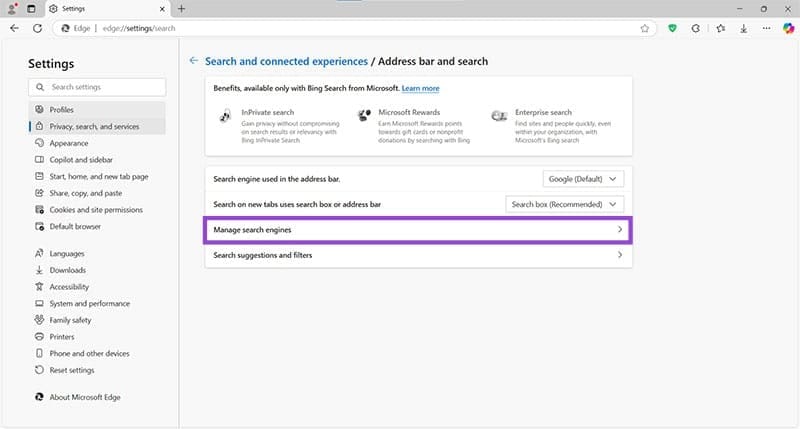
5. Select “Manage search engines” to see the current list of search engines and sites.
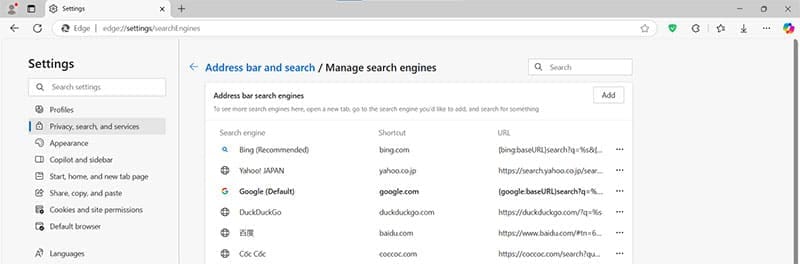
6. As with Chrome, click the “Add” button, then input the name, shortcut, and URL of ChatGPT (ChatGPT, @ChatGPT, https://chatgpt.com/?q=%s) respectively.

How to Set ChatGPT as Default Search Engine by Extension
The above method is perfectly serviceable, but if you’re looking to completely replace Google, Bing, or whatever your current search engine is with ChatGPT, then you’ll need to install the ChatGPT extension. Remember, you have to be logged into the chatbot for it to work correctly. Here’s how to set ChatGPT as default search engine for both browsers:
Google Chrome
Here’s how to set ChatGPT as default search engine for Chrome, the simpler of the two processes:
1. Start by adding the extension to your browser. You can find it here.
2. Click “Add to Chrome” to begin the installation.

3. Google Chrome should now be using ChatGPT as your default search engine. You can double-check by heading to Settings and checking under the “Search Engine” menu.
Microsoft Edge
Microsoft Edge may put up more of a fight (security-wise) when installing ChatGPT, but it’s still possible:
1. You’ll need to start by downloading the extension from the Chrome web store, as Microsoft doesn’t have it in theirs.
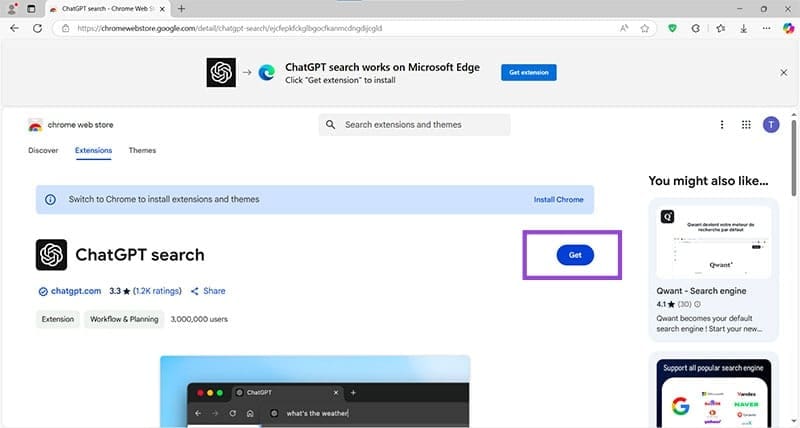
2. Click “Get” to begin installation and then hit “Allow” on the warning popup that’ll appear.

3. You’ll then get a warning message that Edge has disabled the extension. Click the “Turn on” button to override this decision.
4. ChatGPT should now be the default search engine.