Skip to content
LogoTechnipages
LogoTechnipages
  • Topics
        • Android
        • Browsers
        • Gaming
        • Hardware
        • Internet
        • iPhone
        • Linux
        • macOS
        • Office
        • Reviews
        • Software
        • Windows
        • Definitions
        • All Recent Posts
  • Product Reviews
  • About

How to See and Erase Starred WhatsApp Messages

Judy SanhzSeptember 28, 2020 Comments (0)
whatsapp not downloading media fix

You send so many messages on your WhatsApp that it is practically impossible to count them all. Most of the messages you send or receive are probably not so vital that you want to label them as such.

But, there are times when you get a message with info that you want to have quick access to. That’s where WhatsApp’s starred messages come in. It’s not visible as soon as you open the app, but accessing them is quick.

Contents

  • 1 How to Star a WhatsApp Message
  • 2 How to Erase Starred WhatsApp Messages
    • 2.1 Conclusion

How to Star a WhatsApp Message

WhatsApp has a search option that allows you to find specific words or phrases in your conversations. But, even with that tool finding, particular messages can be quite the challenge. By starring a message in WhatsApp, you set that message aside on a select list where they’ll be saved for later.
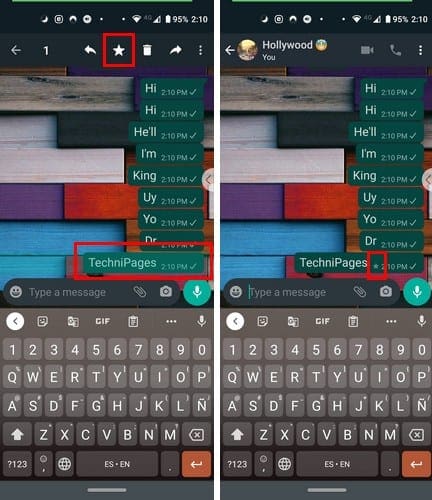
To star a message, long-press on the message. On the top, to the left of the trash icon, you’ll see the start icon. Tap on the star, and you’ll see how a star floats up from the messages you selected. To the right of the message, you’ll also see a star indicating that it was saved correctly.

To see the starred message you’ve saved, go WhatsApp’s main page and tap on the dots at the top right. Tap on the Starred Messages option, and you’ll see a list of all the messages you’ve starred.

How to Erase Starred WhatsApp Messages

When a message is no longer that important that you want to keep it in the starred list, it’s time to erase it. There are two ways you can erase those messages. You can long-press on the message directly in the chat; it’s in and tap on the star with the line across it or if you want to erase the message altogether, tap on the trash icon.
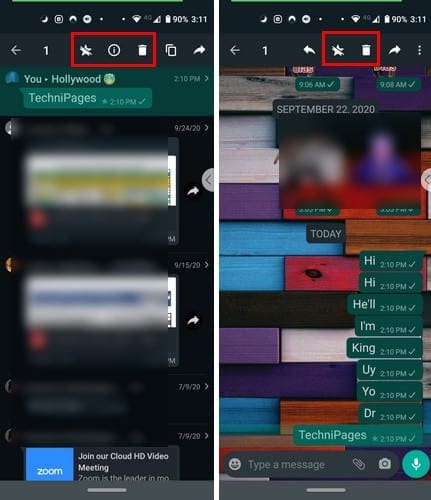
It’s also possible to erase the message directly from the Starred list. In the app’s main page, tap on the dots at the top right and go to Starred Messages—long-press on the message and tap on the star with the line across it.

As long as you’re in the Starred Messages list, there are other things you can do. For example, after you long-press on a message, tap on the dots at the top right, and you’ll get the option to message the person who sent you the message. This is useful when you need to ask the person something about the message or file.

You’ll also see an icon of an arrow pointing forward. Tap on this option, and you can forward the message. The share option is also going to be there, just in case you want to move that file to Google Drive, for example.

Conclusion

You can save anything you get on WhatsApp as a starred message. Whether it’s a text message or an image, the same steps apply.

Categories: Android

Author Judy Sanhz

I am a tech geek who loves technology. I have been writing about tech for over a decade, covering various devices and programs. I write about Android, Apple, and Windows devices and programs. I stay updated on the latest gadgets, upgrades, features, and news. I aim to make complicated tech information easy for everyone to read. I've been with TechniPages from the beginning to help others fix their tech issues with the easy-to-follow guides.

You Might Also Like

  • Android: Restore Prompt For Default Application

    Mitch BartlettAndroid
  • Block Text Header

    Galaxy S23: Block Text Messages & Calls

    Mitch BartlettAndroid
  • Gear Icon Header

    Fix: Android App Widgets Not Appearing

    Mitch BartlettAndroid
  • Amazon Fire: Clear Browser Cache, History, or Cookies

    Mitch BartlettAndroid

Leave a Reply

Your email address will not be published. Required fields are marked *

  • battery issues after windows 11 update

    Battery Issues After Windows 11 Update? Here’s the Fix

  • why is ram so expensive

    Why Is RAM Suddenly So Expensive?

  • how to fix error code 0x800f0922 windows 11

    How to Fix Error Code 0x800f0922 in Windows 11

  • service outage message on Xbox

    What to Do With a Service Outage Message on Xbox

  • signs your hdd is failing

    Signs That Your HDD Is Failing

profile pic

The Experts Behind Technipages

My name is Mitch Bartlett. I've been working in technology for over 20 years in a wide range of tech jobs from Tech Support to Software Testing. I started this site as a technical guide for myself and it has grown into what I hope is a useful reference for all.

Learn More

technipages logo white
linkedin icon

Technipages is part of Guiding Tech Media, a leading digital media publisher focused on helping people figure out technology. Learn more about our mission and team here.

© 2026 Guiding Tech Media All Rights Reserved

  • About Us
  • Contact
  • Terms of Use
  • Privacy Policy

© 2026 Guiding Tech Media All Rights Reserved

Information from your device can be used to personalize your ad experience.
Do not sell my personal information.

Last Updated on September 28, 2020 by Mitch Bartlett