Even if you haven’t personalized your computer’s lock screen, you still get lovely images when you access your lock screen. But, even though the pictures are nice, you may still prefer to look at others that come from a specific source. You can make all sorts of changes to your lock screen and change the images and what info you can look at. For example, if you have an event coming up, you can easily have your lock screen show it to you, so you don’t miss it. Just in case you missed it.
Contents
How to Change the Image on the Lock Screen on Windows 11
Windows Spotlight is the option that is set by default on your computer. As mentioned, it offers very nice images, but you may prefer something else. You can easily change that by pressing the Windows, and I keys to go to Settings. Once you’re in Settings, click or tap on the Personalization option on your left. Now choose the Lock Screen option.

You’ll have different options for adding an image in the Lock Screen section. You can click on the dropdown menu for the Personalize your lock screen option. You can choose from three different options such as:
- Windows Spotlight
- Picture
- Slideshow
You’ll also see an option to add any album you want to the slideshow. The folder you choose will appear below this option, just in case you forget which one you choose. If you would instead not get tips and tricks and other info, you can uncheck the box for that option. There are other options you can use when it comes to the images it chooses, such as:

- Include camera roll folders from this PC and OneDrive
- Only Pictures that fit my screen
- Play a slideshow when using battery power
- When my PC is inactive, show the lock screen instead of turning off the screen
- Turn off the screen after the slideshow has played for
How to Show Weather, Calendar, or Mail on Lock Screen on Windows 11
Under lock screen status, you can choose what info you want the lock screen to display. You can choose from options such as Calendar, Weather, or Mail. You can also have the lock screen image on the sign-in area as well. If you want that, simply toggle on the option, and you’re good to go.

If you don’t like the lock screen appearing too soon, there is a change you can make so it can be at the most convenient time for you.
How to Change the Timeout Setting on Windows 11
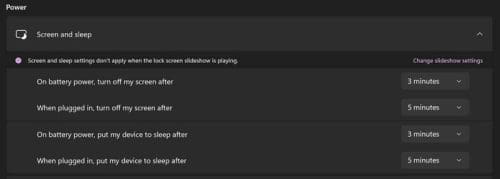
Whether you want to keep your screen on for a short amount of time or not, you can change the screen timeout by going to Settings > Personalization > Screen timeout and, from the list of options, choose your preferred time.
Further Reading
If your Windows 11 computer is not showing you the lock screen at some point, here are some helpful tips to fix the issue. As long as we’re on the subject of the lock screen, here is how you can change the Android 12 lock screen. Also, the Windows Spotlight feature can occasionally fail; if it’s not changing the image, here is what you can do to fix it.
Conclusion
The lock screen is not something you look at for a long time, but that doesn’t mean you can’t make a few changes here and there. You can change the image you see every time and how much time needs to pass to see it. With a few clicks here and there, you can choose the source of the pictures you see on your lock screen. What changes did you make to your lock screen? Let me know in the comments below, and don’t forget to share the article with others on social media.