Skip to content
LogoTechnipages
LogoTechnipages
  • Topics
        • Android
        • Browsers
        • Gaming
        • Hardware
        • Internet
        • iPhone
        • Linux
        • macOS
        • Office
        • Reviews
        • Software
        • Windows
        • Definitions
        • All Recent Posts
  • Product Reviews
  • About

Fix: Windows 11 Is Not Showing the Lock Screen

Madalina DinitaDecember 3, 2021 Comments (0)
fix-no-lock-screen-windows-11

The lock screen option may sometimes disappear on Windows 11, leaving you unable to lock your computer. If you’re experiencing similar issues, try restarting your device, press the Windows and L keys, or Ctrl, Alt, and Delete. If the Lock Screen option is still missing, pursue the troubleshooting steps below.

Contents

  • 1 Fix: There’s no Lock Screen on Windows 11
    • 1.1 Enable Lock Screen
      • 1.1.1 Tweak Your Registry to Enable Lock Screen on Windows 11
      • 1.1.2 Edit GPO Settings to Enable Lock Screen on Windows 11
    • 1.2 Repair System Files
    • 1.3 Reset Your PC
    • 1.4 Conclusion

Fix: There’s no Lock Screen on Windows 11

Enable Lock Screen

First, make sure the Lock Screen option is enabled on your device. You can use the Registry Editor or Local Group Policy Editor to enable this feature.

Tweak Your Registry to Enable Lock Screen on Windows 11

  1. Click on the Search icon and type Registry.
  2. Open the Registry Editor app.
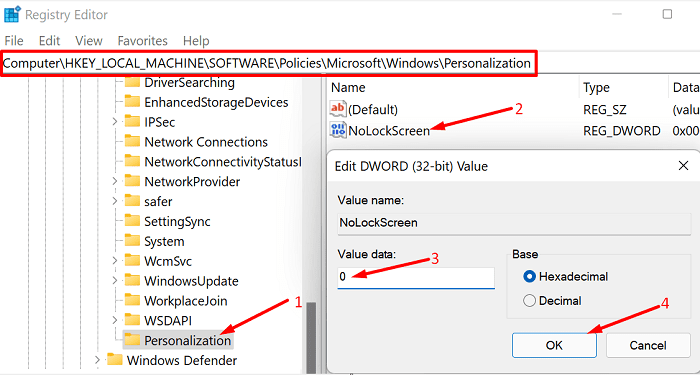
  3. Navigate to Computer\HKEY_LOCAL_MACHINE\SOFTWARE\Policies\Microsoft\Windows
  4. Then, right-click on the Windows folder.
  5. Select New → Key.
  6. Name the new folder Personalization.
  7. Right-click on the Personalization folder.
  8. Select New → DWORD (32-bit) Value.
  9. Name the new key NoLockScreen.
  10. Make sure its Value data is set to 0 (zero).windows-11-NoLockScreen-settings
  11. Save the settings and restart your computer.
Edit GPO Settings to Enable Lock Screen on Windows 11

If you’re using Windows 11 Pro, you can also enable the Lock Screen using the Group Policy Editor. Windows 11 Home doesn’t support the Group Policy Editor.

  1. Open the Local Group Policy Editor.
  2. Then, go to Computer Configuration.
  3. Select Administrative Templates.
  4. Click on Control Panel.
  5. Go to Personalization.
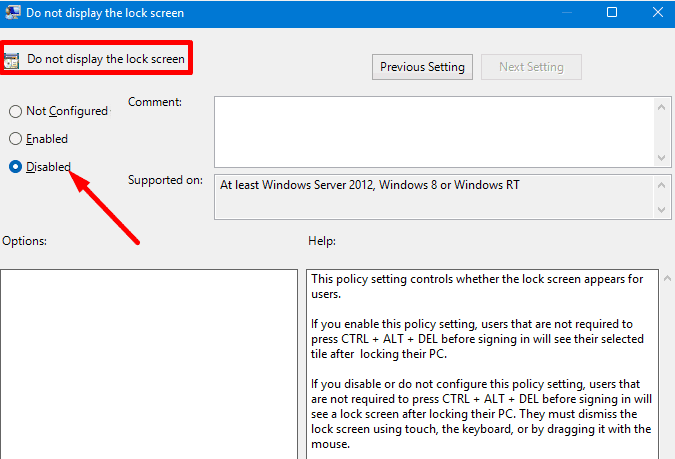
  6. Double-click on Do not display the lock screen.
  7. Disable this policy.windows-11-Do-not-display-the-lock-screen-GPO
  8. Restart your machine.

Repair System Files

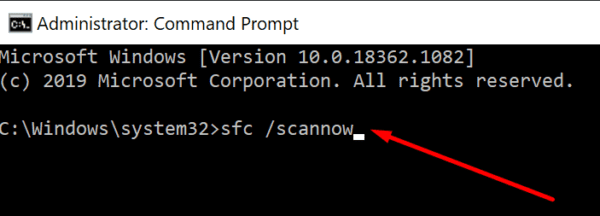
Corrupted and missing system files can trigger all sorts of issues, including the Lock Screen glitch that you’re experiencing. Use the System File Checker and Deployment Image Servicing and Management tool to detect and repair broken system files automatically.

  1. Launch Command Prompt with admin rights.
  2. Enter the DISM.exe /Online /Cleanup-Image /Restorehealth command.
  3. Hit Enter and wait until your machine finishes running the command.
  4. Then, enter the sfc /scannow command.run SFC command prompt
  5. Restart your computer and check the results.
Reset Your PC

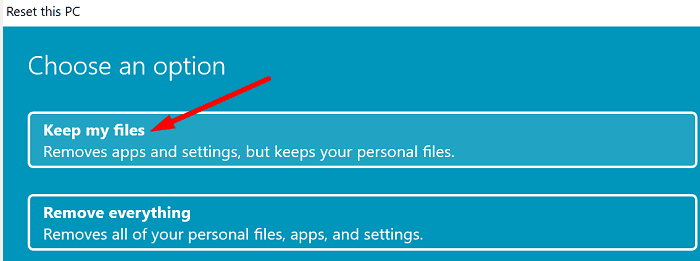
If the issue persists, try resetting your computer. Make sure to select the option that allows you to keep your files.

Navigate to Settings, and select System. Go to Recovery and select Reset this PC. Then, select the Keep my files.
reset-this-PC-keep-my-files

Conclusion

If there’s no Lock Screen available on Windows 11, make sure to enable the option by tweaking your Registry Editor or GPO settings. Then run DISM and SFC to repair system files. If the issue persists, reset your PC and keep your personal files.

Did you manage to solve the problem? Hit the comments below and let us know which of the methods above worked for you.

Categories: Windows

Author Madalina Dinita

Madalina has been a Windows fan ever since she got her hands on her first Windows XP computer. She is interested in all things technology, especially emerging technologies -- AI and DNA computing in particular.

You Might Also Like

  • Microsoft Teams Error caa2000b

    Troubleshooting Microsoft Teams Error caa2000b

    Madalina DinitaWindows
  • Outlook Get Add-ins Button Is Grayed Out Top 5 Solutions in 2023

    Outlook Get Add-ins Button Is Grayed Out: Top 5 Solutions in 2023

    Tamal DasOffice
  • Difference Between Windows 11 Home and Pro Everything You Need to Know

    Difference Between Windows 11 Home and Pro: Everything You Need to Know

    Susan SheffieldWindows
  • iCloud Upgrade Failed Header

    How to Fix Upgrade to iCloud for Windows Failed Error: 6 Best Proven Methods

    Susan SheffieldWindows

Leave a Reply

Your email address will not be published. Required fields are marked *

  • clipchamp unexpected application error

    Clipchamp Unexpected Application Error: Here’s the Solution 

  • winload.efi file missing error

    Winload.EFI File Missing Error on Boot – How to Fix

  • fix error 0x9cfc7550

    How to Fix Error 0x9cfc7550 (We Couldn’t Create a New Partition) in Windows 

  • fix error code 0x3000008 1

    How to Fix Error Code 0x3000008 for Remote Desktop Connection

  • fix error code 0x80190001 1

    How to Quickly Fix Error 0x80190001 for Microsoft or Outlook Account Login 

profile pic

The Experts Behind Technipages

My name is Mitch Bartlett. I've been working in technology for over 20 years in a wide range of tech jobs from Tech Support to Software Testing. I started this site as a technical guide for myself and it has grown into what I hope is a useful reference for all.

Learn More

technipages logo white
linkedin icon

Technipages is part of Guiding Tech Media, a leading digital media publisher focused on helping people figure out technology. Learn more about our mission and team here.

© 2025 Guiding Tech Media All Rights Reserved

  • About Us
  • Contact
  • Terms of Use
  • Privacy Policy

© 2025 Guiding Tech Media All Rights Reserved

Information from your device can be used to personalize your ad experience.
Do not sell my personal information.

Last Updated on December 3, 2021 by Judy Sanhz