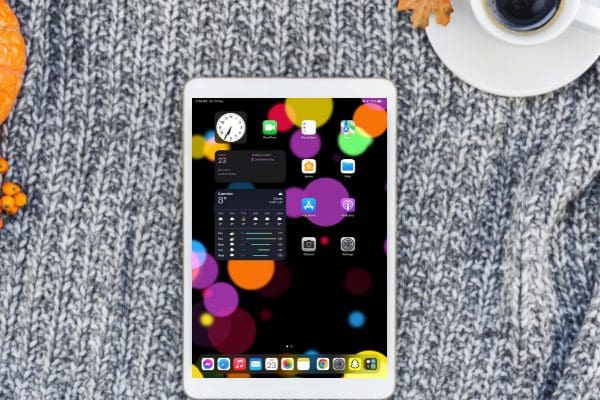
Are you one of those iPad users who have all the necessary apps downloaded on the device but can’t find any when needed? Know how to organize apps on iPad.
iPad comes with a bigger screen than your smartphone. But, it can still be challenging to locate any particular app as the number of your downloaded apps increase.
Even if you don’t use it every day, it’s good to organize apps on the iPad. Here are the best ways to manage iPad apps.
Contents
How to Organize Apps on iPad: Top 5 Methods
Use Folder Feature
The folder is an efficient way to organize apps on the iPad. You can put all similar apps in one folder for your convenience.
For that, long press any app icon to drag and drop it on another. Thus, these two apps will be grouped in a folder. You can also add more apps to the group by dragging.
If you keep swiping left from your Home screen, you’ll find that your iPad has already clubbed similar apps together in folders. The folder names are generated automatically, and you can’t change them manually.
However, you can change the name of the folders you create. Just tap and press the folder until you can rename it.
Prioritize Frequently Used Apps
On your iPad Home screen, you can easily keep your apps organized. The best practices involve keeping only the most used apps on your Home screen for quick finding. Long press the app icon to remove a less-used app from the Home screen without deleting it.
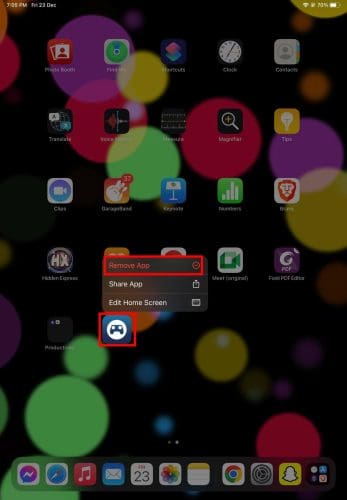
Tap Remove App and select the Remove From Home Screen option to keep your Home screen clutter-free. After the long press, you may also select the Edit Home Screen option and tap the minus icon of all apps you want to remove from that screen.

If some frequently used app is in a folder, you can long press it and drag it to the home screen.
Don’t Forget to Utilize the Home Screen
You can switch your layout if you want to change how your apps are organized. The iPad apps might appear randomly on your Home screen or chronologically based on the download time.
The best way to organize the apps on the Home screen is to put them in alphabetical order. While it’s the most common mode of organization, it might not work for you. If that case, you can also organize based on usage frequency, functionality, or even color!
The home screen also has a dock where you can separately put the most used apps. The recently used apps are located on the right side of the dock.
Check Out App Library
If you are wondering how to organize apps on an iPad, don’t forget to try the App Library. It’s the screen where the iPad keeps your apps organized by putting similar apps in a folder.
But it doesn’t support moving apps from one folder to another folder in this section. Since the App Library contains all your iPad apps, there is no need to create multiple home screens.
Keeping one Home screen is enough, and a single left swipe from there will take you straight to the App Library.
Delete Unnecessary Apps
Like your closet, your iPad also contains items you don’t need or use anymore. Take some time, open the list of your iPad apps, and you’ll find some apps you no longer use.
Delete them to free up your app folder and device storage. With less number of apps, finding one becomes more manageable. Also, organizing your iPad apps become seamless when you have less number of app to manage.
To delete any app, long press its icon. A list of options will appear. Select Remove App and then Delete App to delete it from your iPad.
Long press on any space if you want to delete multiple apps from the home screen or app library. Minus icons will appear on all apps that you can delete. Tap the minus sign and choose the Delete App option to confirm.
Still unable to find your iPad app? Try these tips:
Use Search
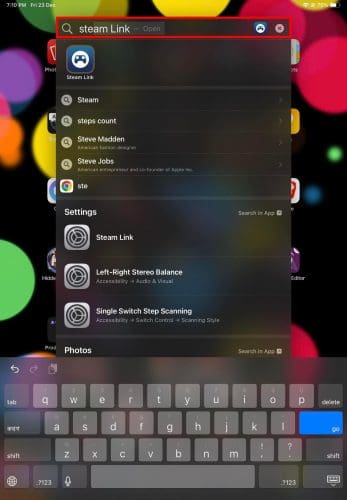
Like all other devices, typing the name of an app in the search field is the quickest way to find it. To get the search field, swipe down from the middle of your Home screen.

Tap the search box to type the first letter of the app name, and the names of all apps starting with that letter will appear. Select the app to open it on the iPad.
Use Siri
Siri is your assistant for iOS devices. You can also say Hey Siri to initiate it and command it to launch your favorite app.
How to Organize Apps on iPad: Final Words
iPad app organization means sorting your apps in a way that helps you find them easily. If you want to know how to organize apps on an iPad, check out the approaches mentioned here.
We’ve also added additional tips for effortless app location. Tell us in the comments which method you like most for organizing apps on your iPad.
Next, find out what to do if your iPad keeps shutting down.