You can never be too careful when it comes to your emails. Sure, some might not have any sensitive financial information, but that doesn’t make it OK for someone to read it without your permission. The good news is that in Gmail, there is a way to send a confidential email, so your email is even more secure.
By sending a confidential email in Gmail, the person who receives the email won’t open it unless a code to open it. The only message they will get is that they have a confidential email. They can get the code by SMS. Also, keep in mind that confidential emails don’t last forever; they do expire. The sender can choose when the email expires, and the options are a week, a month, three months, or five years.
Contents
How to Create a Confidential Email in Gmail
To create a confidential email in Gmail, create an email like you normally would. Once you have everything filled out, like the recipient and subject line, it’s time to make this email. When you’re ready to send the email, click on the lock icon with the clock attached to it. You’ll find it to the right of the blue Send button.

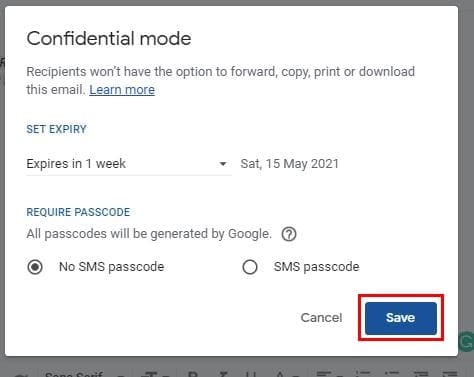
When you click on it, there are some settings you’ll need to set. For example, you’ll need to choose when the email expires, click on the drop-down menu for the available option. You can also choose if you want the passcode to be SMS or not. When you’re done, don’t forget to click on the Save button.
If you want the code to open the email sent by email, you will need to enter their phone number. So, before you send everything, make sure you double-check that you’ve entered the right phone number. You’ll also notice that the style of the email. If there are any changes you want to make before sending it, you need to click on the Edit option. Or, if you change your mind and don’t want to make the email confidential, click on the X.

How to Block Access to a Sent Confidential Email
If you ever change your mind and want to cancel that confidential email, you can. Find the email in your inbox or under Sent. When you find the email, click on it to open it and click on the Remove access option, and you should see a message letting you know the action was completed. The option you just clicked on will change, and it’ll say, Renew access if you ever change your mind.

How to Create a Confidential Email in Gmail – Android
Creating a confidential email on your Android device is also an easy task. Open the Gmail app and then choose to compose. After or before you enter the necessary information such as recipient and subject, tap on the dots and choose Confidential mode.

Just like in desktop mode, you’ll also need to enter how long you want the confidential email to last. Once you’re done, don’t forget to tap on the Save option. If you choose for the receiver to open the email with a passcode via SMS and you forget to add the phone number, you’ll get the following message.

You can choose to disable confidential mode altogether, or you can tap on the Add missing information option and add the phone number.

How to Open an Email in Gmail in Confidential Mode
Don’t worry; you won’t need to install another app to open confidential emails in Gmail. You open those kinds of emails like you would any other email, but keep in mind that the email has an expiration date. If you decide that, you’ll take a look at the email later and later. The expiration date will sneak up on you, and the email will no longer be accessible.
A confidential mode email won’t let you download, forward, paste or copy emails. If you try to access the email, but you get an error, that means that the sender has revoked access. The only way you can see the email is to contact the sender and ask them to renew the access to the email.
Conclusion
Sometimes you just need to make sure some things can’t be done, like forwarding something you sent in an email. With confidential mode, you can rest assured that no one will be sharing what you sent. Thanks to this mode, you can also be sure that you’re in control of who can see the content and that you can revoke access at any time. How useful do you find Gmail’s confidential mode? Share your thoughts in the comments below, and don’t forget to share this article with others on social media.