VLC is by far one of the most popular third-party video players, but it does run into an occasional issue. For some users, VLC Player opens in wrong size or VLC constantly changes size when playing videos that have slightly different aspect ratios. In the worst case, the windowed screen goes over the right edge of the desktop, so you can only access toolbar settings when in full-screen mode.
Here’s how to make VLC Player remember the size that it had when you close it and keep it that way.
Contents
Fix VLC Player Opens in Wrong Size via Preferences
Typically, the reason why VLC might open in the wrong size for the video or screen is because it attempts to adjust to the aspect ratio of the video being played. This way, a wide-screen video can go over the constraints of the desktop. You can fix this in VLC’s native settings.
Step 1. Open VLC player and hit “Ctrl + P” to open Preferences.
Step 2. In the Preferences screen, under the “Show settings” section on the bottom-left, select “Simple.”
Step 3. Go to the “Interface” tab and uncheck the box “Resize interface to video size.”
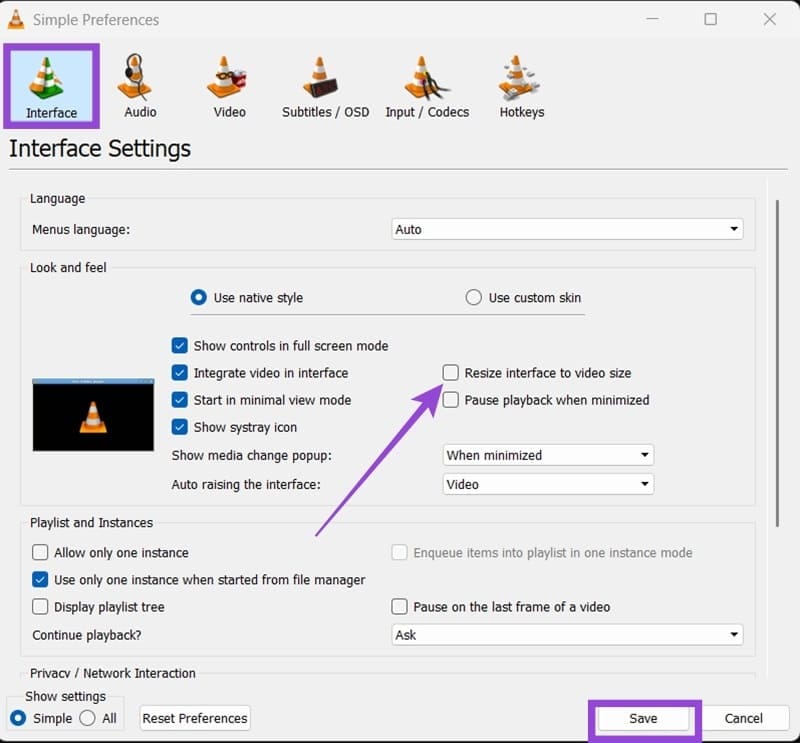
Step 4. Click on “Save” and exit the Preferences.
Step 5. Manually readjust the window size when in windowed mode.
Step 6. (optional). To force VLC to remember the size it had, hold the “Ctrl” key when exiting (via the “X” button). The next time you open the program, it should revert to the previously-saved settings.
Fix VLC Constantly Changing Size
In some cases, this fix might not work completely, so you can complement it with more options.
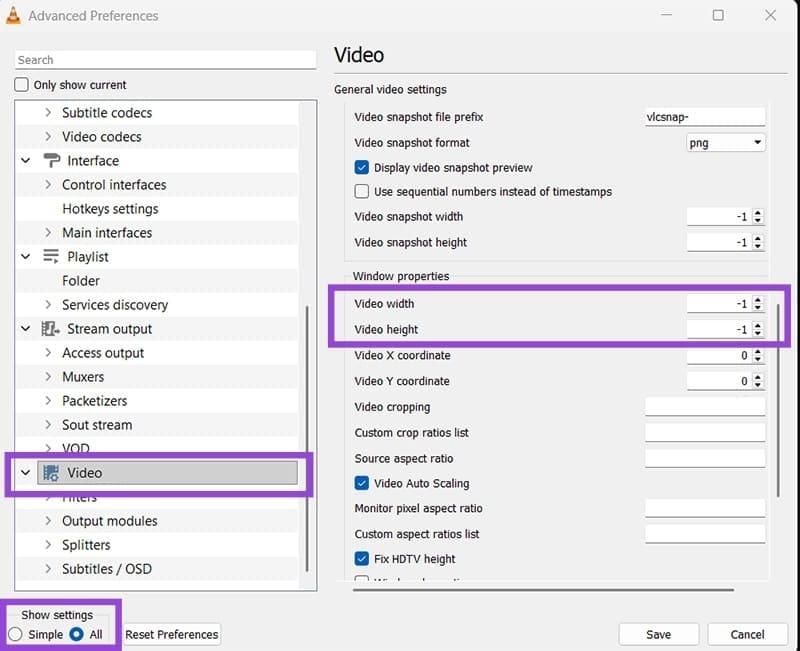
Step 1. Go back to Preferences. This time, select “All” under “Show settings.”
Step 2. Scroll down and select “Video.” Uncheck the option “Video Auto Scaling.”
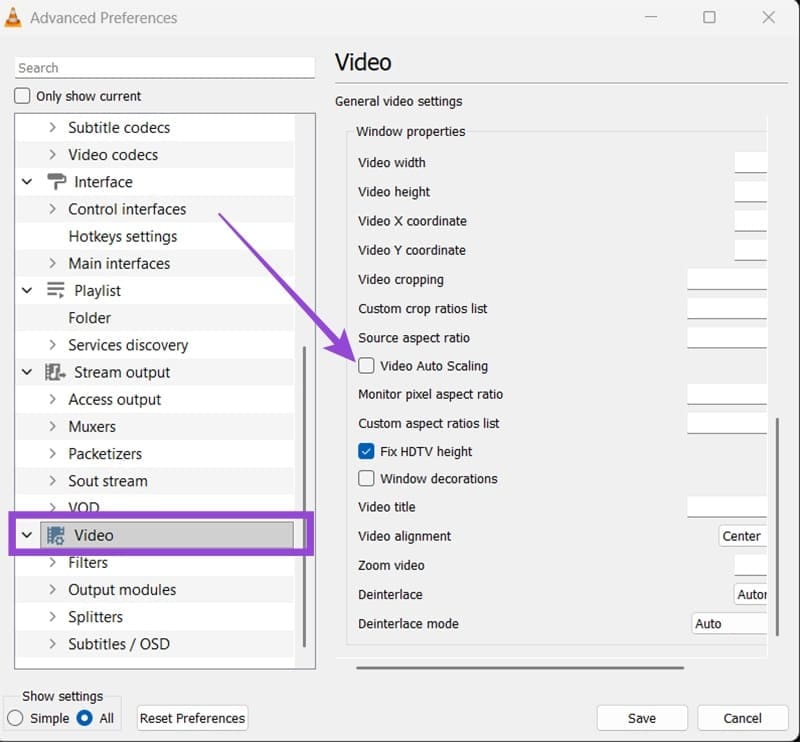
Note that this may make some videos scale up or down too much initially. If you get consistent issues with video playback (especially for old videos), you might need to revert it.
Step 3. Exit VLC and hit “Win + R” to enter the Run utility.
Step 4. Paste in the following line and hit “Enter:”
%userprofile%/AppData/Roaming/VLC
Step 5. In the File Explorer window that opens, right-click on the “vlcrc” and select “Edit in Notepad.”
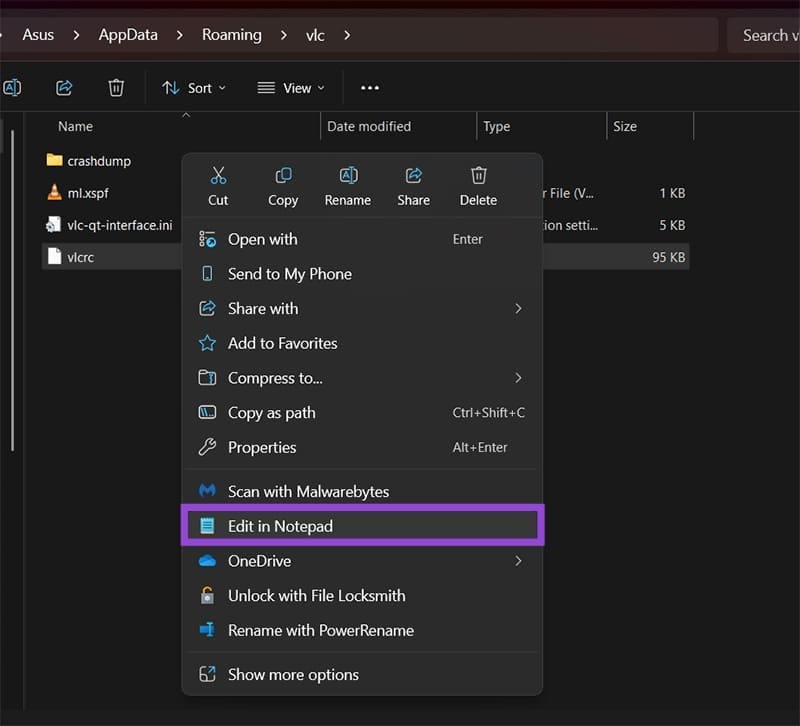
Step 6. Hit “Ctrl + F” while in Notepad, then paste in the following: qt-video-autoresize. You should get only one result.
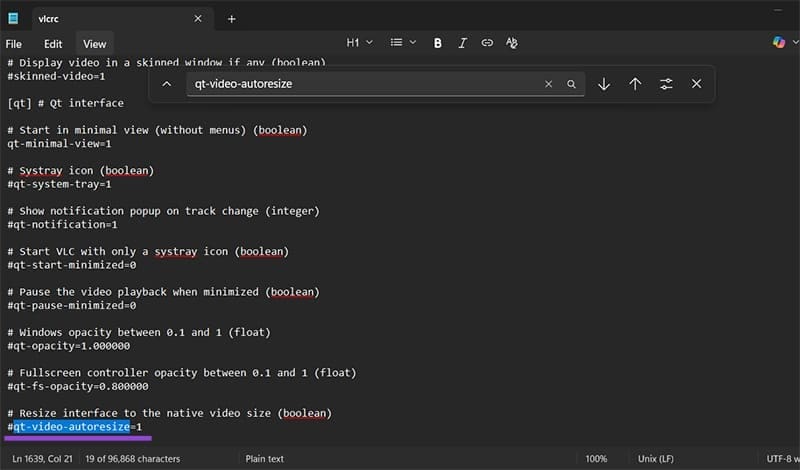
Step 7. Find the line qt-video-autoresize=1. Change the 1 to 0 and remove the # in front of it.
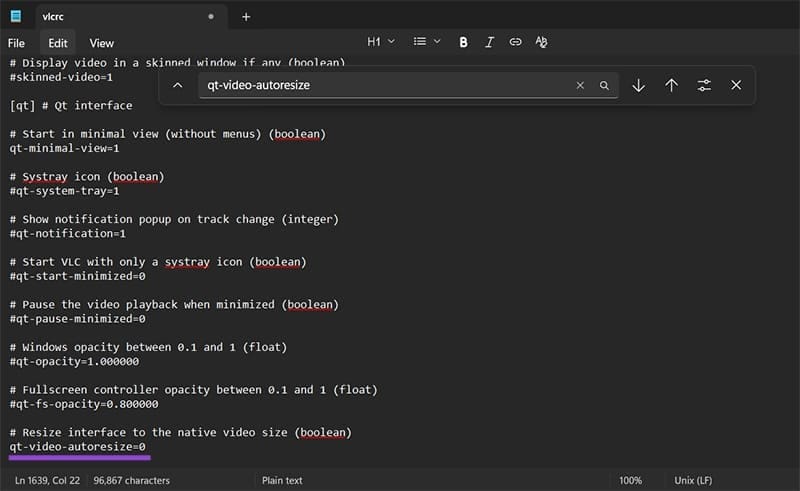
Step 8. Hit “Ctrl + S” to save the changes and exit the Notepad screen, then relaunch VLC.
Additional Settings
While they might not help when VLC Player opens in wrong size, these two additional settings can force videos to open in a fixed window at the expense of video quality.
Step 1. Go to Preferences. Enable “All” for “Show settings.”
Step 2. Go to the Video tab. In the “Video height” and “Video width” properties, enter positive numbers such as 1,200 and 800. These force the video to get an 1200×800 aspect ratio. Use “-1” if you want the videos to resize to the window instead.
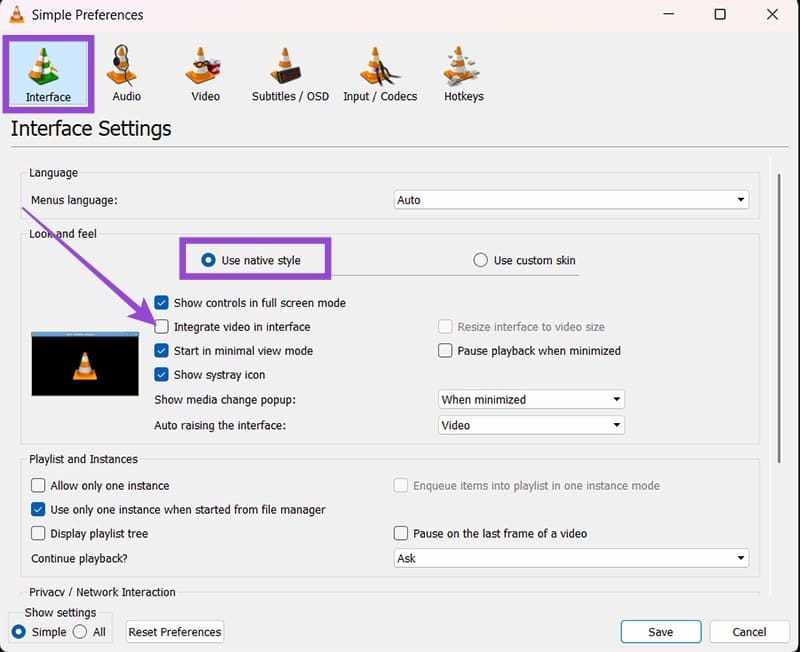
Step 3. Change the “Show settings” option to “Simple,” then go to the “Interface” tab.
Step 4. Uncheck the option “Integrate video in interface.” You might need to revert it later if it breaks things. Additionally, use the option “Use native style,” as that might interfere with VLC’s appearance when you run it without a video on.
Final Option: Reset Preferences or Reinstall VLC
In some cases, it’s best to start from scratch. You can use the “Reset Preferences” button to return VLC to factory settings. Alternatively, go to VLC’s website and download the latest stable version, especially if you’ve previously disabled automatic updates.