The Windows 11 taskbar is supposed to be a helpful little bar that just sits there, quietly offering you access to your apps, clock, and the ever-critical Wi-Fi signal. But sometimes it gets a little shy and hides behind other programs when it’s clearly supposed to stay on top. If you’ve ever moved your mouse to the bottom of the screen only to find your taskbar playing hide-and-seek, you’re not alone.
This is one of those weird bugs that doesn’t always make sense, but luckily, there are some ways to fix it. Whether your taskbar is refusing to appear over full-screen windows or randomly disappears for no reason, these fixes should help bring it back to where it belongs.
Contents
Fix 1. Restart Windows File Explorer
Step 1. Press Ctrl + Shift + Esc to open Task Manager. You can also right-click the Start button and select Task Manager.

Step 2. In the Task Manager window, look for Windows Explorer in the list.

Step 3. Click it once, then hit the Restart task button in the top-right corner.
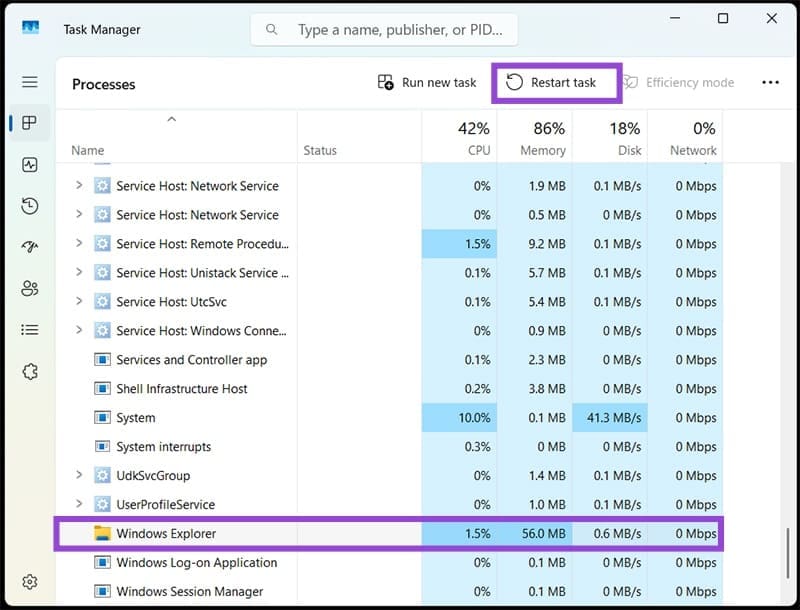
Your screen might blink or refresh for a second. That’s just Windows Explorer rebooting. If your taskbar pops back into its proper place, you’re good to go.
Fix 2. Turn Off “Automatically Hide Taskbar”
If you’ve ever enabled the “auto-hide” option and forgot about it, your taskbar could be hiding just out of view and refusing to come out when it should.
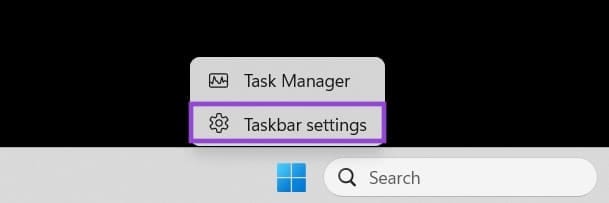
Step 1. Right-click an empty area of the taskbar and choose Taskbar settings.
Step 2. Scroll down until you see Taskbar Behaviors. Click to expand it.
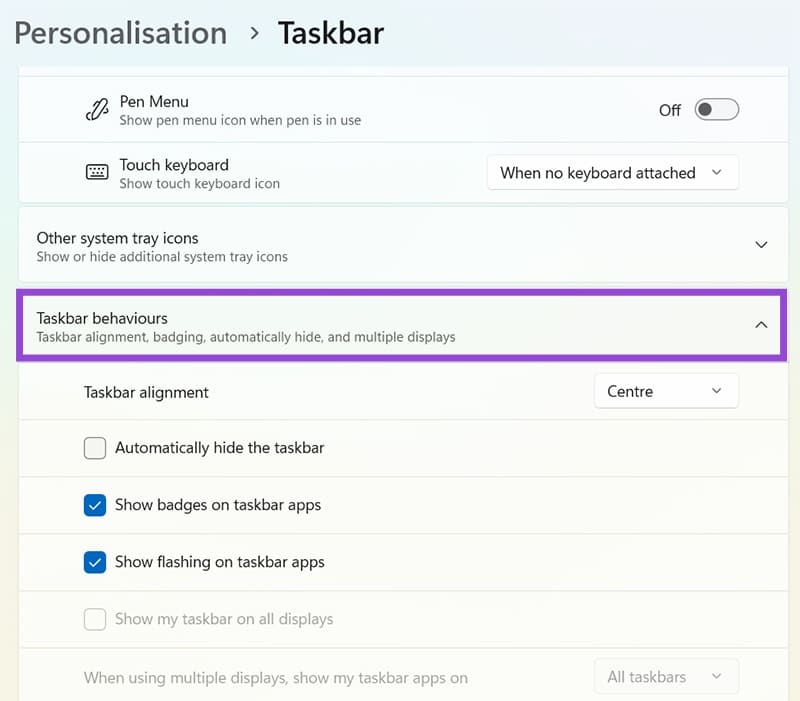
Step 3. Make sure the box next to Automatically hide the taskbar is not checked. If it is, uncheck it.
This tells Windows to keep the taskbar visible at all times. If it was already off and the taskbar still misbehaves, no worries. There’s one more method worth trying.
Fix 3. Change Display Settings
If you’re using more than one monitor or you recently switched display modes, then Windows might be confused about where the taskbar is supposed to be. That confusion can cause it to appear under windows instead of over them.
Step 1. Right-click on your desktop and choose Display settings.
Step 2. Scroll down and make sure your Display resolution and Scale are set correctly. If they’re set to something unusual, try changing them to the recommended values.
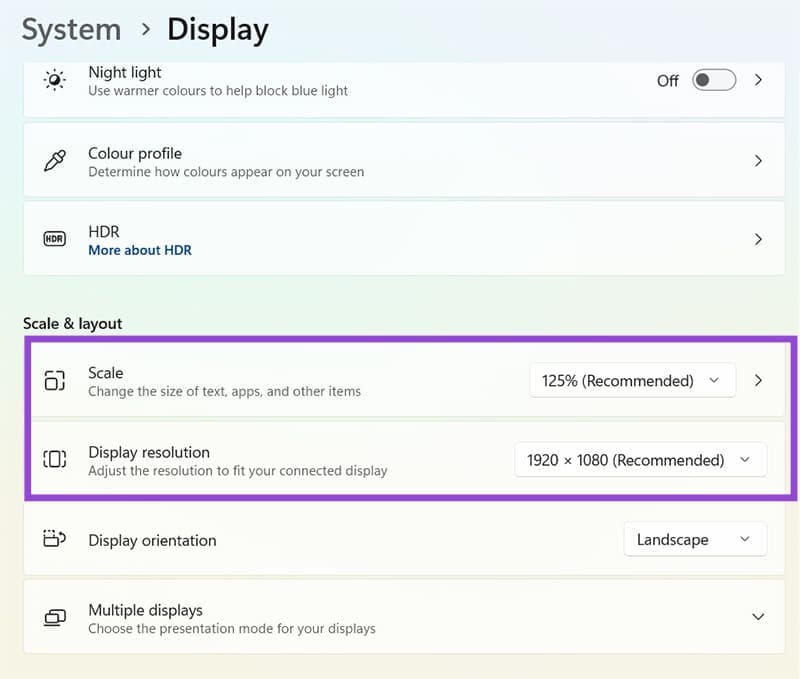
(Optional) Step 3. If you have more than one screen, scroll further and click on Multiple displays. Make sure the primary display is set correctly. The taskbar usually sticks to the “main” monitor, and if that changes, the taskbar might get stuck behind apps.
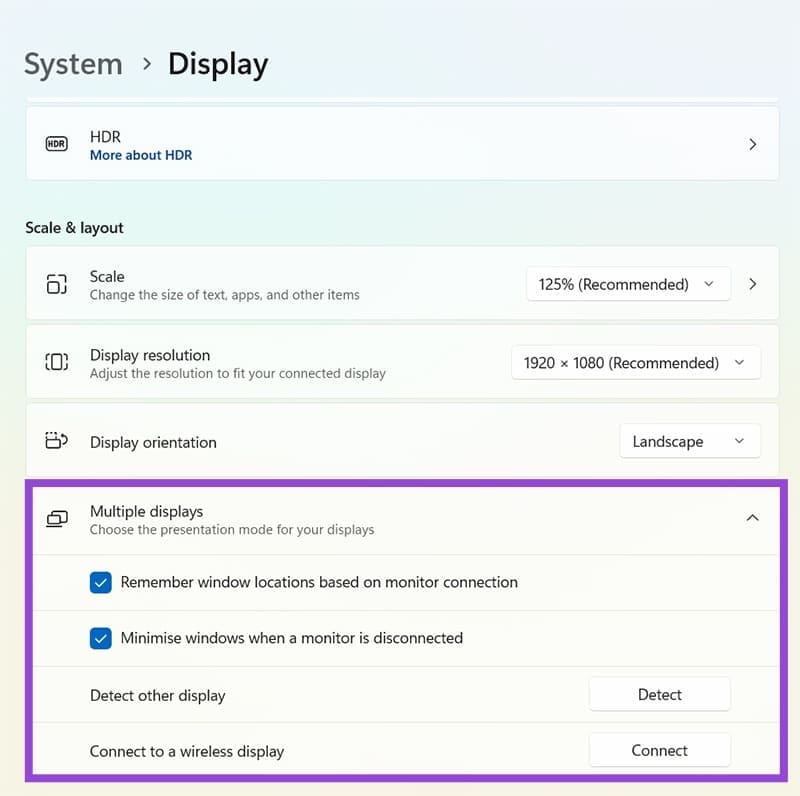
After making any changes, restart your PC or at least sign out and back in. That usually gets Windows to apply the settings properly.