Usually, once you install an operating system, your PC should automatically boot into it once it recognizes that it exists on any hard drive. However, on some rare occasions, you might get a “boot device not found” error with the screen going to black. This is typically caused by incorrect BIOS settings or corrupted files. If you’re wondering how to fix “no bootable device found” errors, there are a few common troubleshooting steps that should do the trick.
Contents
Fix 1: Edit the Boot Order in BIOS
Typically, PCs will be set to boot from USB or disk drives to get them to install operating systems. Once that’s done however, if there’s still bootable files in the drive, the system might continue to try to boot from them. You can override the boot order in BIOS to get the “no bootable device found” fix.
Step 1. Restart your PC. While it’s restarting, hold the “Shift” key or the button that is indicated on the screen. It’s usually one of the following: “F1,” “F2,” “F10,” “F12,” “Esc,” or “Del,” but this will depend on the manufacturer and you will usually get a few seconds in the pre-boot screen to see it.
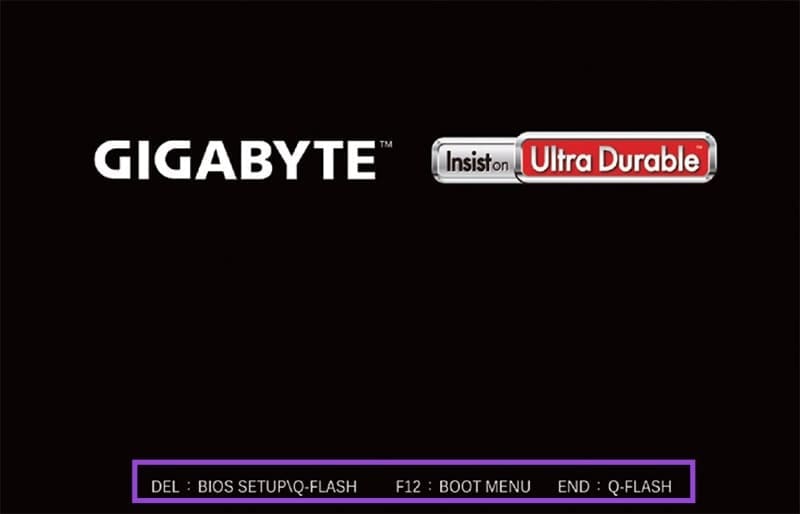
Step 2. Once you’re in BIOS, you can navigate with your mouse or use the keyboard. Go to “BIOS,” “Boot,” “Boot Options,” or something along that note (usually displayed on the tabs on the top or side).

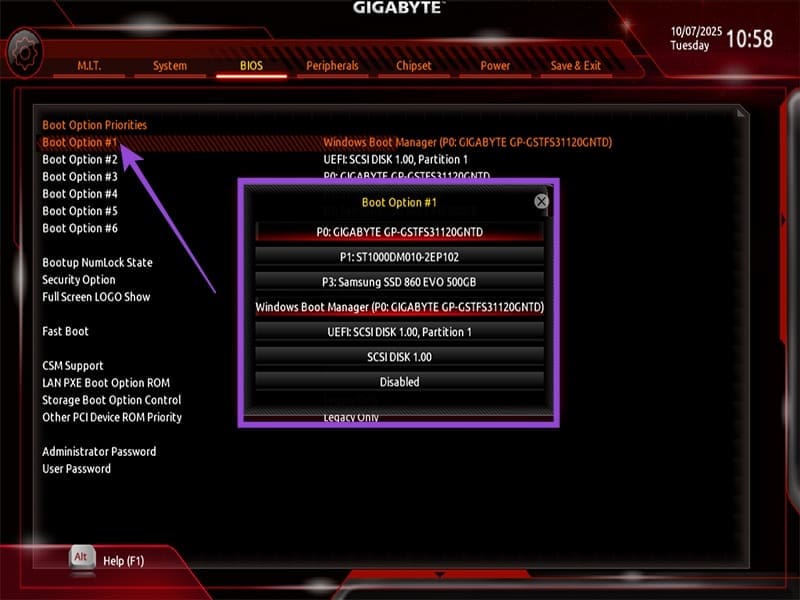
Step 3. The boot option menu should display a list of drives. Put the drive that you want to boot from (typically “partition 0” or “C:”) in the first slot. Alternatively, if you’re trying to boot from a bootable USB, put the USB controller first, and so on.
Step 4. When booting from a hard drive, remove all peripheral drives, USBs, or disks, just in case.
Step 5. If you’re running Windows 11 and no other systems, you will usually need to check “UEFI mode.” You can also temporarily disable “Secure Boot” to see if that solves the issue.
Step 6. Find the option “Save” or “Save and Exit,” select it, and hit “Enter.”

Step 7. Restart the PC (the PC should do so automatically if you chose “Save and Exit”).
Fix 2: Perform Startup Repair
If your PC can’t find the operating system on the drive you indicated, it’s possible that some corrupted files are causing the “boot device not found” error. If the system has been installed at one point, you might be able to “bootstrap it” from existing files.
Step 1. Repeatedly restart the PC by holding the power button. Usually, after three tries, the system will enter “Advanced startup” mode (a blue screen with a few options).
Step 2. Choose “Troubleshoot,” then “Advanced options,” then “Startup repair.”

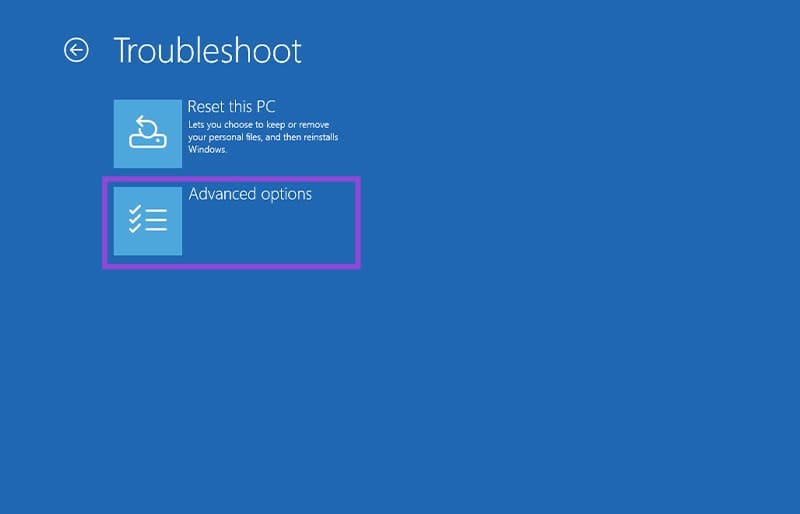
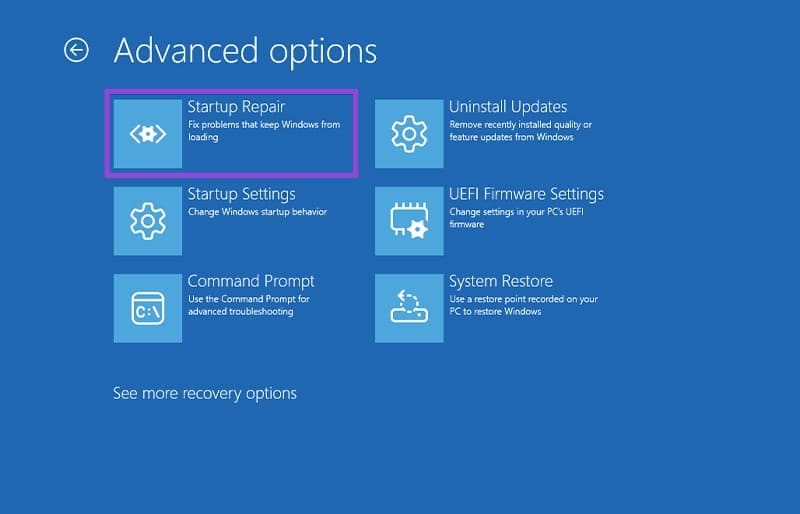
Step 3. Windows recovery will try to replace missing files or provide a more thorough diagnosis. Check the results that are displayed on the screen, note any return messages, then restart the PC again.
Fix 3: Use the Bootable USB to Repair the Installation
If you’ve still got the bootable USB drive, you can use it to repair the installation on the hard drive.
Step 1. Insert the bootable USB into the PC.
Step 2. Change the boot order so you start booting from a USB device (see Fix 1).
Step 3. In the installation settings, open the command prompt by going to the Windows recovery environment (same as in Fix 2). Choose “Troubleshoot,” then “Advanced options,” then “Command Prompt.”
Step 4. Execute the following commands:
bootrec /fixmbr
bootrec /fixboot
bootrec /scanos
bootrec /rebuildbcd
This should rebuild the operating system installation without performing an entire reset.
Final Options
If this doesn’t work, you can always go the longer route and replace the operating system entirely. If you have data stored on that hard drive, it might disappear, so consider it a last resort. Alternatively, the hard drive itself might’ve broken, so you’ll need to repair it.