Skip to content
LogoTechnipages
LogoTechnipages
  • Topics
        • Android
        • Browsers
        • Gaming
        • Hardware
        • Internet
        • iPhone
        • Linux
        • macOS
        • Office
        • Reviews
        • Software
        • Windows
        • Definitions
        • All Recent Posts
  • Product Reviews
  • About

How to Fix MSTeams.exe Error Status 0xc0000020

Madalina DinitaOctober 19, 2021 Comments (1)

Windows 11 comes with a built-in chat feature. The Chat from Teams is pinned to your taskbar by default. You can use it to chat with family, friends, or colleagues no matter what platform they’re using. And the best part is that they don’t even need to install Teams on their devices.

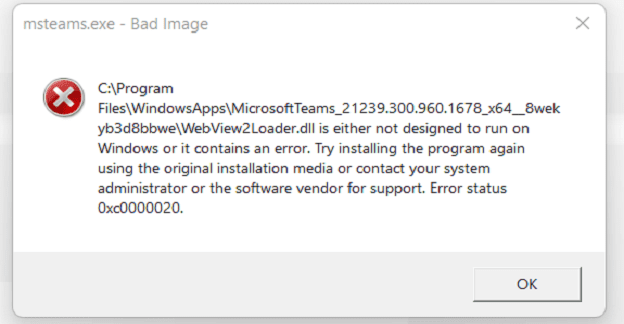
But when you click on the Chat icon, Windows 11 may sometimes throw up error code 0xc0000020 that says the app is either not designed to run on Windows or contains an error. Use the troubleshooting solutions below to get rid of this issue.

Contents

  • 1 How to Fix MSTeams.exe Bad Image Error 0xc0000020
    • 1.1 Reinstall Teams
    • 1.2 Reinstall Windows 11
    • 1.3 Conclusion

How to Fix MSTeams.exe Bad Image Error 0xc0000020

Reinstall Teams

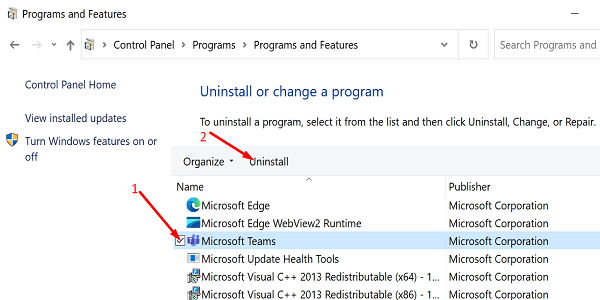
  1. Go to Control Panel and click on Uninstall a program.
  2. Then select Microsoft Teams and hit the Uninstall button.uninstall-ms-teams-windows-10
  3. Restart your computer and reinstall Teams.
  4. Click on the Chat icon on your taskbar and check the results.
If the error persists, remove Microsoft Teams again. Then go to Program Files/Windows Applications/ Microsoft Teams and delete the Teams folder. Restart your computer, reinstall Teams, hit the Chat icon again, and check the results.

Reinstall Windows 11

If the problem persists, and you rely on Teams for work or school-related activities, reinstall the OS. Most likely, something went wrong during the upgrade process. Some files might have got corrupted, or your computer failed to install them. Reinstalling the OS should help you fix the problem.

Don’t forget to uninstall Teams before downgrading to Windows 10. To roll back to Windows 10, navigate to Settings, select Update & Security, and click on Recovery. Then click on Go Back to Windows 10 and confirm your choice.go back to windows 10
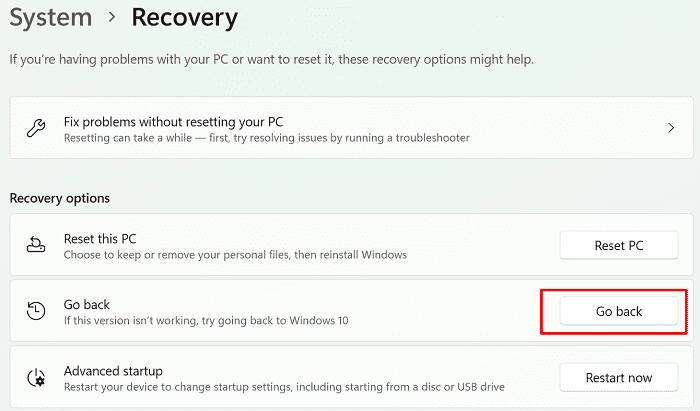
Follow the on-screen instructions to complete the downgrade process. Restart your computer, and check if the error code 0xc0000020 persists.

Conclusion

To fix MSTeams.exe error status 0xc0000020, uninstall Microsoft Teams, restart your computer and reinstall the app. If the error persists, roll back to Windows 10 and reinstall Windows 11. Did you manage to solve the problem? Comment down below, and don’t forget to share this post on social media.


Categories: Windows

Author Madalina Dinita

Madalina has been a Windows fan ever since she got her hands on her first Windows XP computer. She is interested in all things technology, especially emerging technologies -- AI and DNA computing in particular.

You Might Also Like

  • 4 Ways to Close Session in Windows 10

    Judy SanhzWindows
  • Windows 11 22H2 Download The Ultimate Guide (Photo: Courtesy of Microsoft)

    How to Open Services in Windows 11

    Judy SanhzWindows
  • iMovie Windows Header

    9 Best iMovie Equivalents for Windows 11

    Tamal DasSoftware
  • Remote Restart Shutdown Header

    How to Remote Reboot/Shutdown a Windows 11 PC

    Susan SheffieldWindows

Comments

  1. Adelmaro Godoy says:
    December 28, 2021 at 5:34 am

    I recently purchased an alienware m15 r6 laptop. As soon as i completed initial start up it showed the error code mentioned in this page along with 3 more. i have tried to go to control panel and uninstall app as stated to do so but unfortunately it doesn’t show it in my programs list.

Leave a Reply

Your email address will not be published. Required fields are marked *

  • system32 folder opens on startup

    System32 Folder Opens on Startup – How to Fix

  • browser keeps opening hp support

    Browser Keeps Opening HP Support Assistant Tabs 

  • camera not working in vmware

    Camera Not Working in VMware – How to Fix

  • browser screen goes black

    Browser Screen Goes Black Intermittently 

  • computer heating up in hyper v

    Computer Heating Up When Using Hyper-V – How to Fix 

profile pic

The Experts Behind Technipages

My name is Mitch Bartlett. I've been working in technology for over 20 years in a wide range of tech jobs from Tech Support to Software Testing. I started this site as a technical guide for myself and it has grown into what I hope is a useful reference for all.

Learn More

technipages logo white
linkedin icon

Technipages is part of Guiding Tech Media, a leading digital media publisher focused on helping people figure out technology. Learn more about our mission and team here.

© 2026 Guiding Tech Media All Rights Reserved

  • About Us
  • Contact
  • Terms of Use
  • Privacy Policy

© 2026 Guiding Tech Media All Rights Reserved

Information from your device can be used to personalize your ad experience.
Do not sell my personal information.

Last Updated on October 19, 2021 by Judy Sanhz