

Microsoft Teams error 0xcaa80000 indicates the desktop app could not connect to Microsoft’s servers. As a result, you can’t log in to your account. The full error message reads as follows: “We can’t connect you. It looks like we can’t connect to one of our services at the moment. Please try again later, or contact your helpdesk if the issue persists. 0xcaa80000”
Don’t confuse Teams error 0xcaa80000 with Outlook error 0xcaa80000; they are two different things. In this guide, we’re going to focus on how you can fix Teams error code 0xcaa80000.
Contents
4 Solutions to Fix Teams Error 0xcaa80000
⇒ Quick Workaround: Try logging in to the Teams web app using the same Windows account. This error code affects only the desktop app.
Enable TLS 1.1 and 1.2 in Internet Settings
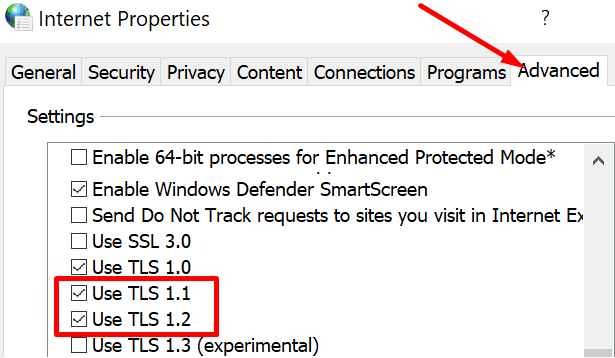
Many users confirmed they fixed this error by enabling TLS 1.1. and 1.2 in Internet Options.
- Type internet options in the Windows Search bar and double-click on the first result.
- Then go to the Advanced tab and scroll down to Security.
- Check the TLS 1.1 and TLS 1.2 checkboxes and save the changes.

- Restart Teams and try again.
Delete the App Cache and Update Teams
Clear your app cache to delete temporary files from previous Teams sessions that might be interfering with your current session.
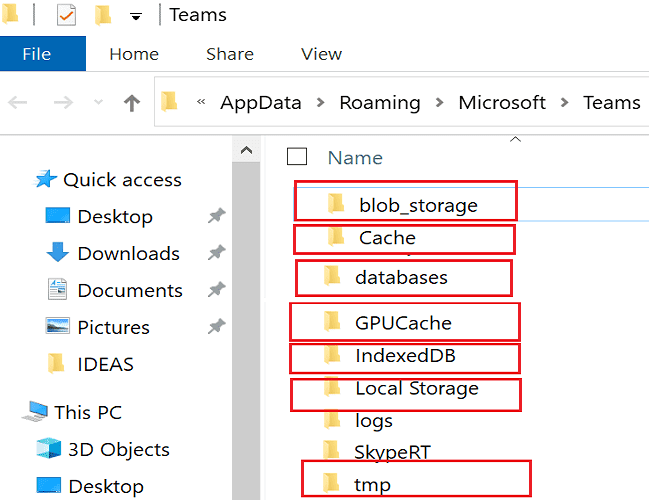
- Close the app completely and type %appdata%\Microsoft\teams in the Windows search bar.
- Go to the Teams directory, and delete all the files stored in the folders below:
- %appdata%\Microsoft\teams\application cache\cache
- %appdata%\Microsoft\teams\blob_storage
- %appdata%\Microsoft\teams\Cache
- %appdata%\Microsoft\teams\databases
- %appdata%\Microsoft\teams\GPUcache
- %appdata%\Microsoft\teams\IndexedDB
- %appdata%\Microsoft\teams\Local Storage
- %appdata%\Microsoft\teams\tmp.

- Restart your machine, launch Teams, and check if you can log in to your account.
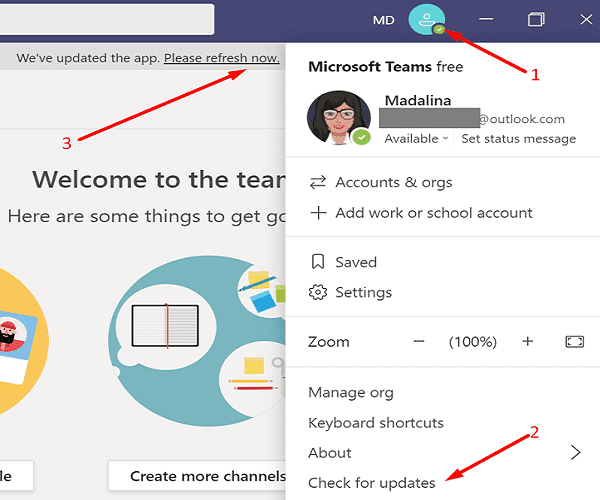
Don’t forget to update Teams as well. Click on your profile picture and hit the Check for updates option.
Check Your Date and Time Settings
If your date and time settings are incorrect, Microsoft’s servers will block your connection request for security reasons. The solution is to let Windows automatically set your time and time zone settings.
- Go to Settings and select Time and Language.
- Click Date & Time in the left-hand pane.
- Enable the following options: Set time automatically and Set time zone automatically.

Disable Background Programs
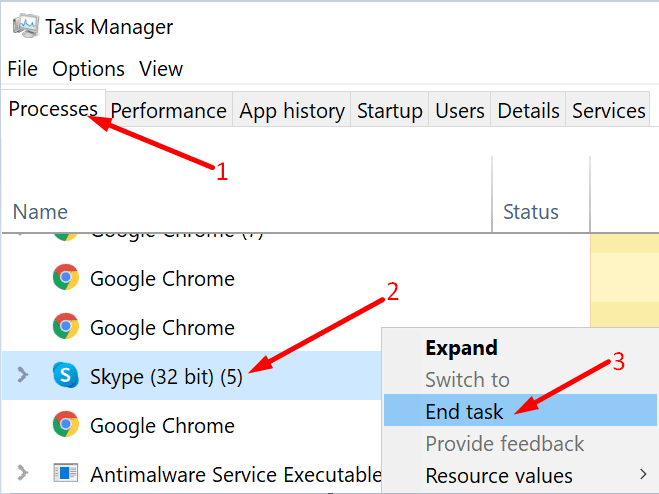
Background programs might be interfering with Teams, preventing the app from launching or connecting to the Internet. To close them, launch the Task Manager, click on the Processes tab, right-click on the program you want to close, and select End task. Launch Teams and try again.
After that, temporarily disable your antivirus and firewall and check if you can access your Teams account. Disable your VPN if you use one. If you use other IP-hiding programs, close them and try to log in to your Teams account again.
Conclusion
Error code 0xcaa80000 indicates the Teams desktop app could not connect to Microsoft’s servers. To fix it, enable TLS 1.1 and 1.2 in Internet Settings, update the app and clear the cache. Additionally, close background programs and ensure your date and time settings are correct. Did you notice anything particular about error 0xcaa80000? Did you come across other troubleshooting solutions? Share your thoughts in the comments below.





Thank You
Technipages
Error code 0xcaa80000 indicates the Teams desktop app could not connect to Microsoft’s servers. To fix it, enable TLS 1.1 and 1.2 in Internet Settings, update the app and clear the cache.
Perfect solution for me