Error codes are always an unnerving sight, particularly if most of the message is in caps. Today, we’re looking at how to fix ERROR_SYSTEM_SHUTDOWN. To better help with that, we’ll be exploring a little bit more about it, too.
Contents
What Is ERROR_SYSTEM_SHUTDOWN?
The error code 640, or (0x280), is more commonly known by the text accompanying it: ERROR_SYSTEM_SHUTDOWN. Quite simply, this code indicates that your machine is in the process of being shut down or restarted and that any task or process trying to run while it does so is failing.
You’ll typically encounter this error when installing updates, have programs still running while shutdown is in progress, or when installing software. The error will also display in the event of faulty or corrupted system drivers. But it seems some processes also don’t get the memo that Windows is shutting down and keep running.
Now you know more about it, let’s look at finding the right ERROR_SYSTEM_SHUTDOWN fix.
Different Ways to Fix ERROR_SYSTEM_SHUTDOWN
Seeing as the error is related to machine shutdown, there are a few broad solutions you can use to try and fix the issue. We’ve assembled a few below:
Let the Shut Down Do Its Thing
Whether an ordered shutdown or an unexpected system crash, it’s futile to try running anything on a machine that’s actively stopping every process and task. The best and easiest solution is to step back and let the system shut down or restart to do its thing, and try running, installing, or updating when it’s back in business.
End the Processes Yourself

If tasks and processes are preventing you from shutting down, your PC will usually try to end them itself. You’ll get a screen like the one above. Sometimes the apps have no name. To remedy this, click the “Shut down anyway” button to speed things along.
If you have unsaved work in Microsoft Office, for example, the program’s pop-up messages will keep you from closing and ask you if you want to save. In this case, click the “Cancel” button and go back into Windows to close them.
Finally, you can go back into Windows and end the task via Task Manager. Here’s how:
Step 1. Press (Ctrl + Shift + Esc) to bring up Task Manager directly.
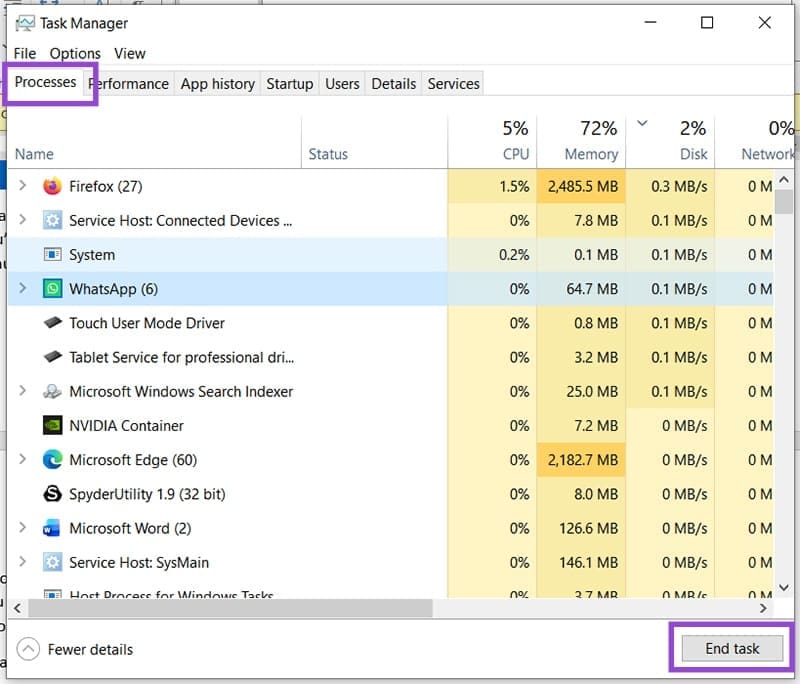
Step 2. Click on the “Processes” tab, and click the troublemaking process in the list below.
Step 3. Hit the “End task” button at the bottom of the window to end the process.
Run the Update Troubleshooter
The Windows Troubleshooters are more useful than people give them credit for. If the error is constantly occurring during a Windows Update, you can try using the Update Troubleshooter. Here’s how:
Step 1. Open Settings (Win + I) and select “System.”
Step 2. Select “Troubleshooters” and then “Other troubleshooters.”
Step 3. Scroll down to “Windows Update,” click it, and select “Run troubleshooter.”

Step 4. The process will run and fix any problems it encounters.
Check Your Device Manager
Another way to fix ERROR_SYSTEM_SHUTDOWN is to check that all your drivers are in order. You can do this with Device Manager. Here’s how:
Step 1. Open the Run Dialog (Win + R) and type “devmgmt.msc” before hitting “OK.”
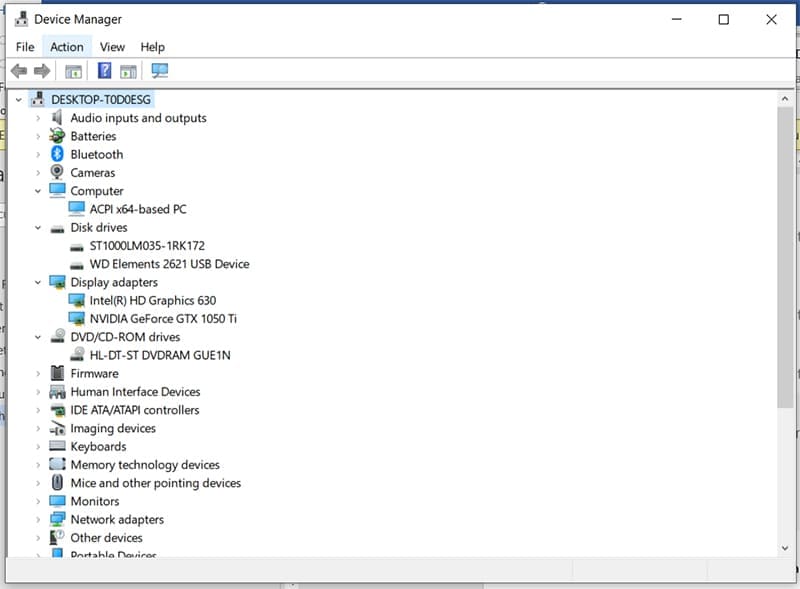
Step 2. In the Device Manager, look for any components with an exclamation point in their icon. These have been identified as problematic and need an update or uninstallation. Right-click the component and select “Update driver.”
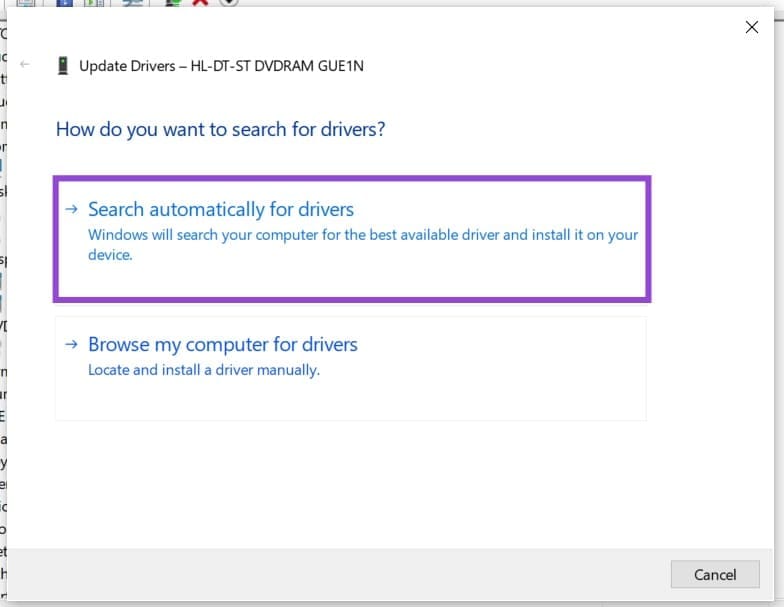
Step 3. Click “Search automatically for drivers” and follow the steps. If this doesn’t work, try disabling the driver via (“Disable driver”) or uninstalling it (“Uninstall driver”).