Windows Updates are a necessary evil to keep your machine up to date and secure. That said, though Microsoft does a lot to make the whole process painless, occasionally an update error code might pop up to spoil your day.
In this article, we’ll be taking a look at error code 0x800f0825 and a few fixes to get your updates working again in Windows 11.
Contents
What Is This Error, Exactly?
There’s no shortage of error codes on Windows 11 during the update process, but error code 0x800f0825 pops up whenever a component has been corrupted or only partially installed during the update process and can’t be automatically removed. Most of our fixes below will focus on repairing this corruption and getting the update process back to normal.
Ways to Fix Error Code 0x800f0825
Try these methods one by one to see if they resolve error 0x800f0825 on your PC:
Run the Update Troubleshooter
Let’s start simple. Windows’ various troubleshooters are a lot more competent at their jobs than you might think. You certainly can’t go wrong with making this your first stop. Here’s what to do:
Step 1. Open Settings (Win + X), click “System” in the sidebar, and navigate down to “Troubleshoot.”
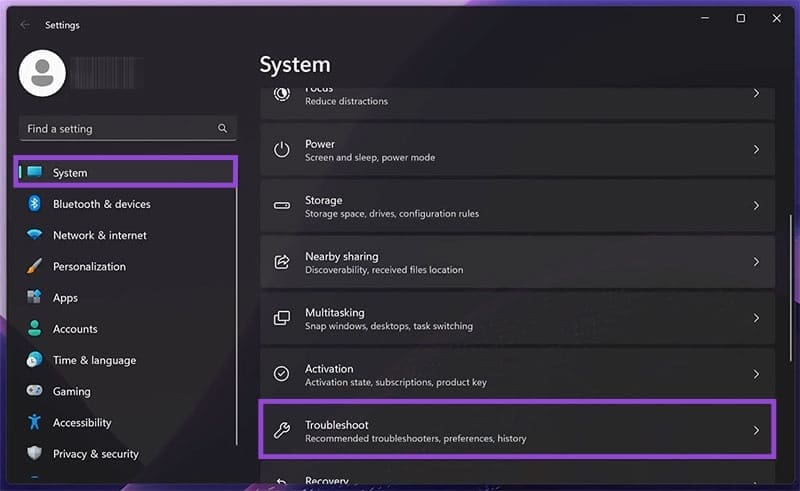
Step 2. In the Troubleshoot menu, click “Other troubleshooters.”
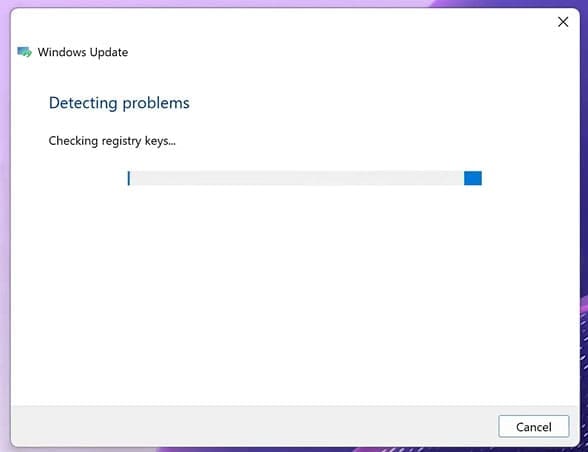
Step 3. You’ll see “Windows Update” in the list. Click the “Run” button next to it, and let the troubleshooter run.

Step 4. If the troubleshooter identifies any issues, it’ll attempt to fix them automatically. Allow the process to run and complete any steps required.
Repair the Component Store in Command Prompt
Command Prompt is a wonderful solution to many problems, and can directly address the error and attempt to fix it. Here’s what to do:
Step 1. Open the Run Dialog (Win + R) and type in “cmd” before pressing (Ctrl + Shift + Enter) to run as Administrator.
Step 2. In Command Prompt, you can repair the health of the component store or manually repair it. Type the following commands in, pressing “Enter” after each:
- Dism.exe /Online /Cleanup-Image /Restorehealth
- Sfc.exe /Scannow
Step 3. Allow the processes to run and restart your PC once done.
Clear the Catroot 2 Folder
The Catroot and Catroot 2 folders located in System 32 contain update files for Windows. Deleting the contents of the Catroot 2 folder can fix error 0x800f0825 by forcing Windows to begin the process again. That said, it’s crucial you do not delete the folder itself, as it may render your machine unbootable. To do this:
Step 1. Open up a File Explorer window (Win + E) and navigate to your Local Disk in the sidebar.
Step 2. Then click the “Windows” folder, followed by “System32.”
Step 3. Navigate to the “Catroot2” folder and double-click it.
Step 4. Delete all files inside (send them to the Recycle Bin if you’re worried) and restart your machine.
Disable Windows Sandbox
Windows Sandbox is a handy way for Windows 11 users to test apps in a safe environment to see if they can be trusted. Some users, though, have reported that updating KB5063878 is causing error code 0x800f0825, which might be due to this app. Try disabling it before attempting the update again. To do this:
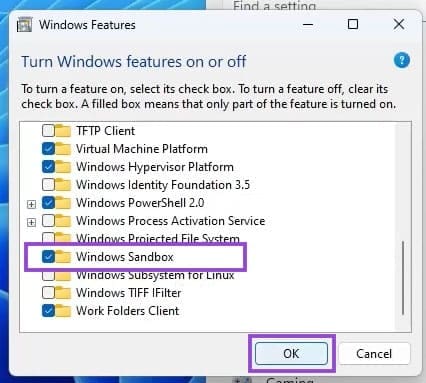
Step 1. Type “Turn Windows Features on or off” into the search bar and choose the option that pops up.
Step 2. In the window that pops up, scroll down to “Windows Sandbox” and uncheck the box next to it. Click “OK”
Step 3. Restart your machine and try the process again.