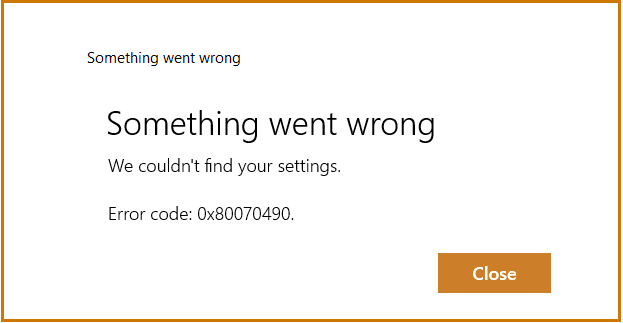
Error codes in Windows are never a welcome sight. Particularly if the error code is followed by “Catastrophic Failure.” Today, we’re going to be looking at how to fix error 0x8000ffff and what causes it. By the end of this article, you should hopefully have a solution that works for you.
Contents
It’s a Windows Problem
The error code 0x8000ffff fix has nothing to do with third-party software. In fact, the problem is related to Windows apps and software. When data is corrupted, partial files remain after an update, and crucial files are missing or damaged. You’ll usually come across this error in one of three ways:
- During a Windows update
- When attempting a system recovery
- When installing apps, particularly from the Microsoft Store
Seeing as this error mostly revolves around files and data, our fixes will focus on this.
How to Fix Error 0x8000ffff
Below are some of the best ways to attempt an error code 0x8000ffff fix. Before doing so, try restarting your PC, running a virus scan, and checking your internet connection to get obvious issues out of the way first.
Clear the Windows Update Cache
Windows Update leaves a lot of files behind after updating. An incomplete update may also leave corrupted ones, too. To ensure your next update attempt gets a fresh start, clear your update cache in the following way. Before you begin, be sure to stop the Windows Update Service (Start > Settings > Windows Update) before deleting files from the SoftwareDistribution folder.
If you suspect that a faulty Windows update might be to blame, you can always delete the downloaded files and begin the download and installation process again. Here’s how:
Step 1. Open the Run dialog (Win + R) and enter “C:\Windows\SoftwareDistribution\”

Step 2. In the new window that pops up, select all the files and folders and delete them. Skip sending them to the Recycle Bin by pressing (Shift + Del).
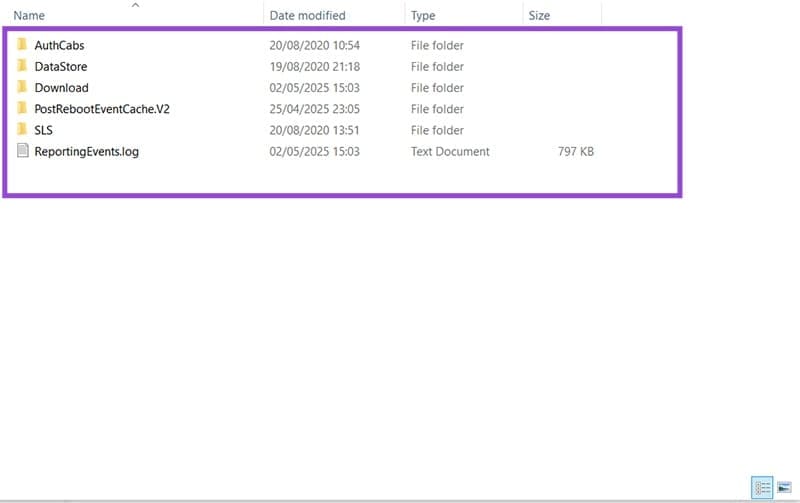
Step 3. Your files will be deleted, and the cache will be cleared. Don’t worry, Windows will recreate all the folders and directories deleted, but with a fresh start this time.
Disable the .NET Framework
For some more recent Windows 11 updates, disabling the .NET Framework might help stop this error. This can be risky for novices, so attempt with caution. Here’s how to do it:
Step 1. Type “Turn Windows Features On or Off” into the search bar and click the option that pops up.
Step 2. Uncheck both “.NET Framework” options and click the “OK” button.
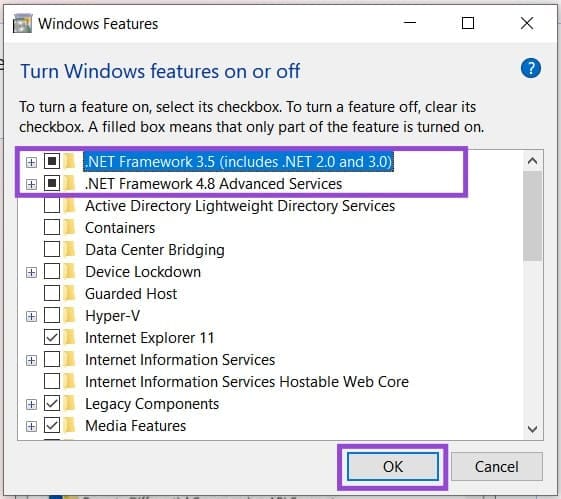
Step 3. Retry the Windows Update again.
Run a Disk Check
Seeing as file corruption is such a big part of this error, it doesn’t hurt to run an SFC check and apply a DISM repair in Command Prompt. Here’s what to do:
Step 1. Open the Run Dialog (Win + R) and type “cmd” before pressing (Ctrl + Shift + Enter) to run as Administrator.
Step 2. In Command Prompt, begin the disk check by typing “sfc /scannow” and hitting “Enter.”
Step 3. Give the checker time to complete. If there is any corruption detected, the system will attempt to repair. Close the Command Prompt and reboot.
Step 4. To attempt repair, reopen Command Prompt in the same way and type “DISM /Online /Cleanup-Image /RestoreHealth” before hitting “Enter.”
Step 5. Let the process run and reboot your machine afterward.
Reset the Microsoft Store Cache
If you’re experiencing error code 0x8000ffff in the Microsoft Store, you can try to fix it by flushing the app’s cache. It’s quite simple to do:
Step 1. Open the Run Dialog (Win + R) and type “wsreset.exe”, then hit the “OK” button.
Step 2. The process will then run, and the cache will be cleared.
Step 3. Reopen the Microsoft Store and see if your problem is resolved.