It’s amazing how much can go wrong with your computer, often even before it starts up. If you’re getting the message “Error 0211: Keyboard not found” in your BIOS when booting your PC, it might not be just your keyboard that’s the problem.
In this article, we’ll be looking at the causes and fixes for this particular problem.
Contents
What Causes This Error?
Any problem that occurs during startup could point to a hardware or software-related issue deeper than just the operating system and its drivers alone. If you’re facing this error message on startup, here are some possible causes:
- Your keyboard’s connection is faulty (USB port, cable, or ribbon).
- The keyboard itself (internal or built-in) has failed.
- Legacy USB support is disabled in the BIOS.
- Your BIOS firmware is corrupt or outdated.
- The CMOS (which holds configuration data) cannot recall the keyboard.
Now you know what you’re up against; it’s time to look at some fixes.
Fixing the Right “Error 0211: Keyboard Not Found” Fix for You
We’ve assembled some fixes for this error below, and it’s worth going through each one until you can resolve it. Don’t get discouraged along the way.
Check Your Connections
Let’s begin with the simplest and most optimistic assumption: your keyboard connection is faulty. If your keyboard is plugged in via USB, check the port it’s attached to and try a different one if needed. If possible, try testing it on another machine. If you feel confident opening your laptop, check the keyboard ribbon and its connection to the motherboard.
Clear the CMOS and Reset the BIOS
The CMOS transistor is powered by a battery and stores essential configuration data used by your BIOS. If you are able to, remove the battery connected to the CMOS for an hour, which will automatically flush it and reset the BIOS. This is useful if you can’t use your keyboard to access the BIOS.
If, on the other hand, you can still enter the BIOS with your keyboard, you can reset it to default settings manually. Every manufacturer’s BIOS differs slightly, but the steps are roughly the same:
Step 1. On startup, press the designated key (usually “Function” or “Delete” related) to enter the BIOS.
Step 2. Look for an option related to “Defaults.” This could be a separate menu option (e.g., ASUS) or located under a tab, like “Exit” for HP machines. Choose the option to “Restore Default Settings” and “Confirm” if prompted.

Step 3. Exit the BIOS, but don’t forget to save changes before doing so.
Enable USB Legacy Support
A disabled USB Legacy Support in your BIOS can cause all sorts of trouble with hardware detection, including the keyboard. If you suspect this might be the problem, you’ll need to head into your BIOS to fix it. Here’s how:
Step 1. Start up your PC and enter the specific key to enter the BIOS.
Step 2. Head to the “Advanced” tab (if there is one), and look for an option that says something like Legacy USB Support and ensure that it’s enabled.
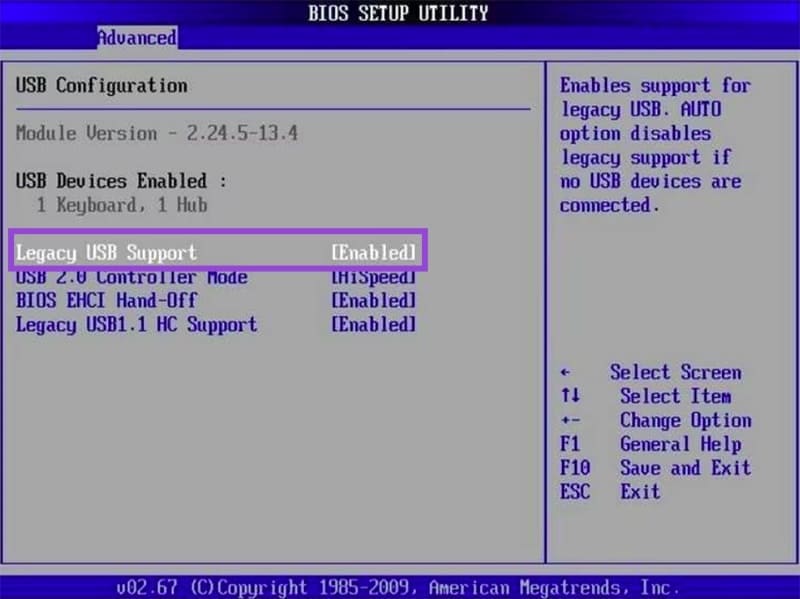
Step 3. Exit the BIOS, saving your changes before you do.
Update the BIOS
A BIOS with older firmware can run into trouble with newer hardware. If you’re still able to enter your operating system with another keyboard, try updating your BIOS firmware by downloading a newer version from your manufacturer’s website. In the case of laptops, you’ll be able to select your model.
Install the firmware and see if the error message persists with the original keyboard.