

Dropbox may sometimes fail to show a preview of your files. When that happens, you may also get various error messages, or your files simply won’t show their thumbnails anymore. In this guide, we’ll explore how you can fix all these different errors and solve this glitch once and for all.
Contents
- 1 Why Is Dropbox Not Showing File Previews?
- 2 How to Fix Dropbox File Preview Errors and Issues
Why Is Dropbox Not Showing File Previews?
Long story short, this is a problem with multiple possible root causes. Some of the most common ones include:
- Dropbox doesn’t support your file type.
- Moreover, different file types preview differently. Some preview as an image, others as a video, while other file types preview as a .ZIP file. For more information, go to What types of files can I preview in Dropbox?
- The file is actually too big for Dropbox to preview.
- Your network connection is unstable.
- The file you’re trying to preview is still uploading or syncing. The only solution is to simply wait until the process is over.
How to Fix Dropbox File Preview Errors and Issues
This File Can’t Be Previewed
- This error message usually indicates Dropbox doesn’t support the file type you’re trying to preview. Or maybe the service is temporarily down.
- To work your way around this issue, you can download the file on your computer. To prevent this error, open the file and save it using a different format.
Files Without Extensions Cannot Be Previewed
- The suffix attached to the file name indicates the file type. For example, all JPEG files have the .JPEG suffix at the end. If there’s no such file extension at the end of the file name, Dropbox can’t identify the file type.
- To bypass this error, download the problematic file on your computer, open it and save it, adding back the correct extension.
This File Is Too Big to Preview
- Dropbox doesn’t support previewing large files. The file size limits vary depending on each file type. If you want to check the exact file size limits, go to What types of files can I preview in Dropbox?
- Since you can’t preview these files, you can simply download and view them on your computer.
This File Is Password-Protected
- This error indicates the file you’re trying to preview is password-protected. The bad news is that Dropbox preview doesn’t support password-protected files.
- The solution is to download the file on your computer and remove the password. Or you can copy the content into a new file (password-free) and then upload it back to Dropbox.
The File Preview Appears Garbled
- This issue usually occurs when you’re trying to preview .txt files on mobile devices.
- Check if there are special non-Latin characters in the file. If this is the case, save the file again using UTF-8 Unicode encoding and check the results.
Additional Solutions
Allow Third-Party Cookies
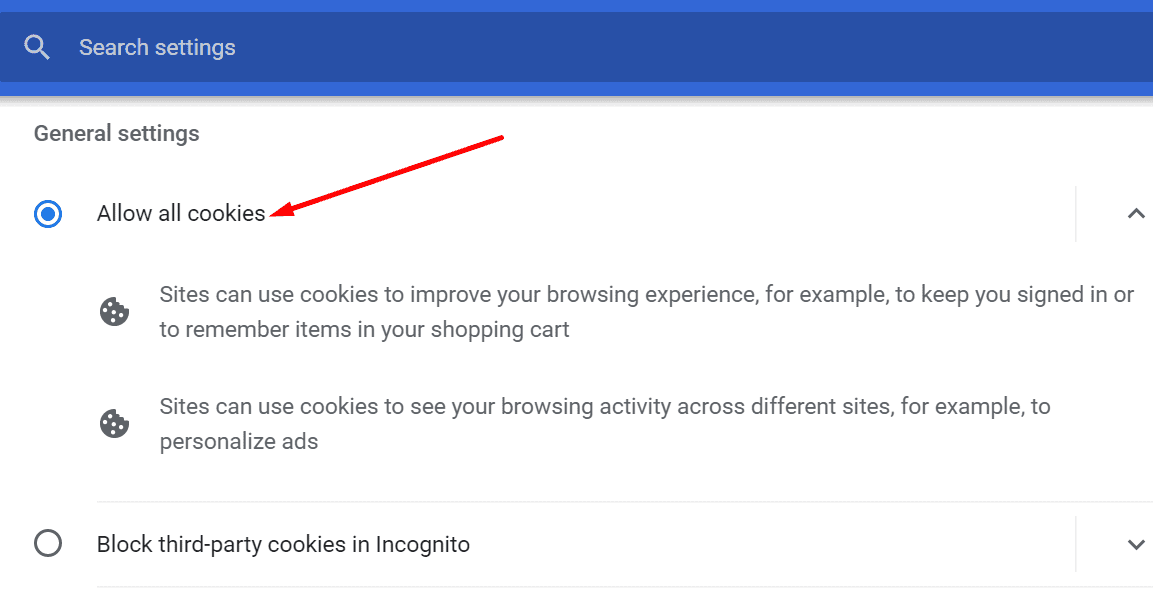
Many users confirmed they solved this problem by allowing third-party cookies on their browsers. If you use a Chromium-based browser, navigate to Settings, select Site data, and then select Allow all cookies.
 Update Your Browser or Use a Different Browser
 Update Your Browser or Use a Different Browser
Switch to a different browser and check if you can preview your files. Dropbox supports the following four browsers: Chrome, Edge, Firefox, and Safari. It works best on the two most recent versions of these browsers. So, check for updates and install the latest browser release if you’re running an outdated version. Additionally, clear your browser cache, disable your extensions and check if that helps.
Update Your OS
Speaking of updates, check if there’s a newer OS version available and install it on your computer. If this file preview problem is due to some known software compatibility issue, chances are already fixed in the latest OS version.
For example, many macOS users confirmed that Big Sur 11.2 fixed this really bothersome issue. So, update your OS, clear your Dropbox cache folder and check the results.
Conclusion
File preview issues on Dropbox are almost as old as the platform itself. To sum up, to troubleshoot the problem, you need to first identify the causes. In this particular case, they’re manifold. Make sure Dropbox supports the file type, and the file you’re trying to preview is not password-protected. Additionally, update your browser and OS, allow third-party cookies or switch to a different browser. Did you manage to fix the file preview problem? Let us know in the comments below.



I hace the smae issue, not way to make it work. bout to qui dropbox very soon.
Anyone proposing this could be caused by incorrect settings or lack of updates clearly has not experienced this truly nonsensical issue.
I have all the issues described here. However in the past, with the desktop app i could force a whole folder of stuff back online, and it would bring back all the thumbnails inside until i open each file once (again). To clarify, online = thumbnails, stored on my hard drive = no thumbnails. That’s right, it’s f-ing backwards.
NOW, something changed on Dropbox’s end, and it’s even more powerfully forcing everything back onto my machine. Now when I put everything back online, thumbnails immediately start disappearing in chunks in front of my eyes as I’m looking in the folder. (This is where i start cursing loud enough for the neighbor’s children to make out every word.)
DROPBOX: Get your sh*t together, or i’m moving in next door to wherever your children live.
My linked images show as thumbnails and any one of these can be enlarged by clicking, but no browsing of images in either direction is possible. Clicking on any arrow button results in – nothing… ;-(
I’m having the same issue. Click on it one time and then it’s replaced with a logo thumbnail. I have so many photos and I can’t find them by looking at the image previews. Maybe I need to switch to a difference online storage.
Ditto. I can’t find anything – takes twice as long. I’m about to change storage for my docs of my business. What am I paying for if it doubles my work?. This is ridiculous.
This article’s suggestions did not help, unfortunately. I have the same problem and Michael and Edwin do. Doesn’t matter what the file type is. If I click on it to open it it just one time, the file preview is then replaced with the generic icon. It makes images very difficult to find afterwards. When you work with a lot of images, it is very frustrating.
I have the same problem. Dropbox Tech. Support has never been able to figure it out. It applies to the Windows File Explorer preview pane only. You can preview it the first time, but never again. If anyone comes up with a solution, please be sure to post.
None of your solutions provide an answer. Issue is simply this. I can preview a file only one time. After I preview it that one time, thereafter previewer does not work.
Happens with all files: pdf; word; text; etc