A go-to app for chatting with friends, gaming squads, and online communities, Discord occasionally displays only a gray screen upon launch. This usually happens because of corrupted files, startup bugs, or device-specific settings.
Luckily, you can fix this issue with a few simple tweaks. Whether you’re on a computer or phone, here’s how to get Discord running again.
Contents
Easy Fixes to Try First
These quick checks often resolve smaller issues that block Discord from loading properly.
- Restart your device: It sounds basic, but a reboot can clear out stuck background processes and refresh system settings.
- Check for Discord updates: On desktop, open the app and press Ctrl + R to force a refresh and check for updates. On mobile, head to the App Store or Google Play to see if there’s a new version available.
- Try the browser version: Go to discord.com and log in from your browser. If it works fine there, the issue may be limited to your app installation.
- Disable overlays or screen recording software: Tools like Streamlabs, or Xbox Game Bar can sometimes conflict with Discord. Try disabling them temporarily to see if Discord loads properly.
- Check Discord’s server status: Sometimes the problem isn’t on your end. Visit discordstatus.com to see if there are any ongoing outages affecting the app.
If that doesn’t work…
Fix 1. Clear Discord’s Cache Files
Corrupted or outdated cache files are one of the most common causes of the gray screen bug. Clearing the cache won’t delete your messages or servers. It just wipes temporary data.
On Desktop (Windows)
Step 1: Right-click the Discord icon in the task bar and select ‘Quit Discord’. If it’s frozen, open Task Manager, find Discord, and click ‘End Task’.
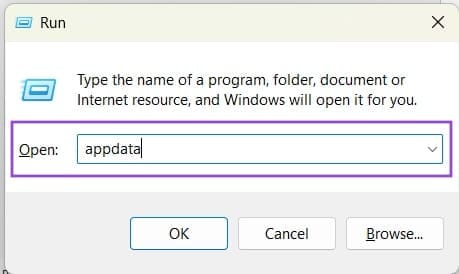
Step 2: Press Windows + R, type ‘appdata’ and hit enter.
Step 3: Open the Roaming folder, then open Discord.

Step 4: Delete the ‘Cache’, ‘Code Cache’, and ‘GPUCache’ folders.

Step 5: Restart Discord.
On Mobile (Android)
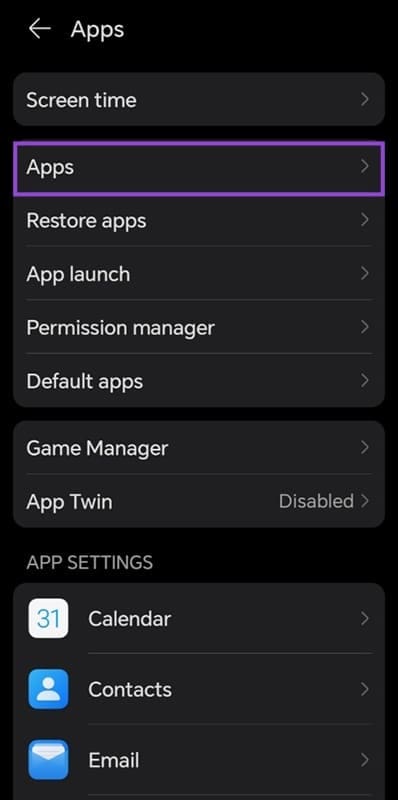
Step 1: Go to Settings > Apps > Discord.
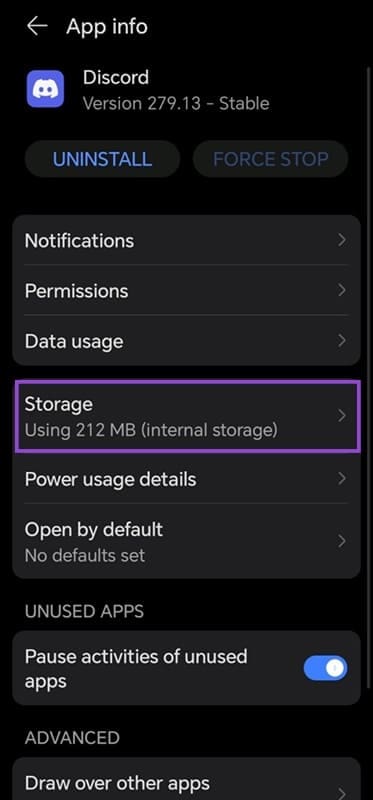
Step 2: Open Storage.
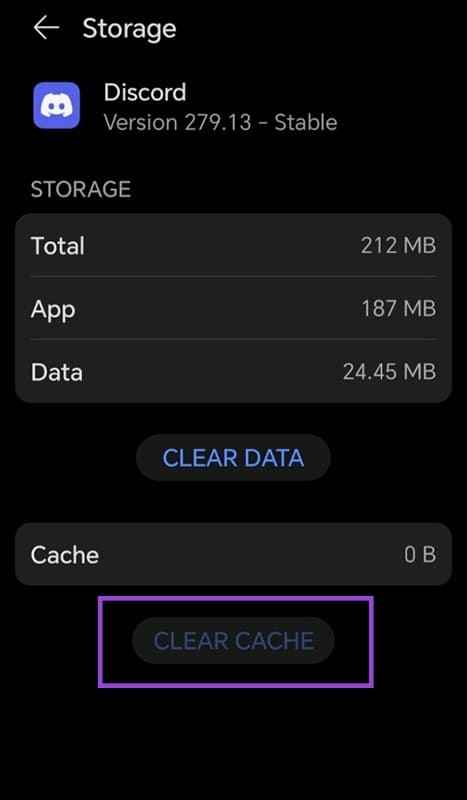
Step 3: Tap ‘Clear Cache.’
There’s no cache-clear option for iOS, so try uninstalling and reinstalling the app if this issue shows up there.
Fix 2. Disable Hardware Acceleration (Desktop)
Hardware acceleration helps Discord run smoothly by using your graphics card, but it can also cause display issues on certain devices.
If Discord opens at all:
Step 1: Click the gear icon.

Step 2: Scroll to ‘Advanced’ in the left menu.
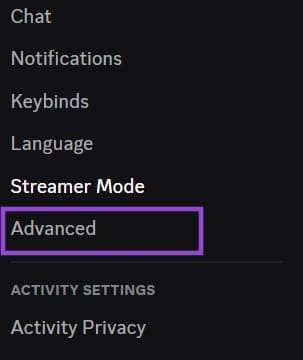
Step 3: Turn off Hardware Acceleration.

Step 4: Confirm and let Discord restart.
Fix 3. Run Discord in Compatibility Mode (Desktop)
If you’re on Windows and Discord won’t load properly, compatibility settings can help by forcing it to use an older configuration that may work better.
Step 1: Right-click the Discord shortcut.
Step 2: Click Properties, then Compatibility.
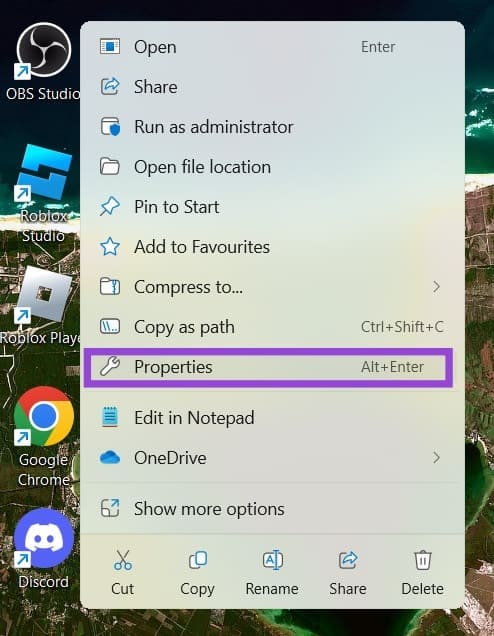
Step 3: Check ‘Run this program in compatibility mode for’ and choose Windows 8 or Windows 7.
Step 4: Also check ‘Run this program as administrator.’
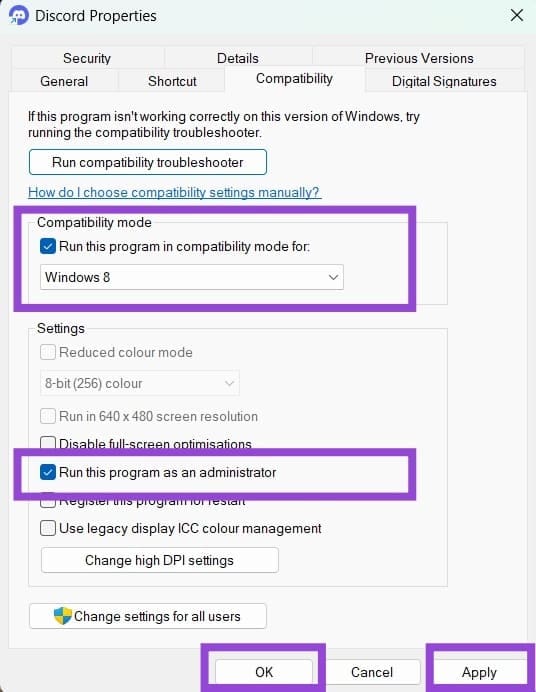
Step 5: Click Apply, then OK.
This is especially useful on older PCs or after a big Windows update.
If you’re still stuck after trying everything, a clean reinstall might be your next best step but hopefully, you won’t need to go that far.