If you thought the BSOD (blue screen of death) was the only disheartening screen your PC could show you, then here’s one to set the record straight. If you’ve turned on your PC and have been greeted with the “Boot Device not found” screen, then you’re probably feeling equally frustrated and lost.
But fear not. This article will take you through several possible solutions to help get your machine running normally again.
Contents
What Causes This Error?
When a PC starts up, the boot device is where your BIOS connects with the system files needed to start up your machine. This is typically your hard drive, but you can also boot via storage devices like a USB or CD/DVD. The files are loaded into memory and the boot-up process begins.
If you’re greeted with the “Boot Device not found” screen, it could be caused by one of the following issues:
- A corrupt or damaged storage device
- Missing boot files on the device
- Device connectivity problems
- An incorrect boot order
Depending on which issue applies to your machine, the solution will vary.
Boot Device Not Found Fix
Below we’ve listed a few fixes to try. It’s a good idea to go through them all until you find one that works:
Hard Reset Your Machine
Let’s start simple. A quick hard reset might reestablish the connection between BIOS and the boot device. To hard reset:
1. Turn off your machine forcibly. This may require holding the power button in for five seconds until everything shuts down.
2. Unplug your PC or laptop from any power source and hold the power button in for at least 15 seconds to drain all residual power.
3. Reconnect your machine to the power source and switch it on.
4. You’ll be greeted with a Startup menu. Choose “Start Windows Normally” and hit “Enter.”

Check Connections
If you suspect a faulty connection might be to blame, it’s a good idea to check your storage device. In the case of USB and CD/DVD drives, this is pretty straightforward. For internal hard drives, you’ll need to open your machine and check the SATA/IDE cable connecting your drive to the motherboard. If you’re not sure what you’re doing, you can always ask a professional to help.
Try Startup Repair
Windows has its own powerful tools to help you fix your machine. If you suspect the problem might be more software-related, try Startup Repair. Here’s what to do:
1. Restart your computer in Advanced Startup mode. You can do this by powering off your PC on startup three times or by activating it via Settings. Go to “Recovery options” in “Update & security” and click the “Restart Now” button under “Advanced start-up.”

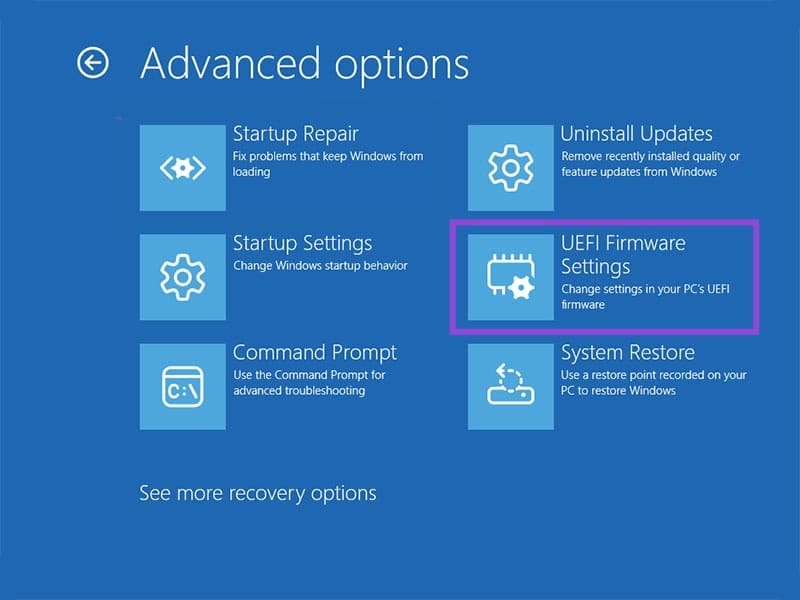
2. On restarting, you’ll be taken to the “Advanced options” menu. Choose “Startup Repair” to run the process. You may be required to enter your profile’s login details.
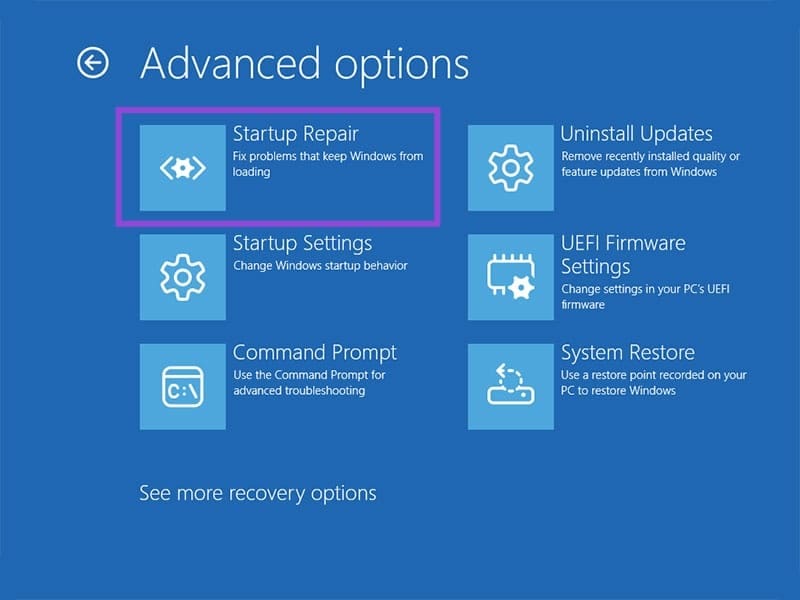
3. Once the repair is finished, restart your machine and see if the problem’s solved.
Fix the Boot Order
If your BIOS boot order is out of sync, then you could be faced with the “Boot device not found” error screen. To fix this problem, you’ll need to enter your UEFI settings. Every manufacturer’s BIOS varies in layout, but the steps are similar:
1. Restart your machine and choose “Advanced options.”
2. Choose “Troubleshooting” from the menu.

3. In the next menu, choose “UEFI Firmware Settings.”
4. Restart your machine.
5. You’ll then be taken to the BIOS of your PC. Every manufacturer has a different one. Look for an option labeled “Boot” or similar.
6. Ensure that your main hard drive is listed first in the boot order. If you’re looking to boot from USB or DVD, ensure that they’re listed either first or second (in the case of recovery).
7. Save your settings, exit, and restart your machine.
Repair via Command Prompt
If you suspect disk problems are to blame, you can attempt a fix via the Command Prompt.
1. Head to the “Advanced options” menu on restarting and click the “Command Prompt” button.

2. When it opens type “bootrec/fixmbr” and hit “Enter.”
3. To scan your drives, type “bootrec/scanos” and then “Enter.”
4. Finally, type “bootrec/rebuildbcd” to rebuild boot data and hit “Enter.”
5. Restart your machine immediately and see if the issue is resolved.