You’ve tried to copy a file or folder to move it from one place to another, only to be greeted with the message that something is stopping you. The message, “An unexpected error is keeping you from copying files,” has a few different causes (and error codes), but thankfully comes with a few fixes you can try too. In this article, we’ll be going through them.
Contents
What Causes This Error?
If you found that Windows ran into an unexpected error when copying, you might be wondering what’s going on. There are a few causes for this error, and, while the message remains the same, the variable error code below it might offer a clue. The major ones include:
- 0x8007016A: Encountered when transferring to and from the cloud. Shows the cloud provider isn’t working
- 0x800700DF: The file size exceeds the destination
- 0x80070522: You don’t have permission to copy a file to or from a location
- 0x80004005: The catch-all code, which can mean connection trouble, file format, file corruption, or driver issues
Fixes for “An Unexpected Error Is Keeping You From Copying Files”
Depending on the code above, there are a few solutions for you to try. Let’s get into them:
Restart Your Machine
So simple, we won’t spend any more time on it. Your computer may be behaving erratically, so a restart might help fix things.
Check Your Cloud Connectivity
If the error message pops up when you’re transferring files to and from OneDrive, then you might be suffering from connectivity troubles. Ensure that your internet connection is stable, and that you’re properly signed into OneDrive on your PC. In the case of other services like Dropbox, try uninstalling and reinstalling them before trying to copy again.
Scan for Malware
Trouble with a virus or malware can interfere with the copying process or corrupt the files you are trying to copy. Run a quick scan with Windows Defender or your antivirus software just to be sure.
Permissions
The folder you are copying from or to might be inaccessible to your current user profile. Ensure you have Admin privileges when doing so, or check your permissions for the file you’re copying as follows:
Step 1. Right-click the file or folder and select “Properties.”
Step 2. Head to the “Security” tab and look at the profiles mentioned under “Group or user names.”
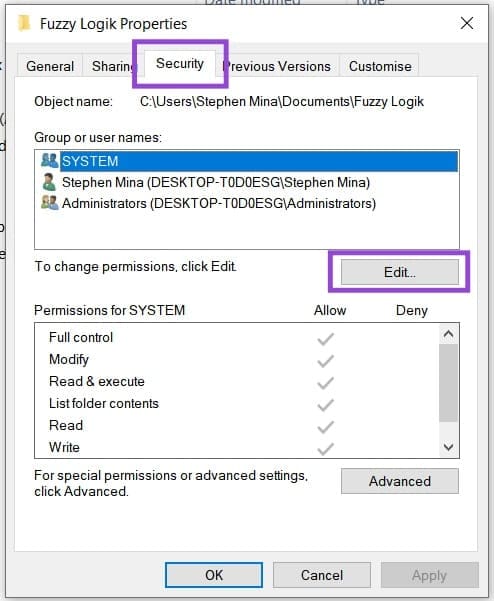
Step 3. To add a profile, click the “Edit” button. Click “Add” to put another profile in, and ensure all the permissions are set to “Allow.”

Step 4. Press “OK” and try again.
Check Your File Format
While the file you’re transferring might be compatible with Windows, the device you’re copying it to might not be. Different file formats can prevent copying. Windows recognizes FAT32, exFAT, and NTFS compatible devices and drives, and won’t transfer them to others. Keep in mind, too, that some file formats (like FAT32) place limits on the size of files being shared (4GB in FAT32’s case).
Sync Center Limits
If you’re using a network-connected PC and can’t download files over a certain size, then Sync Center and its offline storage limits might be constraining you. You can fix it like so:
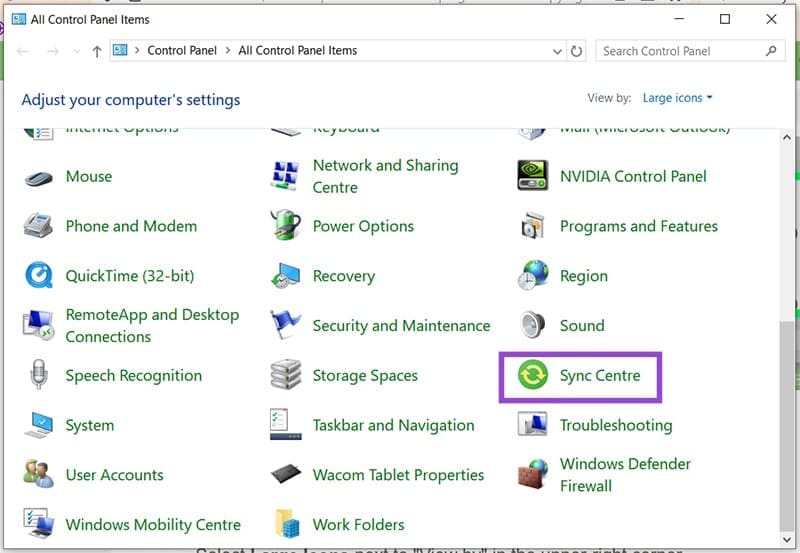
Step 1. Open the Control Panel and navigate down to “Sync Center.”
Step 2. Click “Manage Offline Files” in the sidebar and click the “Disk Usage” tab in the new window.
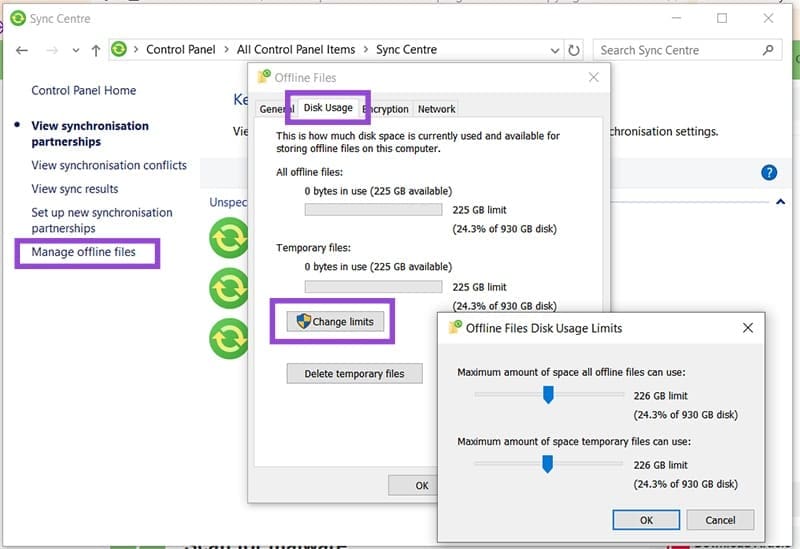
Step 3. Click the “Change limits” button and drag the sliders to adjust the size limit on files.