Facebook allows you to do a lot of things, including watching videos. All your Facebook activities are recorded in the activity log, including the videos you’ve watched on this platform.
Hence, you can find the videos you’ve watched on a particular date and watch them again or share that video link. Know how you can find out the watched videos on Facebook.
Contents
Reasons for Checking Watch Video History on Facebook
The most common reason to get Facebook watch history is to rewatch those videos you liked. If you want to watch any video again on Facebook, you can find that from the videos you’ve watched list and re-play them.
Sometimes, the app automatically reloads and takes you to the home page, even when you’re in the middle of a video. Finding that video from the watch history helps you locate the video and continue to watch it.
Moreover, if you’ve let someone else use your device to watch Facebook videos, especially your children, you might want to check which videos they have watched on Facebook.
Find Watched Videos on Facebook
Depending on your device, there are different ways to access watched videos on Facebook.
Computer Web Browser
If you are more comfortable browsing Facebook from your computer, you need to follow this method to find watched videos on Facebook.
- Log in to your Facebook account from a web browser.
- Click on your profile picture in the top-right corner.
- Choose Settings & Privacy.
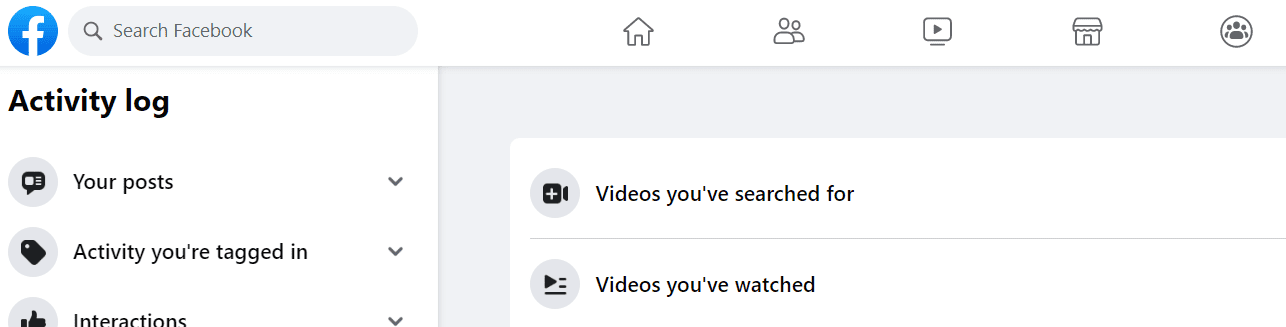
- Click on Activity Log from the list.
- All categories of activities you’ve performed on Facebook will appear.
- Click on Videos you’ve watched.

- All the videos you’ve watched on Facebook will appear under dates.
- You can even delete the watched video history or remove them individually.
Mobile Web Browser
Even as a smartphone user, you may want to use Facebook from the web browser of your mobile device. Here is the method to find watched Facebook videos on a mobile web browser:
- Log in to your Facebook account from any web browser.
- Tap on the hamburger menu icon on the top right side.
- Scroll and tap on the Settings option.
- Tap on the Activity log that you’ll find under the Your Activity section.
- Select Filters and choose Categories.
- Tap on Logged actions and other activity to expand.
- Select the Videos you’ve watched option.
 All your watch video history will appear on the screen.
 All your watch video history will appear on the screen.
Facebook Android App
The Facebook Android app users can follow the below steps to find out the videos they’ve watched on Facebook:
- Open the Facebook app on Android.
- From the top menu bar, tap on the hamburger icon.
- Tap on the gear icon from the right.
- Scroll down till you find the Activity log, and tap on it.
- Above the categories, you can see some tags in blue.
- Swipe right and tap on Videos watched when it appears.
- It’ll take you to the Videos you’ve watched section.
- Instead of choosing tags, you can even go to Logged actions and other activity section and tap to expand it.
- Select Videos you’ve watched option to see all the watched videos.

Facebook Lite App on Android
Those using the Facebook Lite app on Android due to network instability or low bandwidth can check the watched videos using the following steps.
- Open the Facebook Lite app.
- Tap on the hamburger menu from the top-right corner.
- Select Settings & Privacy menu and choose Settings.
- Scroll down to Your information section and tap on the Activity log.
- Tap on Logged actions and other activity section to expand it.
- Select Videos you’ve watched.

- Now, you can see all the videos you watched on Facebook under the dates.
- You can even use a date filter to see the videos watched during a particular period.

Facebook App on iPhone
iPhone users need to follow this approach to check viewed Facebook videos:
-
- From the Facebook home screen, tap the hamburger menu icon at the bottom.
- Select Settings & Privacy and choose Settings.
- Go to Your activity section and select Activity log.
- Scroll down until you find Logged Actions and other activity section.
- Tap on the down arrow beside the option.
- Tap on Videos you’ve watched to see the list of videos you’ve seen so far.

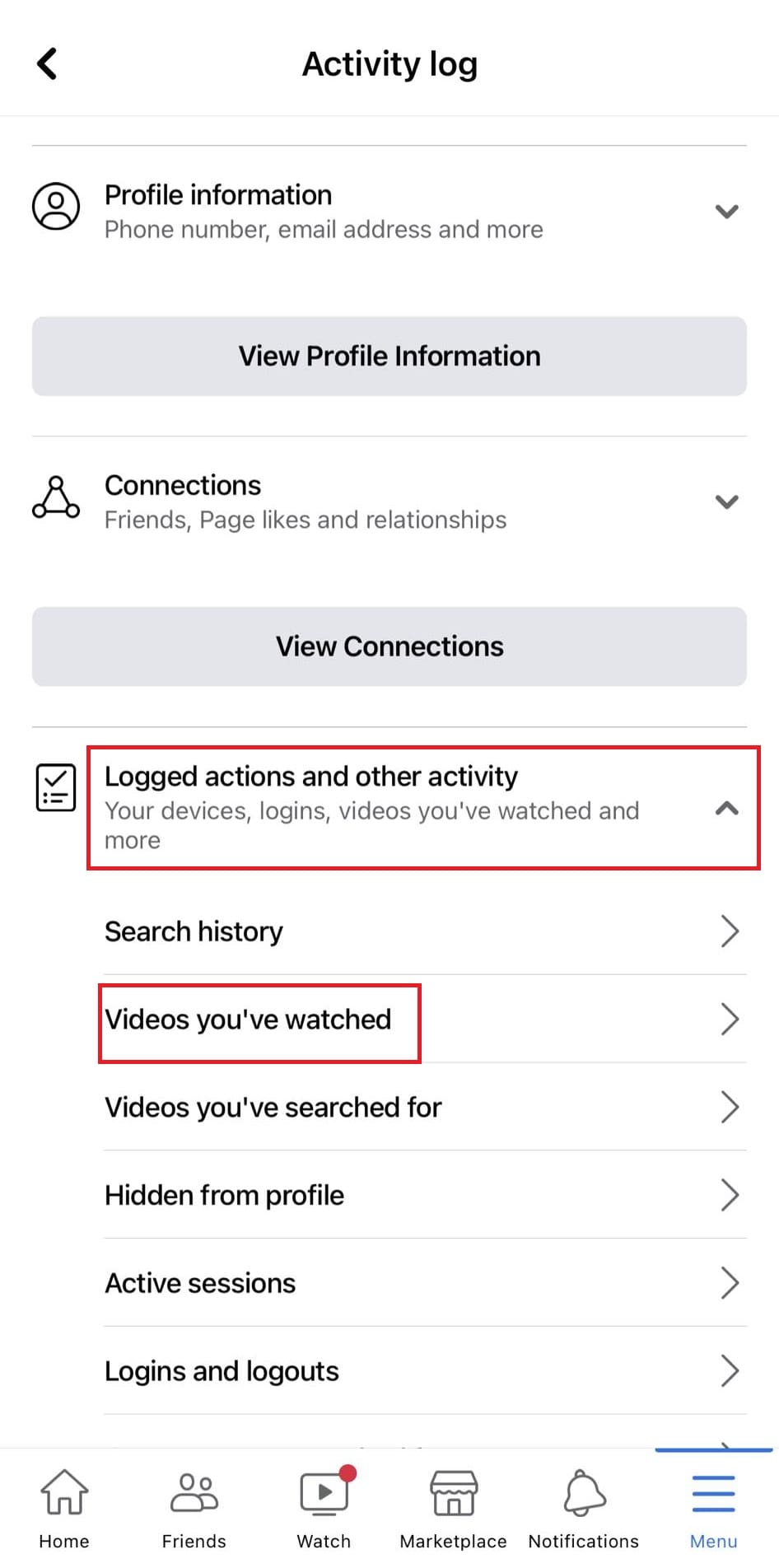
You can check which videos you’ve watched recently with specific dates.
Conclusion
Now that you know how to find watched videos on Facebook from the computer and mobile web browser, Android app, iOS app, and Facebook Lite app, it’s time to implement the methods.
Please share this post with your family and friends so they, too, can find out the old videos they’ve watched on Facebook. Also, tell us in the comment about the situations when you needed to check your watched video history.