

When using your preferred browser, it’s always better to see your favorite site when you open it. That’s why browsers allow their users to customize the home page, so they always see the page of interest as soon as they open the browser. Since each browser is different, you will not find the steps in the same area. Here are the easy-to-follow steps to personalize your Brave Home page.
Contents
How to Change the Home Page on Brave for Android
Even if you’re not too tech-savvy, you’ll be happy to know that adding your favorite page (such as TechniPages) to the home page is quick and easy. Once the Brave browser opens, tap on the three dots at the bottom right and go to Settings.
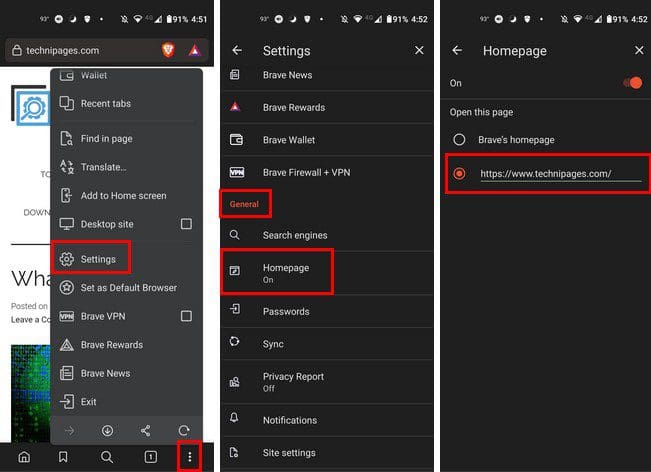
Once you’re in Settings, go to the General section, where you’ll find the Home page option. In the Home page option, you can add the page you want to see when you open the browser. Make sure that the On option is toggled at the top right. If you open Brave and it opens on the last site you visited and not on the site you added to your home page, simply tap on the Home icon, and that site will appear. It won’t happen all the time, but it might.
How to Change the Home Page for Brave Browser on Desktop
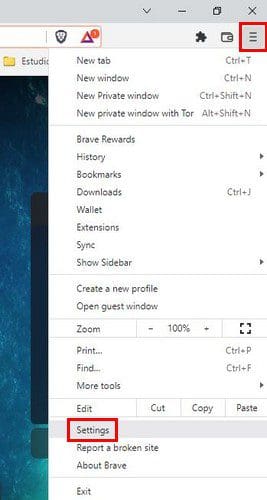
If you can change the home page on your Android device, you can also do it on your computer. Once the browser opens, click on the three-line menu at the top right and go to Settings.
Once you’re in Settings, click on the Appearance option on the left and click on the Show home button, so you toggle it on. The option to enter a custom web address will appear when it’s on. Please select it and enter the address of the site you want to see every time you open the browser.
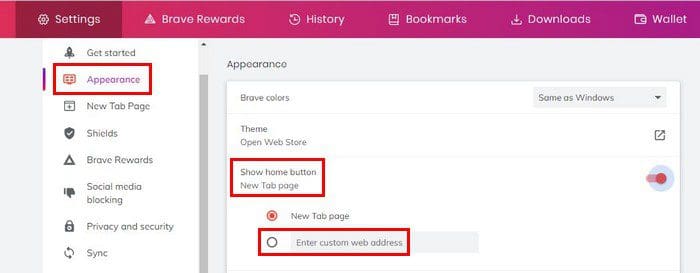
When you open the browser, you’ll see the last page you visited, but when you click on the Home button, you’ll always see the page you added. It would be nice if it would always open the home page and not the last page you visited, but for now, it has a tendency to do that. Who finds this annoying?
Conclusion
Having your favorite page open when you use Brave makes the browsing experience a whole lot better. If you ever change your mind and want to replace the current page, you simply need to follow the same steps and add the new addy. Now you can easily change the home page for the Brave browser on your computer and Android device. How long have you been using the Brave browser? Share your thoughts in the comments below, and don’t forget to share the article with others on social media.

By the way, I found the actual answer here:
https://support.brave.com/hc/en-us/articles/360041346091-How-do-I-enable-or-disable-images-on-my-New-Tab-Page-Android-
It is
1. Going to Menu –> Settings –> New Tab Page
2. Toggle the desired option on/off:
This doesn’t explain how to customise the Brave homepage, it explains how to change FROM the Brave homepage to a different homepage.
Please don’t label this instruction as about “customising Brave’s homepage, when it actually describes how to change away from Brave’s homepage to another different homepage!
Customising the Brave homepage mean staying with that homepage, but altering some aspects of what that homepage shows. For instance, change the background of the Brave homepage.. It is clear how to do that on Windows desktop – there is a button/link on bottom right labelled “Customise” But how, if at all, can I change this on my Android tablet?
I need help adding icons to Brave on my iPhone but this page didn’t help