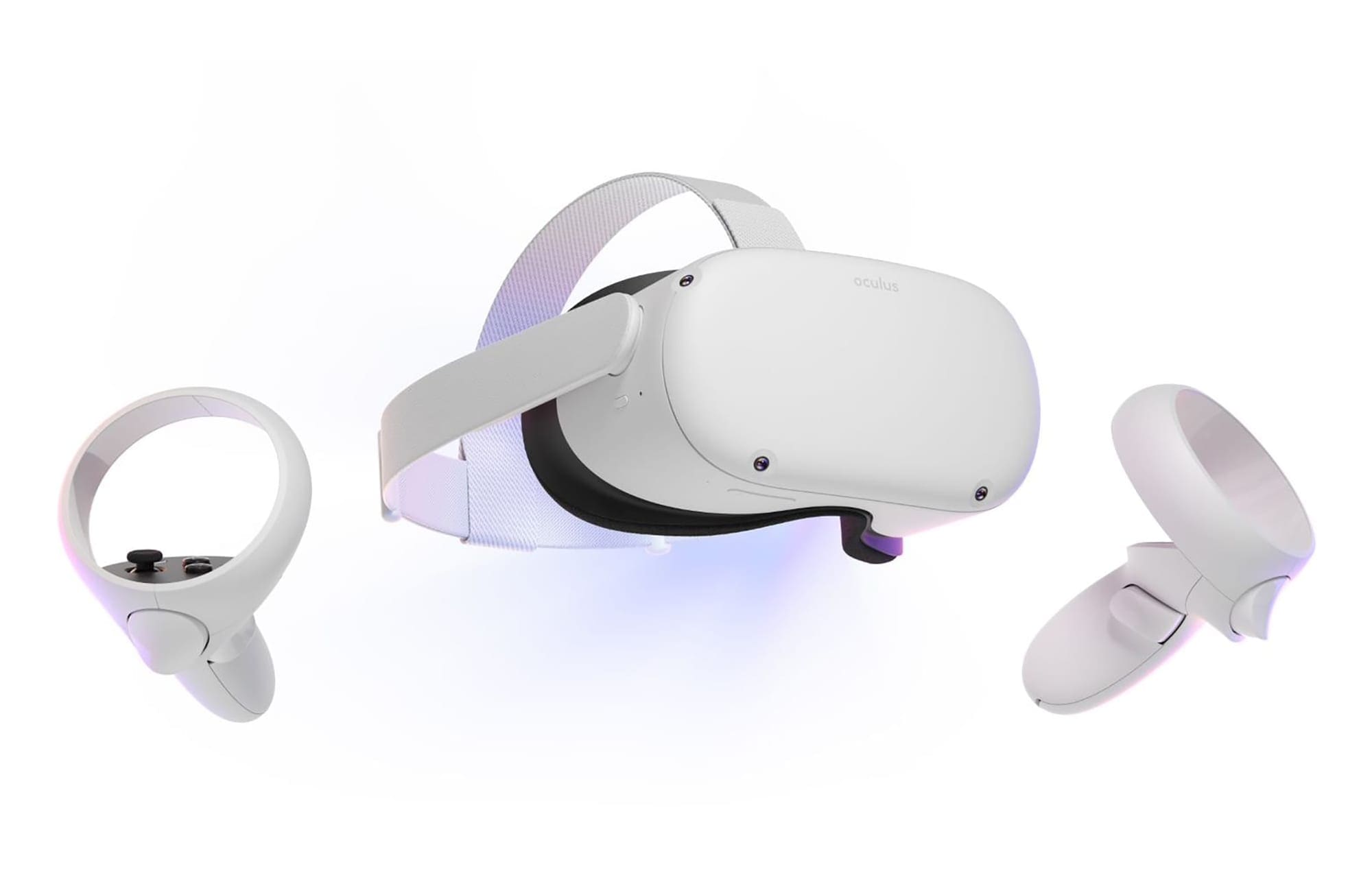
The Oculus Quest 2 comes with its own set of motion controllers. There are no third- or even first-party motion controller alternatives. Even the previous generations of Oculus motion controllers are not compatible. An option allows you to use your hands as controllers; however, many apps don’t support this. Realistically, it’s very fiddly.
Gamepads have long been a trendy way to play games, thanks to their versatility and comfort. You may not know that you can actually use them with your Quest 2, though there are some caveats. The first thing to know is that to be able to pair a controller to your Quest 2, it needs to support Bluetooth 3.0. Wired controllers, controllers with USB dongles, and controllers that don’t support Bluetooth 3.0 or higher aren’t supported.
The second important thing to know is that very few games provide gamepad support. The vast majority of games on the Quest 2 require you to use the standard motion controllers. That’s not to say connecting a gamepad will be useless, though. There are a small number of games that do support gamepads. You’ve also got options like classic games in an emulator thanks to SideQuest, and games on your computer, if you link them up.
If you want, you can even pair a Bluetooth keyboard or mouse. Like with a gamepad, support will be thi; however, it can work well for you specifically in a virtual desktop-type environment. In this case though, it may be easier to use the keyboard and mouse already connected directly to your computer, unless they’re wired and don’t reach where you want to sit.
There are two ways to pair your Bluetooth gamepad with your headset. You can either do it in the headset itself or via the Oculus mobile app.
Oculus Mobile App
To pair a gamepad with your Quest 2 headset via the mobile app. First, make sure your Quest 2 headset is turned on. In the Oculus mobile app, tap on the burger menu icon in the bottom right corner, then tap on “Devices”.
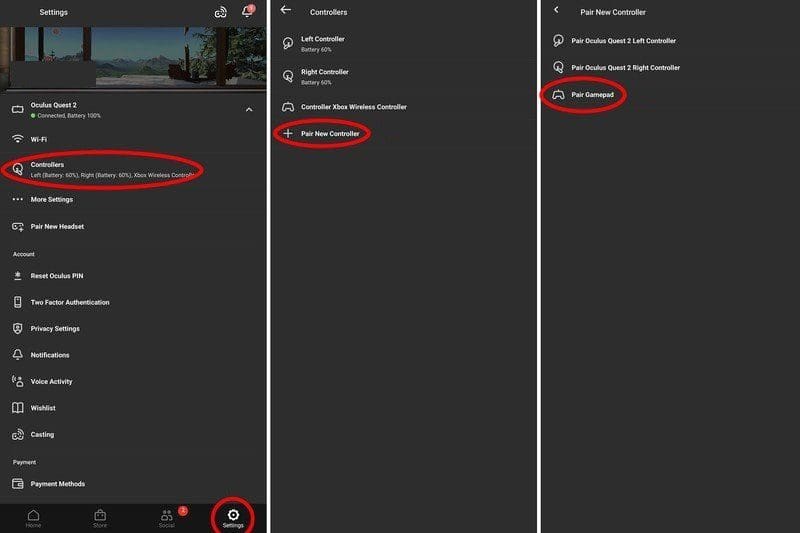
In the Devices menu, tap “Controllers,” then “Pair New Gamepad”, and “Pair Gamepad”. Now turn on your gamepad and enable Bluetooth discoverability. When the app shows the gamepad, tap on it to connect.
Oculus headset
To pair a gamepad with your Quest 2 headset without using the mobile app, turn on your Quest 2 and put it on. On the right-hand Oculus controller, press the Oculus button. Click on the “Settings” cogwheel icon, then select “Experimental Features”. In the Experimental Features menu, scroll down to the “Bluetooth Pairing”, then click on the “Pair” button.

Next, turn on your gamepad, and put it in pairing mode. Select “Pair New Device” on your Quest 2. Once your quest discovers your gamepad, select it and they will be paired.
Once, you’ve completed either of these steps, pairing should be complete. You should then be able to see your gamepad listed as a controller option after the standard touch controllers.