Skip to content
LogoTechnipages
LogoTechnipages
  • Topics
        • Android
        • Browsers
        • Gaming
        • Hardware
        • Internet
        • iPhone
        • Linux
        • macOS
        • Office
        • Reviews
        • Software
        • Windows
        • Definitions
        • All Recent Posts
  • Product Reviews
  • About

How to Configure “Double-tap to Seek” in YouTube on Android

Mel HawthorneAugust 7, 2020 Comments (0)

One basically universal and key point of playing videos on computers is that the video player allows you to scroll through the video at will to arbitrary points. This allows you to easily skip scenes you don’t like or re-watch scenes you liked or missed.

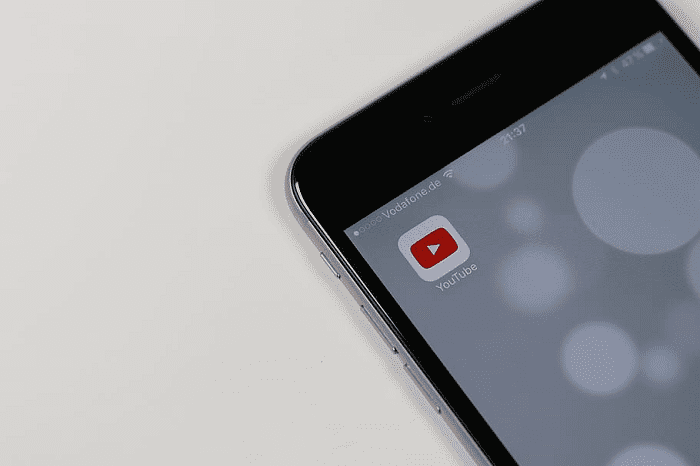
On mobile devices precisely scrolling through the video to exactly the moment you want can be difficult as touchscreens can be difficult to use precisely due to the size of our fingers. To help get around this issue, YouTube has a feature called “Double-tap to seek”.

Double-tap to seek allows you to double-tap the screen on the left or right of the play button to skip a predefined distance backward or forwards in the video respectively. This can allow you to easily skip back or forwards a few seconds or even minutes with multiple taps. You can chain together as many taps as you want to keep skipping more of the video.

Unfortunately, for those who don’t like the feature, you can’t disable Double-tap to Seek. You can only configure the amount of the video that each double-tap skips – and not actively use it, if you don’t want it, of course.

How can you configure double-tap to seek?

To configure the time that Double-tap to Seek skips, you need to use YouTube’s in-app settings. To do so, tap your profile picture icon in the top-right corner of the app.
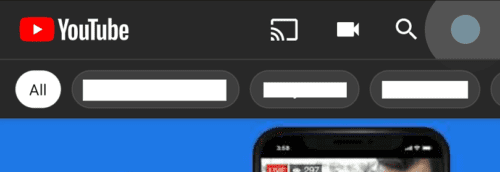
Tap your profile picture icon in the top-right corner to get to the in-app settings.

Once on your account settings page, tap “Settings” which should be the second to last option on the list.
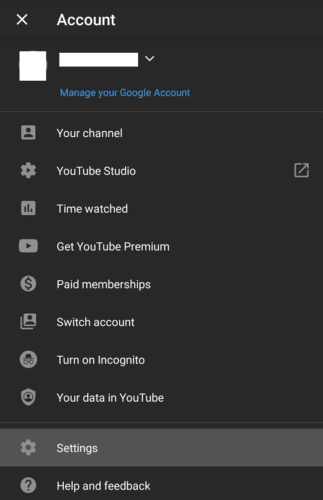
Tap “Settings” to open YouTube’s in-app settings.

In the main settings menu tap “General” to get to the right settings page.
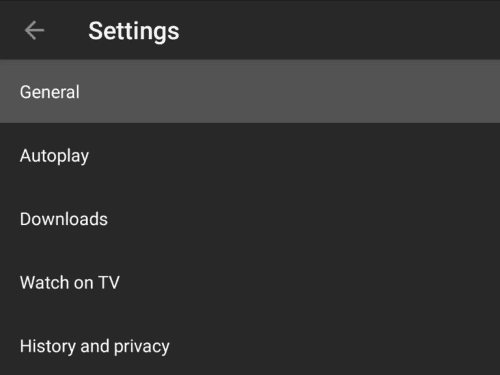
Tap “General” to open the correct settings page.

“Double-tap to seek” is the fifth option in the general settings, tap it to open the configuration popup. You can configure double-tap to seek to skip 5, 10, 15, 20, 30, or 60 seconds at a time. Smaller values allow you more precise control but require more double-taps to skip longer distances in the video. Larger values make it easier to skip more of the video but provide less fine control.

YouTube defaults to a 10-second skip, this is deemed to be ideal for both short-term skips, especially to see something you just missed, while also not being too small a value for the scenarios when you want to skip further.
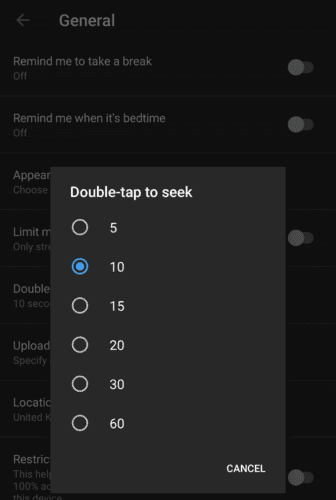
Configure how many seconds you want double-tap to seek to skip when you double-tap the screen.

Categories: Android

Author Mel Hawthorne

You Might Also Like

  • Android: Restore Prompt For Default Application

    Mitch BartlettAndroid
  • Block Text Header

    Galaxy S23: Block Text Messages & Calls

    Mitch BartlettAndroid
  • Gear Icon Header

    Fix: Android App Widgets Not Appearing

    Mitch BartlettAndroid
  • Google Releases the First Minor Pixel Update in 2021

    Andrew MyrickAndroid

Leave a Reply

Your email address will not be published. Required fields are marked *

  • signs your hdd is failing

    Signs That Your HDD Is Failing

  • how to fix error code 0x800705b4 in windows 11

    How to Fix Error Code 0x800705b4 in Windows 11

  • does chromebook need an antivirus

    Does Chromebook Need an Antivirus?

  • top vpns

    Top 5 VPNs to Keep Your Information Private in 2026

  • npu power management bug

    What Is the NPU Power Management Bug and How Do You Fix It?

profile pic

The Experts Behind Technipages

My name is Mitch Bartlett. I've been working in technology for over 20 years in a wide range of tech jobs from Tech Support to Software Testing. I started this site as a technical guide for myself and it has grown into what I hope is a useful reference for all.

Learn More

technipages logo white
linkedin icon

Technipages is part of Guiding Tech Media, a leading digital media publisher focused on helping people figure out technology. Learn more about our mission and team here.

© 2026 Guiding Tech Media All Rights Reserved

  • About Us
  • Contact
  • Terms of Use
  • Privacy Policy

© 2026 Guiding Tech Media All Rights Reserved

Information from your device can be used to personalize your ad experience.
Do not sell my personal information.

Last Updated on August 7, 2020 by Mitch Bartlett