Skip to content
LogoTechnipages
LogoTechnipages
  • Topics
        • Android
        • Browsers
        • Gaming
        • Hardware
        • Internet
        • iPhone
        • Linux
        • macOS
        • Office
        • Reviews
        • Software
        • Windows
        • Definitions
        • All Recent Posts
  • Product Reviews
  • About

How to Cast a Chrome Tab to TV

Mel HawthorneJuly 13, 2020 Comments (0)

If you’re wanting to watch a video or film on your TV but it doesn’t have the right streaming app, and you don’t have a long enough HDMI cable, you may feel like you’re out of luck. If you’ve got a Chromecast, or a TV with Chromecast built in, however, you can cast a tab from Chrome, a video file, or your entire computer screen to another device on your network.

Note: Chrome used to support casting to Fire TV, Roku, and Miracast devices. That capability has been removed by Google. A Chromecast or a TV with Chromecast built-in is now required to use this feature.

System requirements

Casting a Chrome tab is relatively processor intensive, as a minimum you need an Intel i3 or equivalent CPU running Windows 7. For Mac, you need at least a MacBook pro 2010 running OS X 10.9.

All Chrome books from 2014 and later, support casting a Chrome tab, 2013 Haswell based models and the Samsung Chromebook 2 also support casting Chrome tabs. Results on Linux vary with distribution, drivers, and desktop environment, but it’s advised that you exceed the minimum system requirements for Windows.

All platforms need at least a GPU equivalent to the Intel 3000 integrated graphics chip. All devices need to be connected to the same network to be able to work

Casting a tab

To cast a tab from Chrome, you need to click the triple-dot icon in the top-right of the window, then select “Cast” from the drop-down list.
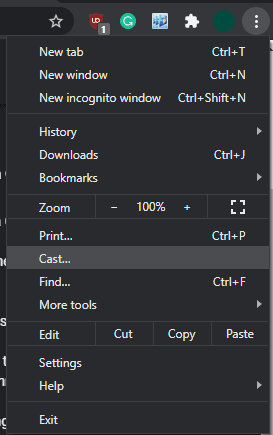
Click on the triple-dot icon in the top-right, then select “Cast”.

A small popup will appear in the top-right with a list of available devices. You just need to click on any device on the list to start casting to it.

Select a device to start casting to.

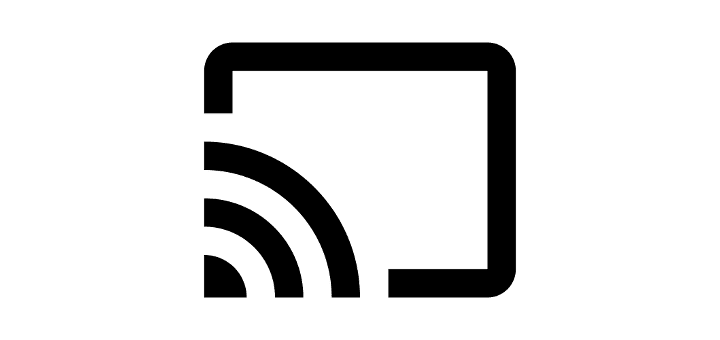
It can take a few seconds to connect, but once connected two icons will appear. A blue rectangular icon with a Wi-Fi symbol in the corner will appear at the right of the extensions bar in all Chrome windows. A grey rectangular icon will appear in the right of the tab for the tab being cast.

Tip: When casting a tab, you can see the tab on both devices, however, audio from the tab being cast will only play on the remote device.

Two icons will appear, one to remind you that you’re casting, the other to show which tab is being cast.

To stop casting a tab, click the previously mentioned blue icon in the extensions bar, then click on the device you’re casting to. The disconnection process should be almost instant.

Casting other media

You can also choose to cast your desktop, or an audio or video file saved to your computer. To do so, select what type of media you want to cast from the “Sources” drop-down box in the list of devices you can cast to.

Categories: Internet

Author Mel Hawthorne

You Might Also Like

  • Dropbox: How To Review Your Security Settings

    Mel HawthorneInternet
  • How to Enable and Disable Vertical Tabs in Microsoft Edge

    Judy SanhzInternet
  • Bitwarden: How to Create a New Folder

    Mel HawthorneInternet
  • fix-youtube-cant-go-live

    Why Can’t I Go Live on YouTube? 3 Possible Fixes

    Madalina DinitaInternet

Leave a Reply

Your email address will not be published. Required fields are marked *

  • browser screen goes black

    Browser Screen Goes Black Intermittently 

  • computer heating up in hyper v

    Computer Heating Up When Using Hyper-V – How to Fix 

  • clipchamp unexpected application error

    Clipchamp Unexpected Application Error: Here’s the Solution 

  • winload.efi file missing error

    Winload.EFI File Missing Error on Boot – How to Fix

  • fix error 0x9cfc7550

    How to Fix Error 0x9cfc7550 (We Couldn’t Create a New Partition) in Windows 

profile pic

The Experts Behind Technipages

My name is Mitch Bartlett. I've been working in technology for over 20 years in a wide range of tech jobs from Tech Support to Software Testing. I started this site as a technical guide for myself and it has grown into what I hope is a useful reference for all.

Learn More

technipages logo white
linkedin icon

Technipages is part of Guiding Tech Media, a leading digital media publisher focused on helping people figure out technology. Learn more about our mission and team here.

© 2025 Guiding Tech Media All Rights Reserved

  • About Us
  • Contact
  • Terms of Use
  • Privacy Policy

© 2025 Guiding Tech Media All Rights Reserved

Information from your device can be used to personalize your ad experience.
Do not sell my personal information.

Last Updated on July 13, 2020 by Mitch Bartlett