Skip to content
LogoTechnipages
LogoTechnipages
  • Topics
        • Android
        • Browsers
        • Gaming
        • Hardware
        • Internet
        • iPhone
        • Linux
        • macOS
        • Office
        • Reviews
        • Software
        • Windows
        • Definitions
        • All Recent Posts
  • Product Reviews
  • About

How to Add Multiple Clocks in Windows 11

Evan MercerApril 8, 2025 Comments (0)
how to add multiple clocks in windows 11

If you happen to have family, colleagues, or clients in different countries and time zones, it’s helpful to have multiple clocks on your Windows device. That way, you can quickly and easily see what time it is in other parts of the world that matter to you, which is helpful for scheduling calls, meetings, etc.

Windows 11 lets you add two additional clocks on top of the default one, for a total of three. This guide shows how to add multiple clocks in Windows 11.

How to Add Multiple Clocks in Windows 11: Step-by-Step

Adding clocks in Windows 11 is a quick and easy process, carried out through a submenu of your device settings. Here is a full breakdown of how it’s done, one step at a time:

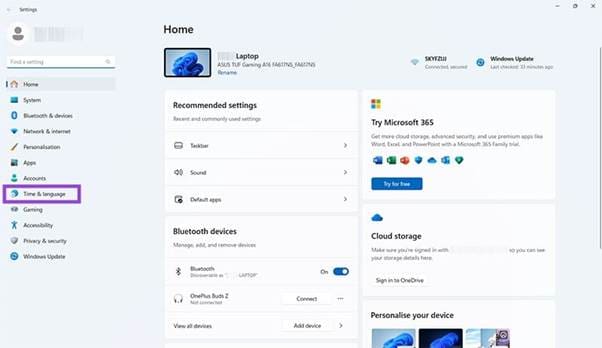
Step 1. Open the Settings. You can do this by either using the Start menu shortcut or by pressing the “Windows” and “I” keys on your keyboard at the same time.
How to Add Multiple Clocks in Windows 11 1

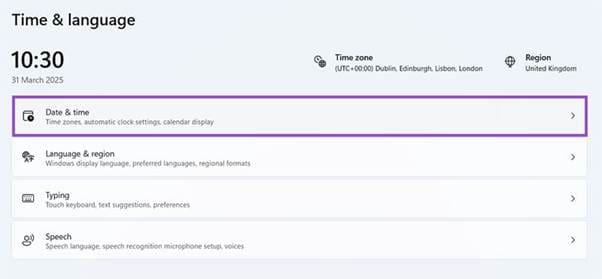
Step 2. Go to “Time & language” and then click on “Date & time.”
How to Add Multiple Clocks in Windows 11 2

Step 3. Scroll down to find the “Additional clocks” button and select it.
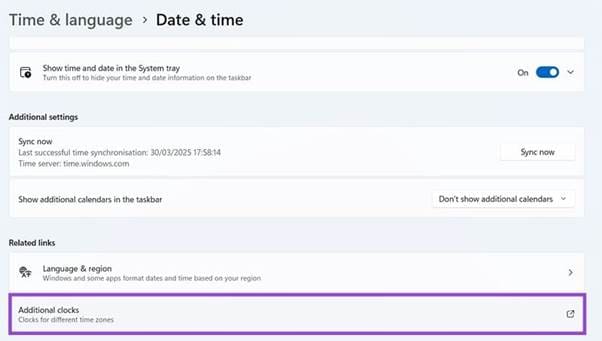
How to Add Multiple Clocks in Windows 11 3

Step 4. A pop-up window will appear with the Additional Clocks settings. You can then check the box next to “Show clock 1” and click the drop-down menu to select which time zone you want the clock to display.
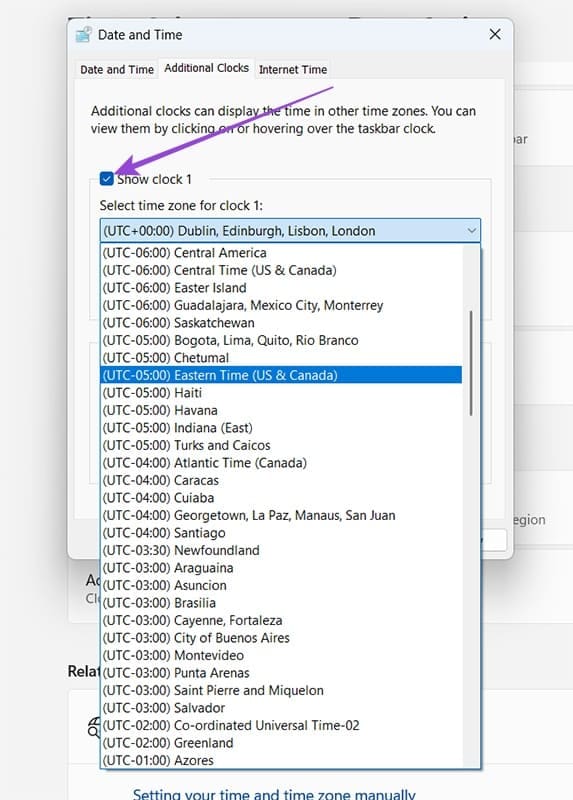
How to Add Multiple Clocks in Windows 11 4

Step 5. Enter a display name for your chosen clock, once you’ve set the time zone.
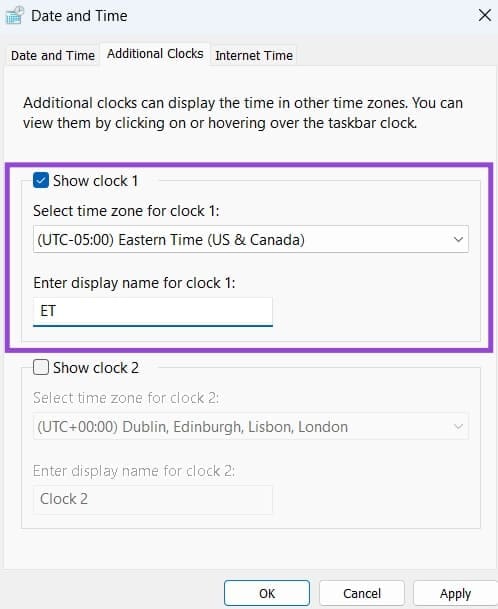
How to Add Multiple Clocks in Windows 11 5

Step 6. Repeat the process for “Clock 2,” if needed. Then, when you’re happy with the settings of the two clocks, click the “Apply” button, followed by “OK.”
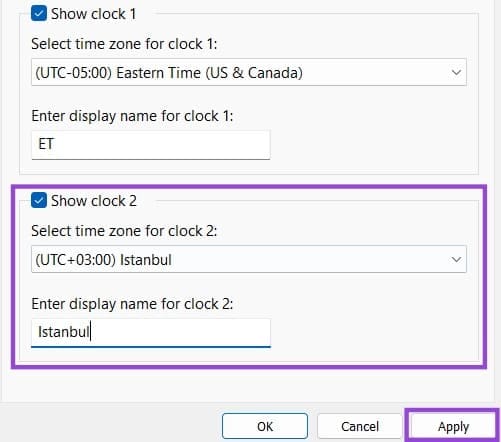
How to Add Multiple Clocks in Windows 11 6

Step 7. Only your default clock will actually appear in the taskbar, but whenever you wish to view the others, just click on the time in the bottom-right. A window will appear showing both of your added clocks, just above the calendar.
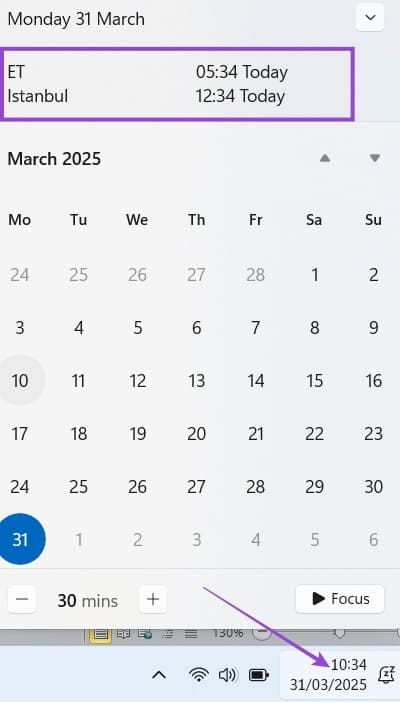
How to Add Multiple Clocks in Windows 11 7

What if You Need to Add Multiple Time Zones on Windows 11 Beyond the Limit of Three?

As explained, Windows 11 lets you add a total of three clocks to your taskbar. But if that isn’t enough for you, there are other options. You could, for instance, download the Windows Clock app to your system, or a third-party clock app, and configure that to see the time in different parts of the world.

Here’s a quick look at how to use Windows Clock.

Step 1. Find and download Windows Clock from the Microsoft Store.
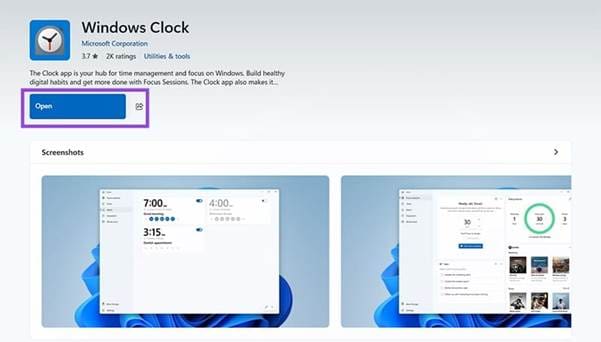
How to Add Multiple Clocks in Windows 11 8

Step 2. Open the app. It may need to update automatically before you can start using it. Then click “World clock.”
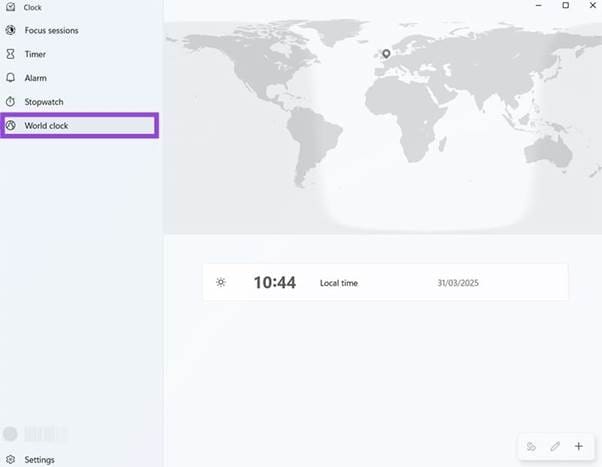
How to Add Multiple Clocks in Windows 11 9

Step 3. Click the “+” icon to add a new clock, anywhere around the world. You can type in the location you want to see the time of, select it from the list of results, and then press “+ Add” to confirm your choice.

How to Add Multiple Clocks in Windows 11 10
Categories: Windows

Author Evan Mercer

I’m a computer science grad who loves to tinker with smartphones and tablets in my spare time. When I’m not writing about how to fix techy problems, I like hanging out with my dogs and sipping nice wine after a tough day.

You Might Also Like

  • Win7 User Account Control settings

    Enable or Disable User Account Control (UAC) in Windows

    Mitch BartlettWindows
  • Windows 11 Disable Are you sure you want to move this file to the Recycle Bin Dialog

    Windows 11: Disable “Are you sure you want to move this file to the Recycle Bin?” Dialog

    Mitch BartlettWindows
  • bluetooth-toggle-missing-windows-10

    Fix Bluetooth Toggle Missing on Windows 10 or 11

    Madalina DinitaWindows
  • surface-pen-not-working-after-update

    Fix Surface Pen Not Working After Update

    Madalina DinitaWindows

Leave a Reply

Your email address will not be published. Required fields are marked *

  • camera not working in vmware

    Camera Not Working in VMware – How to Fix

  • browser screen goes black

    Browser Screen Goes Black Intermittently 

  • computer heating up in hyper v

    Computer Heating Up When Using Hyper-V – How to Fix 

  • clipchamp unexpected application error

    Clipchamp Unexpected Application Error: Here’s the Solution 

  • winload.efi file missing error

    Winload.EFI File Missing Error on Boot – How to Fix

profile pic

The Experts Behind Technipages

My name is Mitch Bartlett. I've been working in technology for over 20 years in a wide range of tech jobs from Tech Support to Software Testing. I started this site as a technical guide for myself and it has grown into what I hope is a useful reference for all.

Learn More

technipages logo white
linkedin icon

Technipages is part of Guiding Tech Media, a leading digital media publisher focused on helping people figure out technology. Learn more about our mission and team here.

© 2025 Guiding Tech Media All Rights Reserved

  • About Us
  • Contact
  • Terms of Use
  • Privacy Policy

© 2025 Guiding Tech Media All Rights Reserved

Information from your device can be used to personalize your ad experience.
Do not sell my personal information.

Last Updated on April 8, 2025 by Evan Mercer