
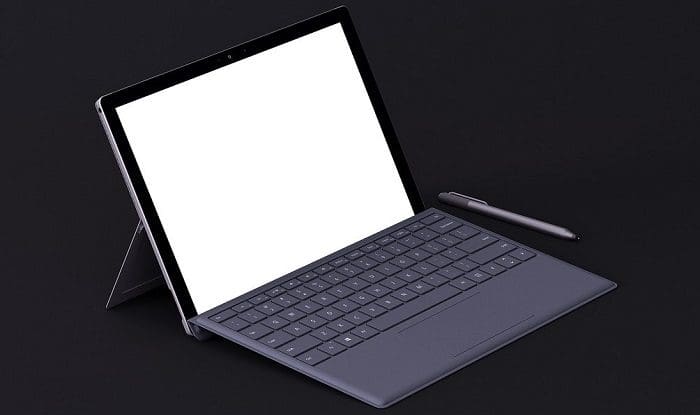
If you own a Microsoft Surface Pro device, we’ve got bad news for you. All Surface Pro models are plagued by ghost touch issues, including the amazing Surface Pro 7 and Surface Pro X models. Experiencing “phantom” touch input and circles on your screen out of nowhere can be really confusing.
The main problem is that ghost input can disrupt your apps and even prevent your Surface device from functioning correctly. If you’re lucky, you may experience a few random phantom touches every once in a while. Unfortunately, the problem may occur continuously for some users. Let’s discuss what you can do about it.
How to Fix Ghost Touch on Microsoft Surface Pro Devices
Hotfix for Surface Pro 4 and Surface Book
Phantom touches have been plaguing Surface devices for years. Microsoft has already rolled out a special hotfix for Surface Pro 4 and Surface Book devices. If you own a different Surface model, skip this step and go to the next solution.
Go to Microsoft’s support page and download hotfix 3165497. Unzip the files, and run CalibG4.exe (the touch calibration tool). Don’t touch the screen while the tool is running. Restart your Surface device and check if the issue persists.
Run the Surface Diagnostic Toolkit
Download the Surface Diagnostic Toolkit and run the Touch Screen Test. This tool automatically detects and repairs touchscreen and display brightness issues. You can download it from the Microsoft Store.
Update the OS and Force-Restart Your Device
Navigate to Settings, select Update & Security, and tap Windows Updates. Hit the Check for updates button. The latest updates may contain useful touchscreen improvements and fixes.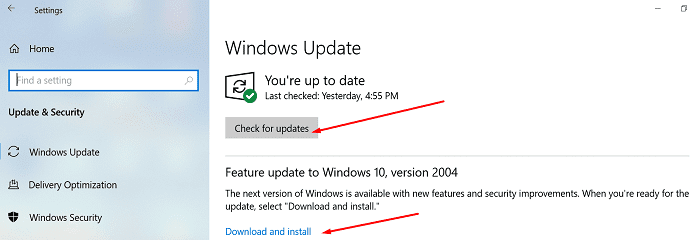
Restart your device after installing the updates. After that, force-restart it by pressing and holding the Volume Up and Power buttons at the same time for about 15 seconds.
Reinstall HID-Compliant Touch Screen Driver
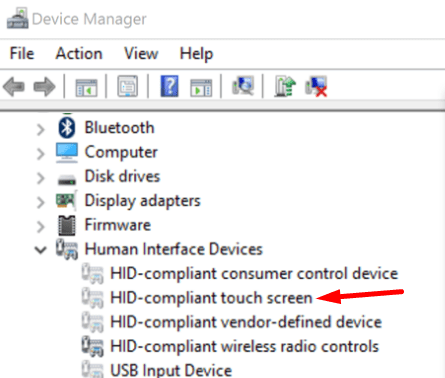
- Launch the Device Manager and go to Human Interface Devices.
- Expand the list of Human Interface Devices.

- Right-click on HID-Compliant Touch Screen and select Uninstall.
- If there are multiple touchscreen drivers, uninstall all of them.
- Then restart your Surface device to reinstall the latest touchscreen drivers automatically.
Disable Touch Screen
If you rarely use the touch screen functionality, you can simply disable it. Many users who turned off the feature confirmed the phantom touches and circles disappeared as well.
- Launch the Device Manager, and go to Human Interface Devices.
- Select HID-compliant touch screen.
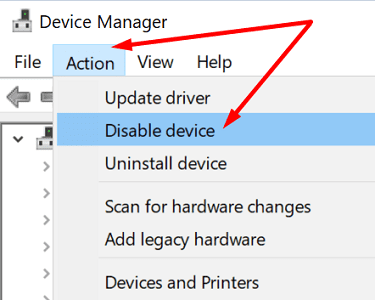
- Click on the Action tab and select Disable device.

- If there are multiple HID-compliant touchscreen devices listed, disable all of them.
Contact Microsoft Support
If you’re still experiencing ghost touches on your Surface Pro device, the problem could be caused by hardware damage. Contact Microsoft Support or go to an authorized repair center and have your device repaired.
Conclusion
Ghost touches and circles on Surface Pro devices seem to be the norm for many users. If you own a Surface Pro 4 or Surface Book device, there’s a standalone hotfix that you can download to fix the problem. On the other hand, if you own a newer Surface model, run the Surface Diagnostic Toolkit, update the OS and force-restart your device.
If the issue persists, reinstall the HID-Compliant Touch Screen driver, or disable the touchscreen functionality. Did these solutions help you fix the problem? Let us know in the comments below.




We had the problems on a new Surface book and also my Surface Studio II. I tried all the different ideas in various forums . Nothing worked. Finally I found the problem: I was an overheating problem. 2 Solutions:
1) Studio: I put the machine on a solid metal with lots of openings so it heats the metal and the could dissolve.
2) If it still makes problems then I throttled down my PC using a command and a batch File:
powercfg /setacvalueindex scheme_current sub_processor PROCTHROTTLEMAX 25
changes the Speed to 25%, another Command using 100 back to 100%.
Now this works fine for me.
Manfred
PS disabling the HID Screen in Device Manager (there are 2 instances) worked however two issues occurred after this action: the screen got rather warm and also our MS Pen did not work.
I located a Surface Diagnostic tool which quickly cured the issue I was having for months. The file name from microsoft is: SurfaceDiagnosticToolkit_SA.exe
If you can find this diag tool on their site this should remove the circles and flickering mouse which was a constant issue for us. Surface support was useless telling us to reset the surface. This was less than 5 minutes to permanently cure the latter.
I made the circles go away by disabling the touch screen; Devise manager, Human interface, Disable touch screen.
Hi. Want to share my experience and how I got rid of those ghost circles and erratic mouse behavior. At first I tried everything that MS adviced but to no avail. Finally, I decided to change my bluetooth mouse into a wired one and PRESTO! The ghost circles never showed up again. If you are using a bluetooth mouse, try changing it with a wired one. It worked for me.
“Update the OS, lol i bet the update was the reason for the now existing phantom touches i never had before.”
Same…
Update the OS, lol i bet the update was the reason for the now existing phantom touches i never had before.