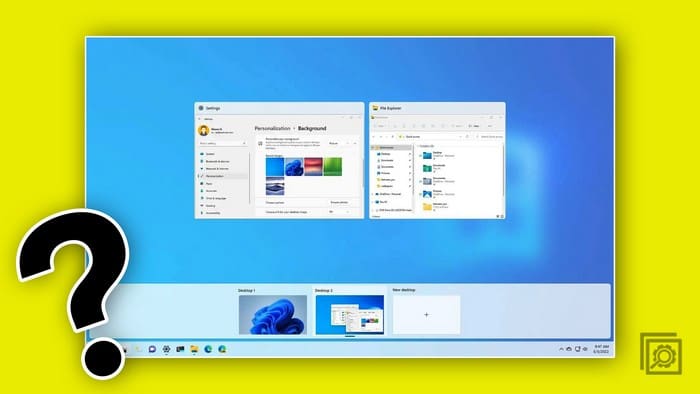
You can separate your work and personal space when you create and customize virtual desktops on Windows 11. Thanks to this feature, you can have different environments for work and other things and easily find the tabs you need. Each virtual desktop has its window and tabs. If you close tabs on one desktop, it won’t affect the ones on the other virtual desktop. Keep reading to see how you can create the virtual desktops you need and how you can customize them. You can also see how you can erase them when you no longer need them.
Contents
How to Create a Virtual Desktop on Windows 11
To create a virtual desktop, you’ll need to place the cursor on the Task View function on your taskbar. It’s the icon that looks like two squares almost entirely on top of each other.

When you place the cursor over this icon, you’ll see the desktop you’re currently on and the option to create another one. Click on the New Desktop, and it’ll be created automatically. If you need to make another one, repeat the process. When you create another virtual desktop, you’ll only see a black preview since you need to open a browser, followed by a tab to see something. You’ll have access to the same apps on the new virtual desktop, but nothing will be open. You can switch between virtual desktops by pressing the Windows + Ctrl + right/left arrows.
How to Erase a Virtual Desktop on Windows 11
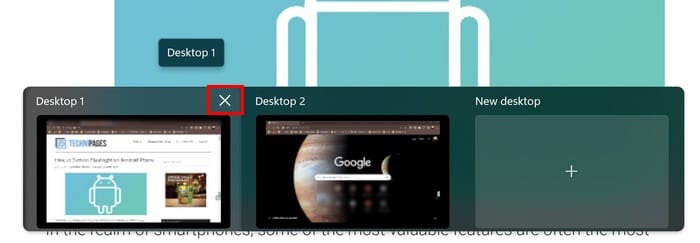
After a while, the desktops might no longer be necessary, and it’ll be time to erase them. You can do this by placing the cursor on the Task View button to see all the open virtual desktops. When you place the cursor on the one you want to erase, you should see an X; click on the X to close it.
How to Customize the Virtual Desktops on Windows 11
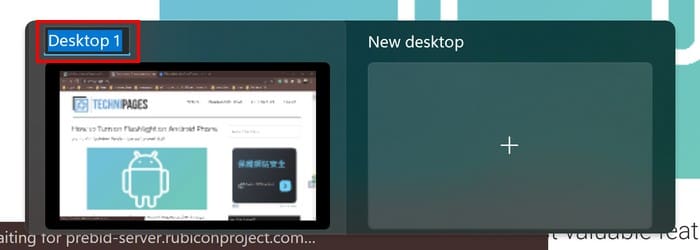
When you create a virtual desktop, they are unnamed and have a temporary name called Desktop 1 or Desktop 2. But if you open various desktops, it’s a good idea to name them so you know which is your work desktop and which is your personal. You can easily name them by placing the cursor on the desktop and clicking the temporary name. The name will be highlighted in blue, and that’s when you can start typing the new name. You can add an emoji to the name by pressing the Windows and semicolon keys. You’ll have a long list of emojis to choose from.
You can also have the desktops in a specific order. Click on the first one you want to rearrange and move it to its new position. The desktop that’s already there will move over. The other desktop will also have no wallpaper and will be entirely black. You can right-click on the virtual desktop and click on the Choose background option. As you can see, you can also rename, move left and close the desktop with this action.
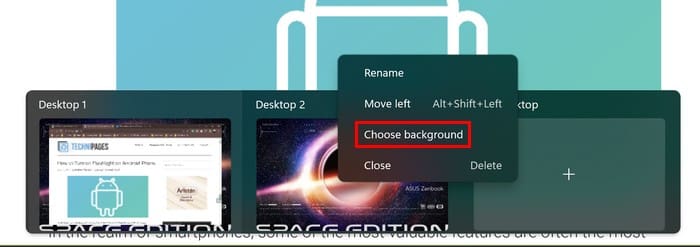
You can add wallpaper by going to:
- Setting (Windows + I keys)
- Personalization
Here you can choose from various personalization options, such as a theme at the top, background, and themes option. You can browse these options and click on the one you want to add. Even if you close the desktop and reopen it, the theme you added through settings will be there.
How to Move Open Apps to Another Virtual Desktop
You can see all the apps and virtual desktops you have open by clicking the Task View button. When everything is visible, drag the apps at the top to the desktop where you want to have them open.
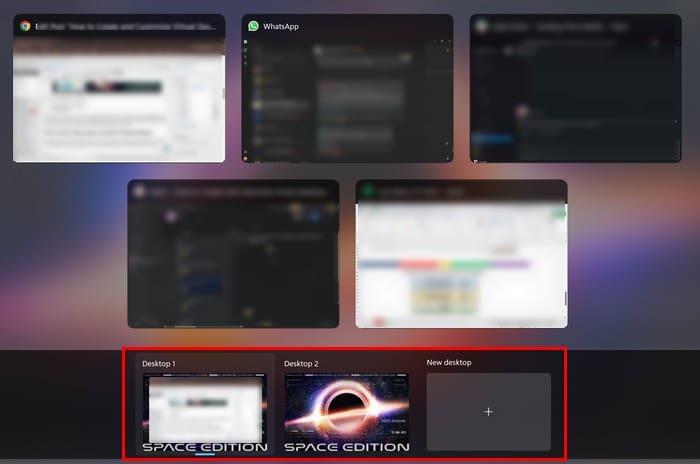
The apps will need to be opened to see them, but they are there.
Further Reading
As long as we’re on the subject of desktops, here is some more reading material if you want to spend more time on the subject. You can see how you can turn a Steam Deck into a desktop PC. Or you can also see how you can get desktop mode on Steam Deck. And if, after using Steam Deck in desktop mode, you need help getting out of it, here are some helpful tips to follow. You can find more reading material using the top search at the top.
Conclusion
Virtual desktops are helpful since you can have various tabs with different topics open without mixing them up. You can separate your work and personal stuff in as many desktops as you need. You can move them around and name them for an easy find. You can also customize them with wallpaper to give them different looks. How many desktops do you think you’re going to use? Let me know in the comments below, and don’t forget to share the article with others on social media.