Skip to content
LogoTechnipages
LogoTechnipages
  • Topics
        • Android
        • Browsers
        • Gaming
        • Hardware
        • Internet
        • iPhone
        • Linux
        • macOS
        • Office
        • Reviews
        • Software
        • Windows
        • Definitions
        • All Recent Posts
  • Product Reviews
  • About

Google Maps: Learn How to Calibrate the Compass

Madalina DinitaNovember 2, 2020 Comments (0)

If your live location often gets stuck when you’re navigating with Google Maps or the app needs a few minutes to actually detect your current location, then you really need to calibrate the compass.

If you don’t know how to do that, follow the steps listed in this guide.

Contents

  • 1 Steps to Calibrate Google Maps’ Compass
    • 1.1 Enable high-accuracy mode
    • 1.2 Use a third-party app

Steps to Calibrate Google Maps’ Compass

  1. Launch the Google Maps app and make sure the location feature is enabled
  2. Move your phone with a figure-of-eight motion
  3. Repeat the motion for one minute and check if the compass is working properly now.

If you don’t notice any improvements, touch the blue dot on the screen indicating your position, and then select the option to calibrate the compass. The option is visible on the bottom left.
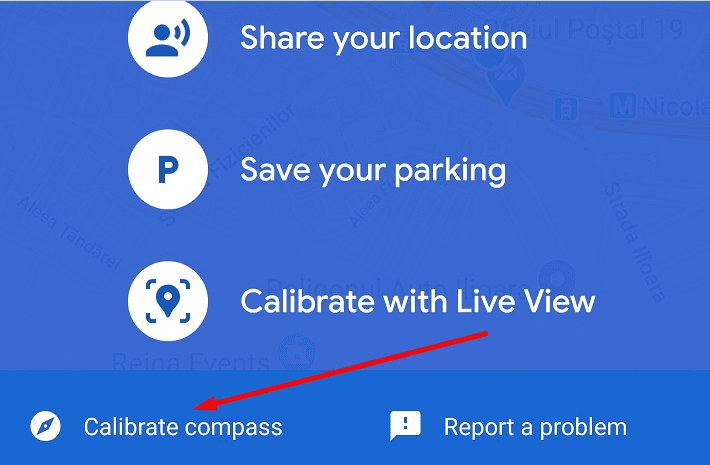
how to calibrate compass google maps

Enable high-accuracy mode

If you own an Android phone, you can turn on the high-accuracy mode. Here are the steps to follow:

  1. Go to Settings and select Location or Security and Location (depending on your phone model)
  2. Select High Accuracy and check if your phone detects your current location accurately.

High accuracy mode android

There are also additional settings that you can enable in order to improve your phone’s location services after you calibrated the compass:

  1. Return to Settings and select Location
  2. Go to Advanced Settings and enable the following two features: Wi-Fi scanning and Bluetooth scanning.
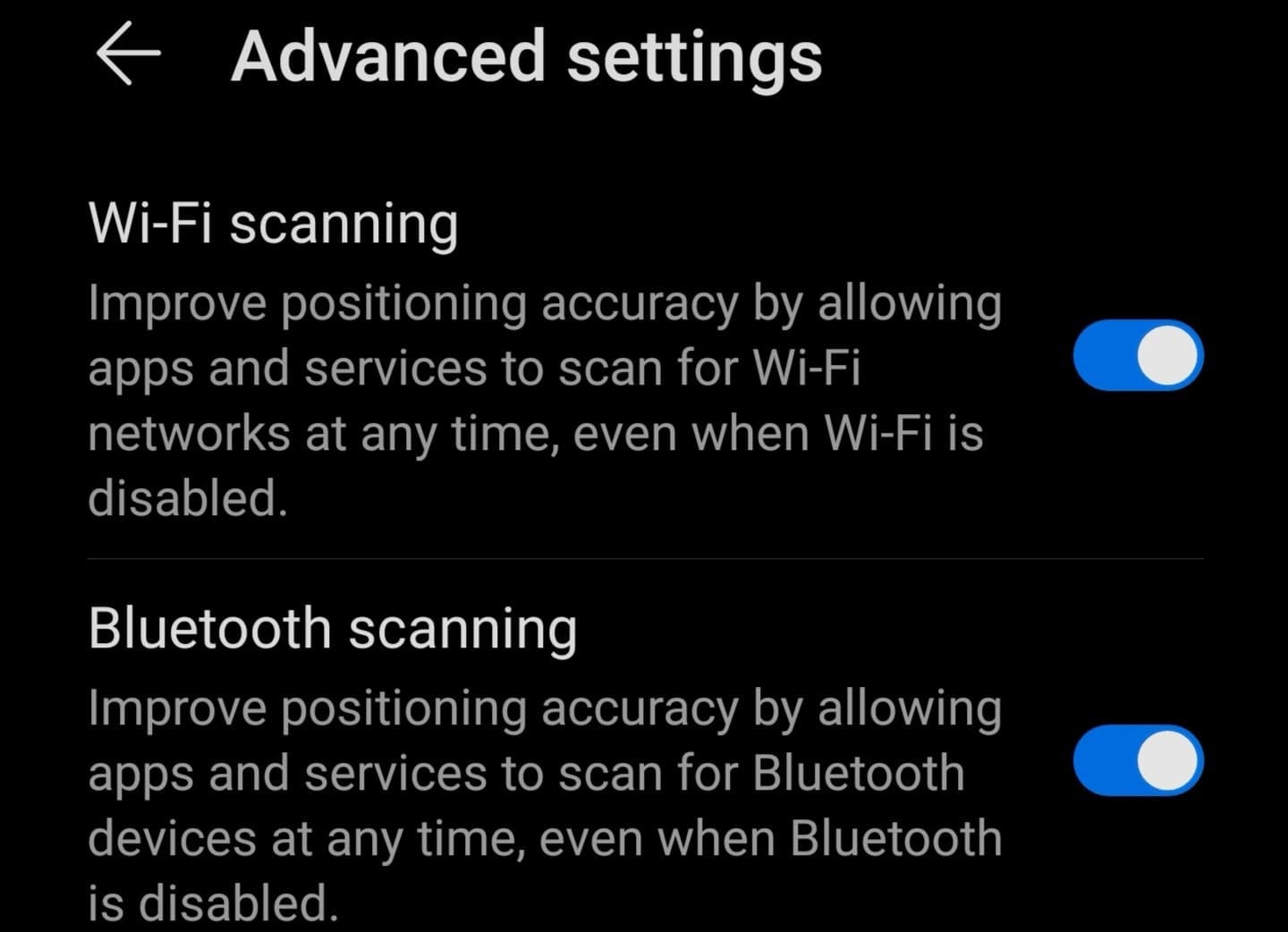
location advanced settings android

Use a third-party app

There are many third-party apps available in the Google Play Store that you can use to check the status of your compass and calibrate it.

Some of the best compass calibration apps include GPS Essentials, GPS Status, and GPS Tools. Check them out and keep the app that works best with your phone.

How to improve Google Maps location on iOS

If you’re using an iOS device, try turning Wi-Fi mode on. Your iPhone will automatically scan for nearby wireless connections and this will improve your device’s location accuracy.

Let us know if you managed to calibrate the compass using the tips and tricks we offered you in this guide.

Categories: Software

Author Madalina Dinita

Madalina has been a Windows fan ever since she got her hands on her first Windows XP computer. She is interested in all things technology, especially emerging technologies -- AI and DNA computing in particular.

You Might Also Like

  • How to Transfer Songs From CD to iPod, iPhone, or iPad

    Mitch BartlettiPhone
  • How to Organize Your iTunes Music Library

    Mitch BartlettSoftware
  • Bitwarden: How to Check If Your Username Is Part of a Data Breach

    Mel HawthorneInternet
  • Error-Occurred-While-Opening-One-or-More-Files-Sony-Vegas

    Fix: An Error Occurred While Opening Files in Sony Vegas

    Madalina DinitaSoftware

Leave a Reply

Your email address will not be published. Required fields are marked *

  • battery issues after windows 11 update

    Battery Issues After Windows 11 Update? Here’s the Fix

  • why is ram so expensive

    Why Is RAM Suddenly So Expensive?

  • how to fix error code 0x800f0922 windows 11

    How to Fix Error Code 0x800f0922 in Windows 11

  • service outage message on Xbox

    What to Do With a Service Outage Message on Xbox

  • signs your hdd is failing

    Signs That Your HDD Is Failing

profile pic

The Experts Behind Technipages

My name is Mitch Bartlett. I've been working in technology for over 20 years in a wide range of tech jobs from Tech Support to Software Testing. I started this site as a technical guide for myself and it has grown into what I hope is a useful reference for all.

Learn More

technipages logo white
linkedin icon

Technipages is part of Guiding Tech Media, a leading digital media publisher focused on helping people figure out technology. Learn more about our mission and team here.

© 2026 Guiding Tech Media All Rights Reserved

  • About Us
  • Contact
  • Terms of Use
  • Privacy Policy

© 2026 Guiding Tech Media All Rights Reserved

Information from your device can be used to personalize your ad experience.
Do not sell my personal information.