Skip to content
LogoTechnipages
LogoTechnipages
  • Topics
        • Android
        • Browsers
        • Gaming
        • Hardware
        • Internet
        • iPhone
        • Linux
        • macOS
        • Office
        • Reviews
        • Software
        • Windows
        • Definitions
        • All Recent Posts
  • Product Reviews
  • About

Google Forms: Add a Theme

Mel HawthorneDecember 26, 2019 Comments (0)
Google Forms Header

When designing a form it is important to match the look and feel of the form to its purpose. Sometimes you want a formal design and others you may want a more fanciful design with cursive fonts or a custom header image. When it comes to themes, you can both select your own images and colours or go with the easier option: Picking from pre-selected setups. Either way, you get a nice looking form with just a few clicks.

Here’s how:

Customise form button

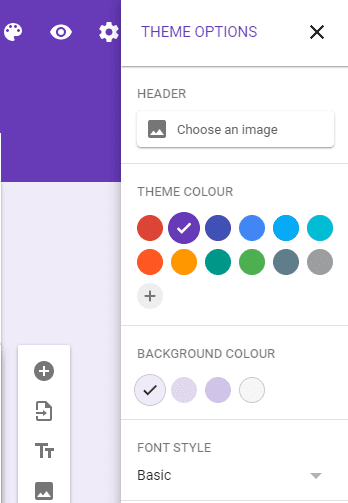
In the top right corner of the google form editor page, select “Customise theme”. This will open a box from the right of the screen that includes all the customisation options that Google allows for.
Theme options

The first of the four options allows you to choose a header image. Google has provided a number of available options already pre-configured to choose from, but if none of those fit your needs, you can select your own photos from your google image albums or upload an image as a one-off.

Choose a header image

Once you’ve selected the perfect header picture or plain colour you can then customise the main background colour and choose a font for your title and questions. While a full selection of colours has been provided there is a very small range of available fonts.

Choose a colour scheme and font

Once you’ve chosen your design, you’re all set to create your form for whatever purpose you need.


Categories: Internet

Author Mel Hawthorne

You Might Also Like

  • Beartunnel Logo Header

    TunnelBear VPN Review

    Mel HawthorneInternet
  • LinkedIn

    LinkedIn: How to Remove a Connection

    Judy SanhzInternet
  • Google Docs Header

    Google Docs: How to Insert and Rotate and Image

    Judy SanhzInternet
  • 10 Best Deep Web Search Engines of 2023

    10 Best Deep Web Search Engines to Access Concealed Information

    Tamal DasInternet

Leave a Reply

Your email address will not be published. Required fields are marked *

  • battery issues after windows 11 update

    Battery Issues After Windows 11 Update? Here’s the Fix

  • why is ram so expensive

    Why Is RAM Suddenly So Expensive?

  • how to fix error code 0x800f0922 windows 11

    How to Fix Error Code 0x800f0922 in Windows 11

  • service outage message on Xbox

    What to Do With a Service Outage Message on Xbox

  • signs your hdd is failing

    Signs That Your HDD Is Failing

profile pic

The Experts Behind Technipages

My name is Mitch Bartlett. I've been working in technology for over 20 years in a wide range of tech jobs from Tech Support to Software Testing. I started this site as a technical guide for myself and it has grown into what I hope is a useful reference for all.

Learn More

technipages logo white
linkedin icon

Technipages is part of Guiding Tech Media, a leading digital media publisher focused on helping people figure out technology. Learn more about our mission and team here.

© 2026 Guiding Tech Media All Rights Reserved

  • About Us
  • Contact
  • Terms of Use
  • Privacy Policy

© 2026 Guiding Tech Media All Rights Reserved

Information from your device can be used to personalize your ad experience.
Do not sell my personal information.

Last Updated on December 26, 2019 by Mitch Bartlett