

During the pandemic, you surely used video-conferencing more, and Zoom became your new best friend. As a result, you may have made more friends who don’t live in your country. You may now have new friends in countries whose time zones are very different from yours. By adding their time zones to your Google Calendar events when creating one, you can keep things under control.
Contents
How to Add a Time Zone in Google Calendar
When you’re creating an event and need to add a time zone, click on the Create button at the top left or press the C key on your keyboard.

When the new event window opens, click on More Options at the bottom. In the next window, the Time Zone option will be near the top.

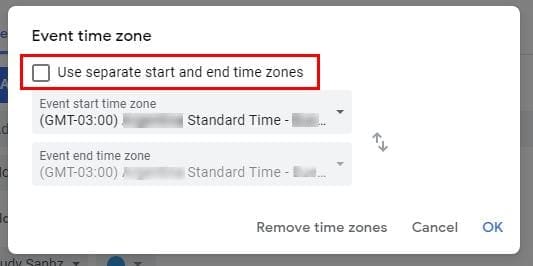
By clicking on the Time Zone option, a new window will appear called Event time zone. It’ll give you the option to use separate time zones for your event’s start and end times. Make sure you click the box for the Use separate start and end time zones option.
If you ever want to edit the event you just created or one that’s been there for a while. Click on the pencil icon.

The time zone you chose for your event will be shown to the left of the Time zone option. To change this, click on the Time zone option, and you’ll see the same window you saw before. Make the necessary changes and click OK or remove the time zone if that’s what you want to do.

Add or Remove Time Zone in Google Calendar – Android
The steps to add or remove a time zone on Android is similar but looks a little different. Open Google Calendar and locate the event you want to add the time zone to or create a new event. If you’re going to edit an already existing event, locate it and tap on it.
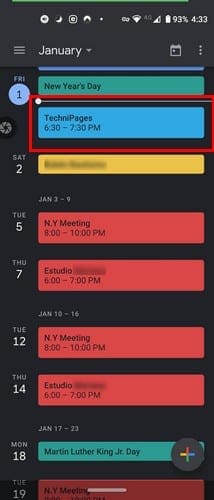
When the event opens, please tap on the pencil icon and tap on where it says Eastern standard time.

Start typing the country’s name whose time zone you want to add and choose from the search results. If you’re creating a new event, tap on the colorful plus symbol at the bottom right, and choose the event option. Right below the date, you’ll the standard time for the country you’re in and tap on that and search for the country of your interest.
Add or Remove Time Zone for an Event onGoogle Calendar – iPadOS 14.1
On iPadOS 14.1, the layout is a little different, as expected. The time zone option is hidden under More options; therefore, it is not in plain sight. If you’re going to create a new event, tap on the colorful plus symbol, and choose the event option. To see the time zone option, tap on More options.

You should now see the time soon you’re in, tap on it and choose the new one you want to add. If you want to add a time zone to an already existing event, locate it on the calendar and tap on the pencil icon.
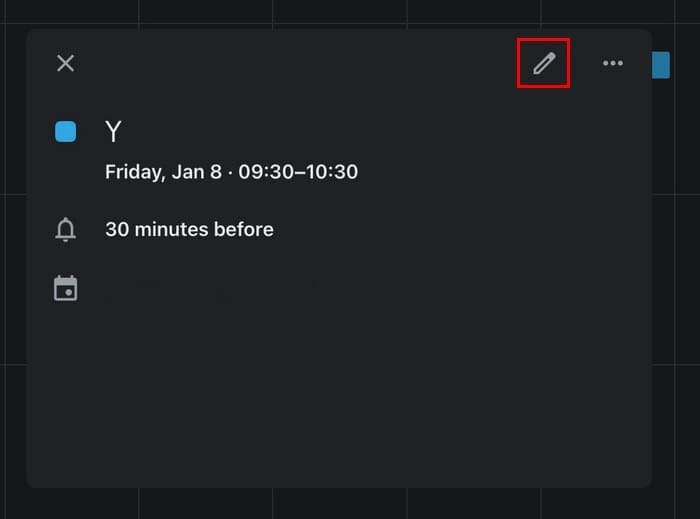
Under the date, look for and tap on More Options. Tap on the time zone and choose a new one.
How to Create a New Primary Time Zone in Google Calendar
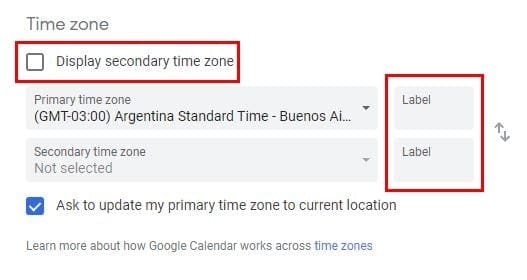
Whenever you create a new event, Google will always show you the primary time zone. Whether you moved rçor want Google to show another time zone go to Settings by clicking on the cogwheel at the top. Under the General tab, go to Time Zone.
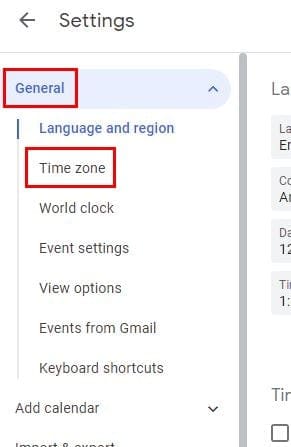
There you’ll see options to add a second-time zone if you want. But, if you’re only looking to change the primary time zone, click on the primary one, and all the available countries will appear. Click on the one you want as your new primary time zone. You can even add labels to your time zones and swap too.
Final Thoughts
Technology has allowed everyone to connect and have friends regardless of where they live. With that in mind, it’s great that you can easily modify time zones in Google Calendar without it being a hassle. How important are time zones for you? Share your thoughts in the comments below.




This feature no longer works