

Gmail may sometimes suggest you should be careful with a particular message. Or it may prompt your recipients to be careful with the emails you sent them. Let’s try to decipher why Gmail advises users to be careful with certain emails.
The main reason why Gmail pops up this alert is that it could not verify the problematic email actually came from the sender’s email address.
However, even email addresses stemming from G-Suite accounts can be flagged as suspicious. Gmail flagging another Gmail account coming within the Google ecosystem can be really confusing. Jump straight to the second and third solutions to learn why that happens.
Unfortunately, there is no specific option to disable Gmail’s warnings and alerts.
Contents
How Do I Get Rid of ‘Be Careful with This Message’ in Gmail?
Add the Sender to Contacts
If you’re completely sure the sender is reputable, try adding them to your Contacts list. In this manner, you let Gmail know you trust the sender. Hopefully, Gmail’s security algorithms won’t display similar alerts in the future.
Additionally, if the warning comes with a ‘Looks safe‘ option, you can click on it. Gmail relies on a series of filters to assess the emails you receive. When you mark a sender as safe, you basically tell Gmail the sender is trustworthy.
Check Your Domain SPF Record Settings
Make sure the email server has been authorized under the domain SPF record settings. As a quick reminder, SPF stands for Sender Policy Framework. This is an email authentication method Gmail uses to detect attempts of forging sender addresses.
If the sender uses a third-party email program to send messages through an SMTP server that is not authorized in the domain’s SPF record, Gmail will advise you to be careful with that message.
This often happens when Gmail users login into their accounts via an email software solution. That program actually uses their ISP’s server to send the messages, instead of using Gmail’s server. The problem is there is no specific SPF record authorizing your ISP’s server to send emails on behalf of gmail.com. As a result, the message looks suspicious.
There are two solutions to fix this issue:
- Send your messages from a browser signed in at mail.google.com.
- Tweak your email software settings to send via smtp.gmail.com. For more information on using Google’s SMTP servers, see Send emails from a different address or alias.
For additional information, see Ensure mail delivery & prevent spoofing on Google Support.
Authenticating Your Domain via DKIM
Additionally, if you’re using a custom domain, try authenticating your domain via DKIM. Hopefully, this will prevent the alert from popping up.
DKIM stands for DomainKeys Identified Mail. This email security protocol that guarantees messages isn’t altered or edited while they’re in transit from the sender’s server to the recipient’s server.
For more information, see Set up DKIM to prevent email spoofing on Google Support.
Create a Filter for That Sender
If you know and trust the sender, you can create a specific filter to remove the warning from their future messages.
- Launch Gmail and open the problematic email.
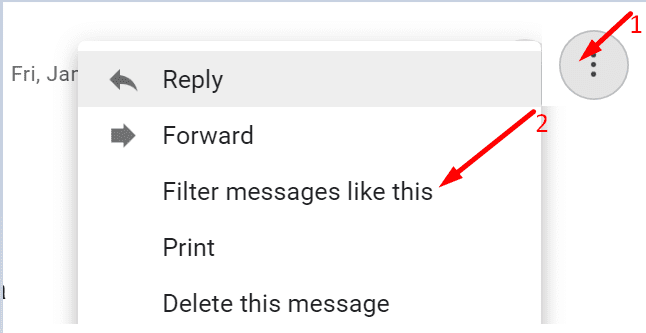
- Click on the three dots to open the menu and select Filter message like this.

- Click on Create filter.
- Check Never send it to Spam. Or create a special category for similar emails.

Remove Links from Signature
Try removing all the links from your email signature and check if the error is gone. As a quick reminder, links in the signature block can be flagged as spammy.
Let us know if these solutions helped you eliminate Gmail’s ‘Be Careful With This Message‘ alerts.


This solution is USELESS! Why should the box even appear if the sender IS IN MY CONTACTS LIST?? But worse than that, IT GOES TO THE SPAM FOLDER so I must constantly monitor it!! Then if I hit Looks Safe, IT STAYS IN SPAM and links and images are DISABLED! If I hit Not Spam, IT DISAPPEARS AND IS MOVED TO THE INBOX. Then I have to spend minutes FINDING WHERE IT WENT IN THE INBOX. Are they certifiably INSANE?
Creating a filter for EVERY sender in my contacts list IS NOT A SOLUTION! There has to be a way to disable this behavior, FOR RECIPIENTS, not for the sender to adjust their DNS settings!
Extremely, extremely annoying to people receiving my emails with a Gmail account. For example, I have a friend who has been receiving my emails from a domain account into her Gmail account for YEARS without an issue. But in the last week (August 2022) every email I’ve sent has produced this yellow banner on her end. Why now?? As someone else mentioned, there always needs to be the option on the banner to click as it’s safe. Gmail is becoming more and more of a pain. I also have a few Gmail accounts in addition to domain email accounts. I’m about to dump the Gmail ones.
Annoying message that should be easily disabled.
please just add an option for us to mark the email as safe. i add the safe senders to contacts and create filters to not send them to spam but still get the huge yellow banner
Getting this message using a 100% GMAIL platform to send and receive these emails
– Sent using GMAIL “send as” function (authenticated over 10 years ago)
– Received using GMAIL
As far as I know, this message never left GMAIL server(s).
It went from one GMAIL account to another.
So, GMAIL cannot even verify its OWN server sending these messages. What a joke!
Yeah this information did not help whatsoever. Extremely annoying when my business emails all start getting this fing message.
I got that message today in an email and I clicked on the yellow box report spam.
Please tell me I did not get hacked by clicking that?
What keeps a bad actor from copying this Gmail warning format and putting a bad link inside the yellow box? It seems like a bad idea for Google to provide links that encourage the very behavior it is warning against.
Google could give users an obviously-legitimate email address that is not hyper-linked, for pasting into the browser, for users to forward to google suspicious emails. Or maybe it can refer users to a way to report through their Gmail menu, where they know the link could not have been tampered with.
Be careful with this message came up on my Google account that it cannot verify that it came from my Google account. Avoid clinking links attachments or replying with personal information.
I work with a lot of email everyday. Almost all of it to email addresses not in my contact list. Adding the email addresses one at a time is prohibitive. What other solutions do you have?
The sender is using a gmail address. I created a filter for that address but I still get the beware of warning.