
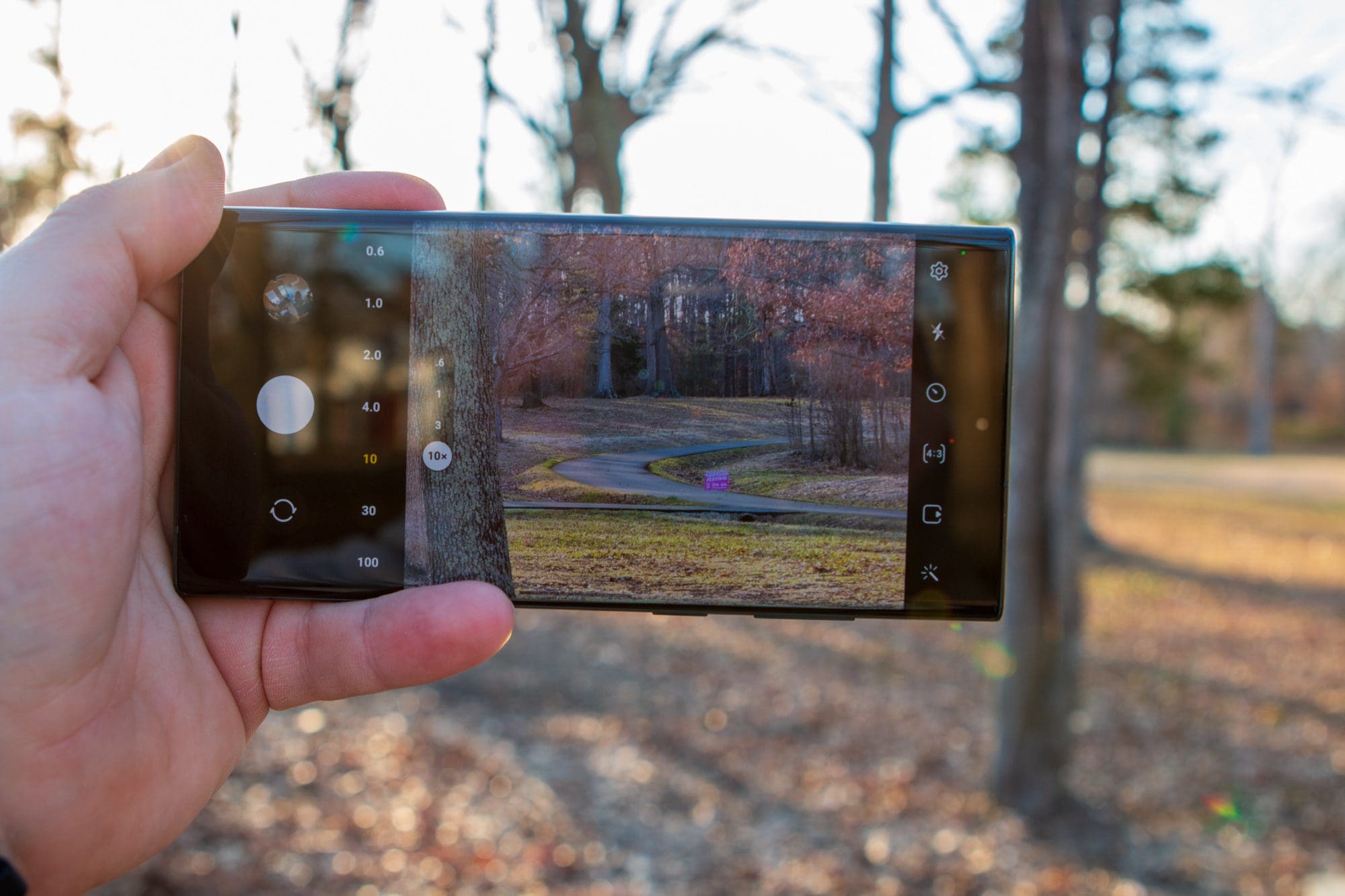
With a phone that’s as big as the Galaxy S22 Ultra, you might find yourself wanting to rotate the screen from time to time. However, there will be times when the auto-rotate functionality just “gets in the way”, rotating apps when you don’t want them to. This can happen because of the gyroscope sensor built into the Galaxy S22 line of phones, which has a tendency of occasionally being too sensitive. Today, we’re taking a look at how you can enable or disable the auto-rotate functionality on your Galaxy S22.
Contents
Galaxy S22: Enable/Disable Auto Rotate Screen
By default, auto-rotate is turned on, meaning that whenever you move your Galaxy S22 between landscape and portrait modes, the screen will automatically adjust. Thankfully, there are two different ways that you can go about turning this feature off, and the first doesn’t require you to go into the Settings app.
- Unlock your Galaxy S22.
- Swipe down on the Home Screen to reveal the Notification Shade.
- Swipe down again to reveal the full Quick Settings panel.
- Tap the icon labeled Portrait.
- Swipe up from the bottom to dismiss the Quick Settings panel.
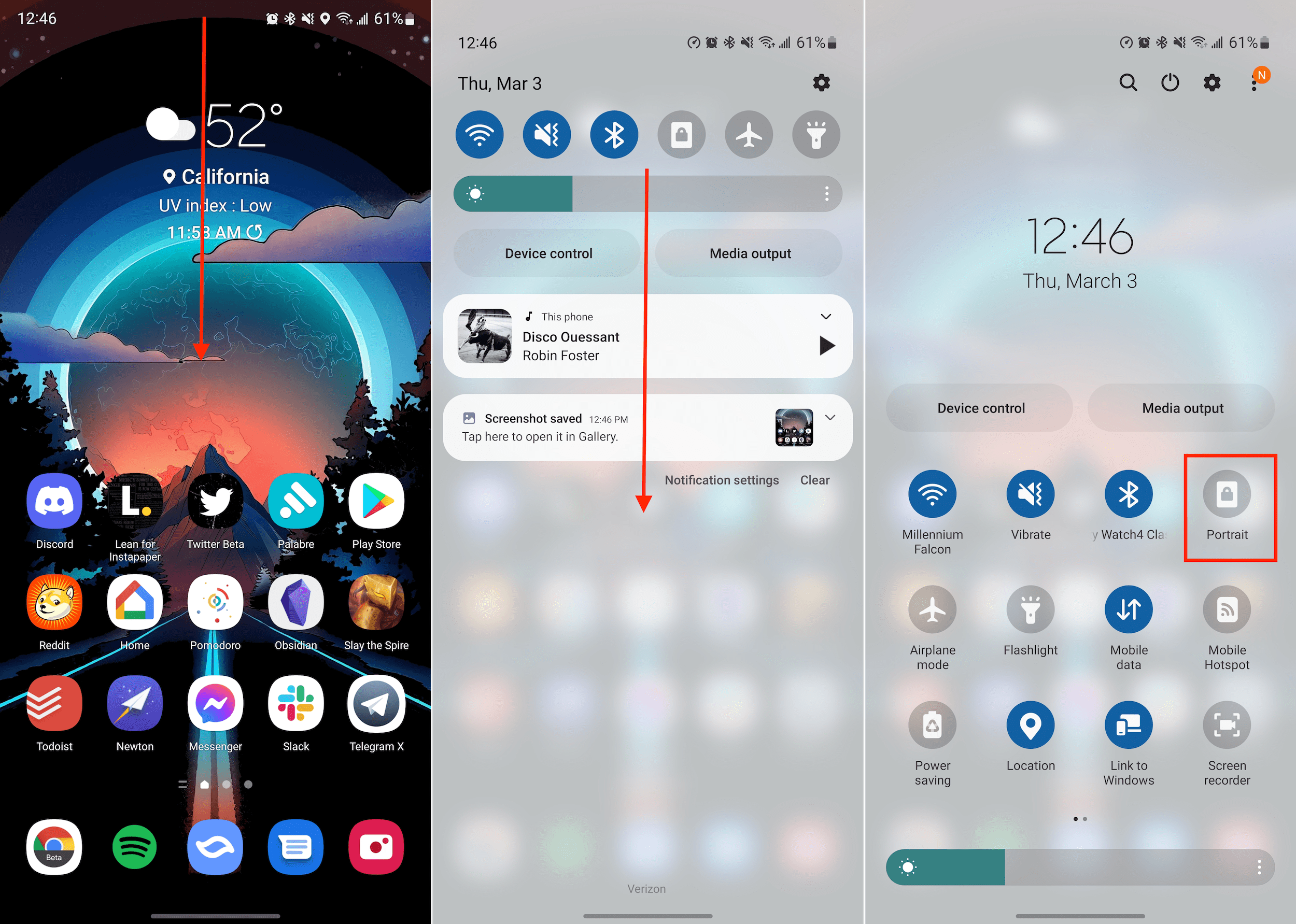
It’s extremely convenient being able to just swipe down on the home screen (twice) and access the Quick Settings toggle for auto-rotate. By doing so, you can quickly and easily turn the feature on or off, which can come in handy if you’re switching between different apps or the webpage you are viewing is better when in landscape mode as opposed to portrait.
Galaxy S22: Enable/Disable Auto Rotate Home Screen
This next option applies to all of three of the phones in the Galaxy S22 lineup, as Samsung makes it possible for your home screen to automatically rotate. If you’re coming from a non-Galaxy phone, it can be a bit jarring to see your home screen in landscape mode. Plus, there’s the possibility that any of your home screen widgets could be affected and won’t look nearly as good. Here’s how you can enable or disable the ability to have your home screen automatically rotate.
- Open the Settings app on your Galaxy S22.
- Scroll down and tap Home screen.
- Scroll down until you reach Rotate to landscape mode.
- Tap the toggle to turn the feature on or off.
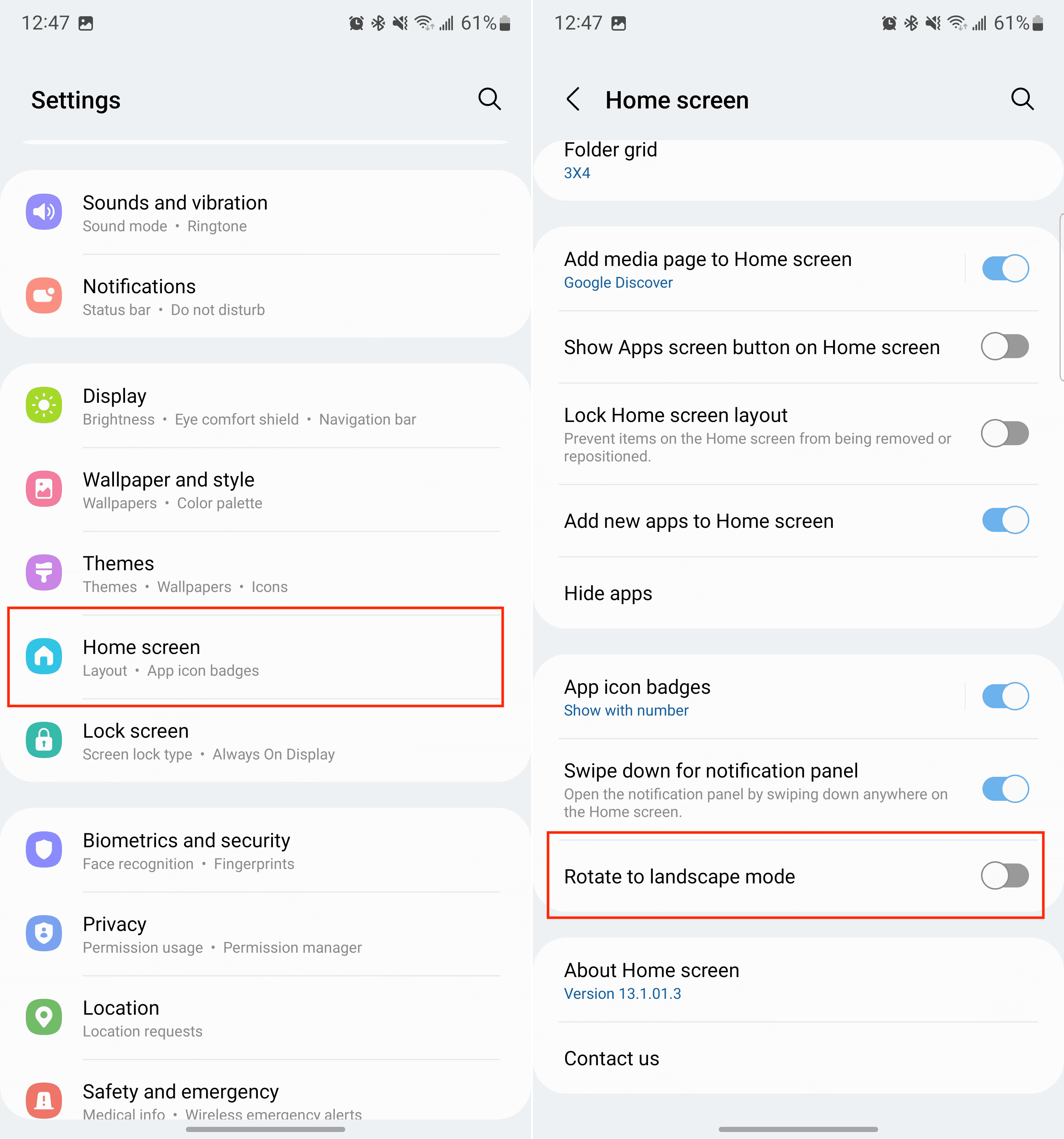
With this feature enabled, you can turn your phone into landscape mode and your home screen will follow suit. This may be better suited for those who are using their phone on a desk, watching a video, and want to be able to go to the home screen and not have to change the orientation when navigating the UI.
Conclusion
Auto-rotate is one of those features that we often take for granted, and Samsung takes things a step further with the ability to have your home screen rotate instead of just apps. It’s something that not even the iPhone 13 Pro Max is capable of with its massive 6.7-inch display, just giving Samsung phones one more reason to go with the Galaxy S22 over the iPhone. Let us know if you have any questions when it comes to enabling or disabling auto-rotate on your Galaxy S22!




It worked immediately.
Thanks.
Auto rotation is not working although it Is set on the Home page
This does not work. Can you come up with any other suggestions? Thanks, Steve
I have not yet received an answer to my problem. I can’t have my photos remain LOCKED into the mode in which I photographed them. I want my portrait modes to remain in PORTRAIT mode and my Landscaped photos to remain in LANDSCAPE MODE even when I switch from one photo to another in my album. The video mentions an app which my camera doesn’t have. There is no “Quick Lock” feature, so what to do?
I followed the instructions onscreen, accessed Settings, then Notifications, etc., but the instructions DID NOT WORK on my Galaxy S22! My photos rotate and I don’t know how to KEEP THEM in the way I want them. I want my portraits to stay in Portrait mode and when I change photos to the next one, a landscape, I want the phone to make that change and be able to KEEP my portrait photos on portrait, the my landscape photos on LANDSCAPE NO MATTER IF I MOVE MY PHOTOS FROM ONE STYLE (PORTRAIT) TO ANOTHER (LANDSCAPE).
Thank you!! the first help i looked up did not work. Yours did. Perfect!
My S22 will NOT AUTO-ROTATE!!
This does not work on my s22
yes indeed,
thank you so much for that.
My auto rotate is off and still my s22 ultra rotates. What else can be done???