
It can be difficult to get used to a new phone, especially if you’ve just switched from one brand of phone to another. Having to learn a whole new experience can be daunting – especially if you’re not used to smartphones. Thankfully, picking up a phone call on an S10e is quite easy! Here is how it works:
When you receive a call, the call alert will take up the entire screen if the phone was locked. If it wasn’t, you’ll instead see a window at the top of your screen with either the number or the name of your contact, as well as options to pick up or decline.

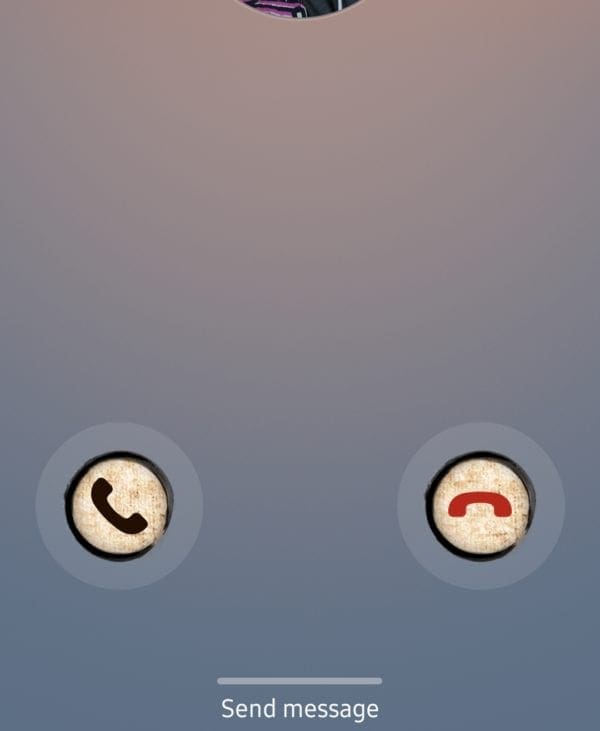
Near the top of the screen, you’ll see information as to who is calling, a number or a name if you have the contact saved. Near the bottom left of the phone screen will be a green circle with a phone symbol in it, facing up at an angle. Tap and swipe the left button to answer the call. As you do so, a circle in the background will appear and get bigger. If you want to decline the call instead, tap and swipe the Red circle with the phone symbol facing down, in the bottom right corner of the call alert.
Tip: Depending on your theme, the colours and backgrounds of the buttons may be slightly different, but they will always be in the same location.

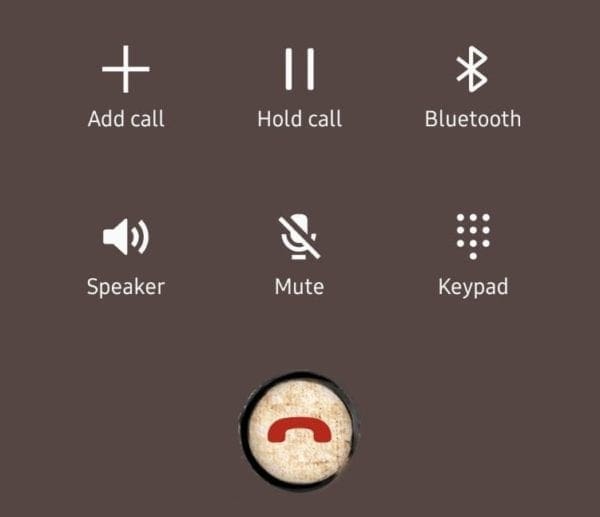
Once the call is connected, you will see the standard call options that will allow you to: add another person to the call, put the call on hold, play the call audio through a Bluetooth device if you’re connected to one, enable speaker mode, mute your microphone and show your phone keypad respectively. Finally, once your call is complete, tap the red icon with the phone facing down, in the bottom centre of the screen to hang up – or wait for your conversation partner to do the same.



Why can’t I answer a call? Right swipe, get the grey into the white circle (wtf), use volume up button, swipe right then press the green phone button.
Read Google answers (duh), Samsung online (oh-my-gawd), instructional sites (as many as stars in the galaxy, for reals). Nothing works! The entire system is archaic, f-d up, unusable, I hate this phone too. Only owned a frustrating month.
you have to tap it first and then put your finger down again and swipe to the edge of the grey circle
No, it did not help. I HATE this phone. For a while, turning on the screen touch sensitivity toggle helped, but after a few unsolicited/automatic Android updates, I cannot answer an incoming call despite screen sensitivity toggled to high.
The software designers of this phone are idiots, the main function of a phone is to make and receive phone calls; this phone is a failure, if it can’t answer an incoming call, who cares about all the bells and whistles!
I rue the day I chose a Samsung, my 2010-era flip phone was a much more useful tool.
YES!!! Just moved to a Galaxy A10e and could not figure out how answer a call. Brochure said NOTHING about how to answer. Fortunately, other lost souls provided a resolution. I think its quite interesting that simple phone usage must be obtained via Google or word of mouth. Thanks to all who contributed info and I join your chorus about how this is a unneeded problem.
I found this information online and it seems to work ……In case you want the Tap to answer feature back, you can do that by going to Settings on your Samsung phone. Then, go to Accessibility > Interaction & Dexterity>Assistant Menu. Turn on the toggle next to off on the next screen. Then, you will find the Single tap to swipe option. Enable it. Now, you can answer calls with a single tap.
Happens ALL THE TIME!!!
TERRIBLE FLAW!!!!!
I seem to be able to answer my calls now on the A10e after reading what others have written. Poor design… Just because something can be made to be different than what is standard does not make it better. I hate this about tech; it’s always changing but not always better, but usually inconvenient. I do not like this phone. I do not like that the literature that came with the phone has nothing to say about most of the problems I have encountered with it. Thanks for the tip about answering calls.
Had the same problem and discovered how to overcome it. When you touch the green receiver icon to answer phone, you get a gray circle inside the larger white circle. Drag the gray circle completely to the edge of the white circle and it will answer every time. This drag can be up, sideways, or on an angle. Just make sure you keep holding your finger against the phone until your inner gray circle reaches the edge of the larger white circle. Also works for declining calls.
I miss most incoming calls due to this defect. I swipe and swipe the green button but 99% of the time I miss my caller. So Frustrating! I will try the suggested volume button thanks for the suggestion.
Frustrating to miss call, as just happened, in ideal conditions! I was sitting holding my phone when a call came in. I tapped and swiped with no success. This is my biggest frustration with the phone.
Have had the same problem since I bought this phone in July 2020. I finally answer calls using the volume up botton as swipping only worked occasionally. I much prefer the old method of simply tapping the green button as I did with my Samsung galaxy S5, much easier when driving. Would love it if Samsung would revert to that again.
THANK you!! I thought I was the only one having this problem! Swiping in any direction, repeatedly, does NOTHING when trying to answer a call. I will try the volume key method. This S10e also restarts numerous times a day, often during a critical time like Maps when I’m driving. I hate this phone, too, and am PISSED I spent hundreds of dollars on it. Samsung owes us big time!
Ditto. I can not answer my
Galaxy S 10e phone while in another app. No more Samsung phones for me.
I’m so pleased to read all these comments regarding the difficulty of answering calls on the Samsung S10e mobile – I thought I was the only one! I will be very reluctant to purchase another Samsung phone
I agree with previous comments and most of the time swiping on green acceptance icon is usually ignored. This happens on both my s10+ and 9+ on regular basis causing numerous missed calls. How about a correction because this really is an important problem!
happens to me as well. When I swipe to the right it doesn’t answer the call. Very frustrating
my S10e almost never allows me to swipe the green acceptance button to accept the call. I’m losing many phone calls since the phone simply ignores my action. This is a serious fault
I Cut and pasted last post. Same is true for me. Swiping green button does not work 99% of time.
Echoing what another poster said – the accept call icon is initially unaffected by ANY initial swiping or touching. Repeated swiping will eventually get it to answer. I hate this phone.
I agree. The majority of the time I cannot get the see swipe function to work.
my S10e almost never allows me to swipe the green acceptance button to accept the call. I’m losing many phone calls since the phone simply ignores my action. This is a serious fault.