

WhatsApp is a reliable video and instant messaging service with more than two billion users worldwide. You can use it on all the major mobile and desktop platforms out there. WhatsApp offers end-to-end encryption and guarantees third parties cannot access and read your messages. But the service may sometimes fail to work as intended due to an error that says you cannot place another call because you’re already engaged in one. Let’s explore how you can troubleshoot the problem.
Contents
Fix: You Cannot Place a Whatsapp Call if You’re Already on Another Call
This message randomly pops on the screen when users try to make a call on Android and occasionally on iOS. The only problem is that they’re not actually engaged in another call.
Clear the Cache and Restart Your Phone
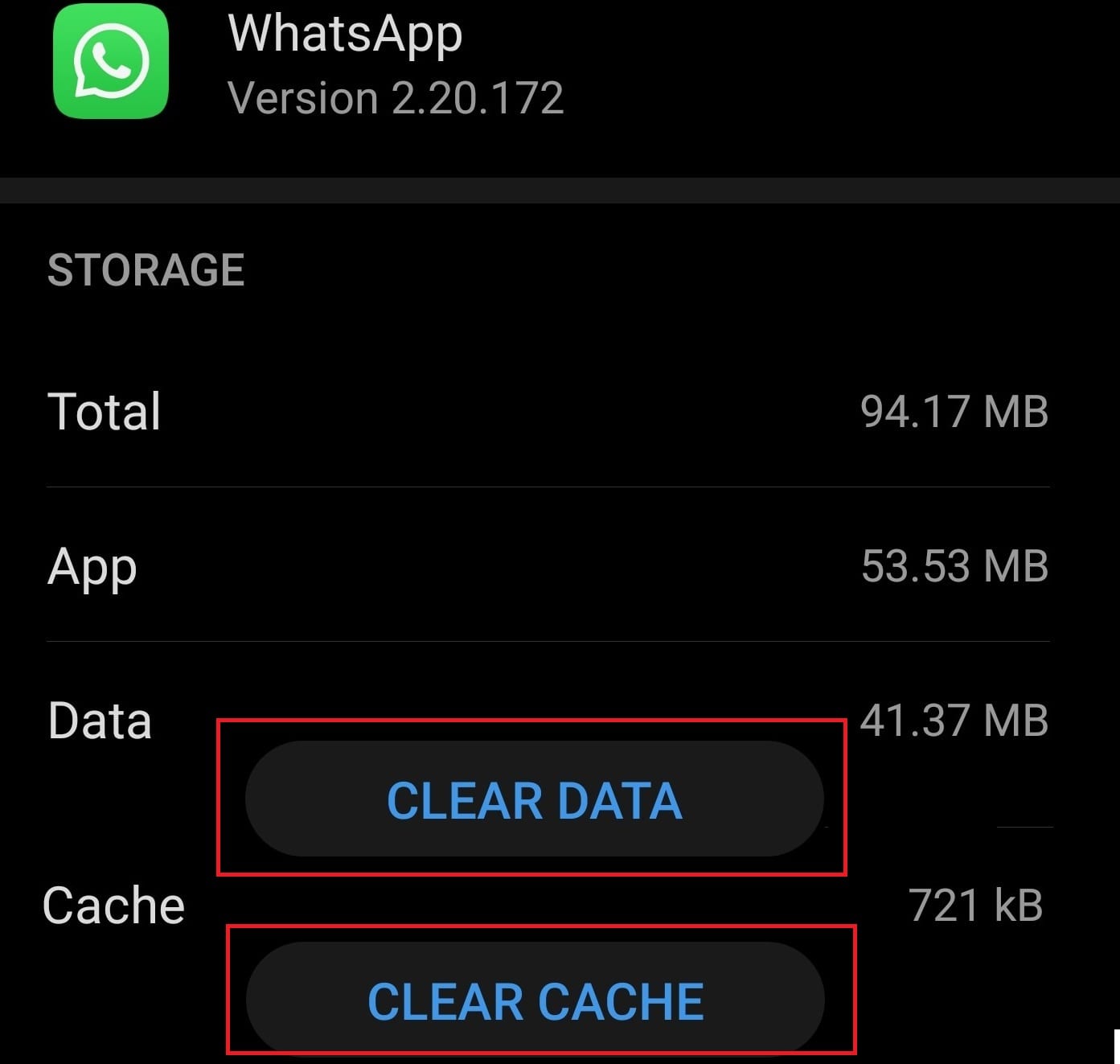
If your WhatsApp cache is the culprit, clearing it should solve the problem. Go to Settings, select Apps, tap WhatsApp and go to Storage. Then tap the Clear cache button and restart your phone. Check if you can place new calls.
Clear Junk Files
Regularly clearing junk files is a must if you want your phone and apps to work as intended. All those junk files take up precious storage space on your device and might even interfere with the apps you’re running.
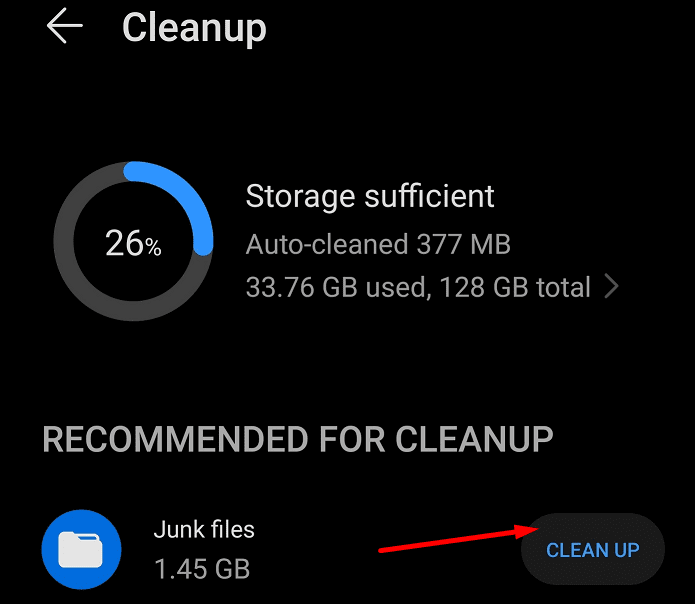
Go to Settings, select Storage, and hit the Cleanup button. Tap Junk files and let your device delete all those unnecessary files.
Alternatively, you can also use a cleaner app to automatically clean and optimize your device.
Update WhatsApp and Your OS
Make sure you’re running the latest WhatsApp and Android OS version on your device. As you already know, running outdated apps may cause all sorts of glitches.
To update WhatsApp, launch the Google Play Store app, search for WhatsApp, and hit the Update button.

To install the latest Android version on your phone, go to Settings, select System, and then tap System Update. 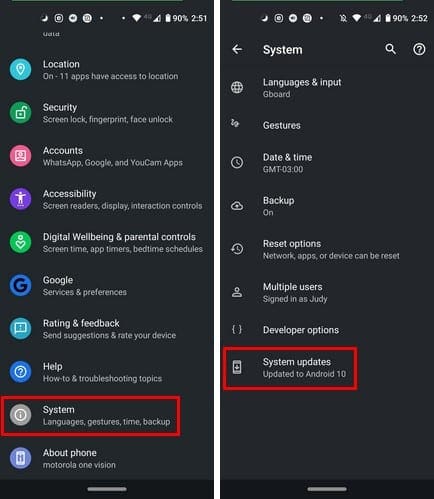
Restart your device after installing the updates and check if the issue is gone.
Reinstall WhatsApp
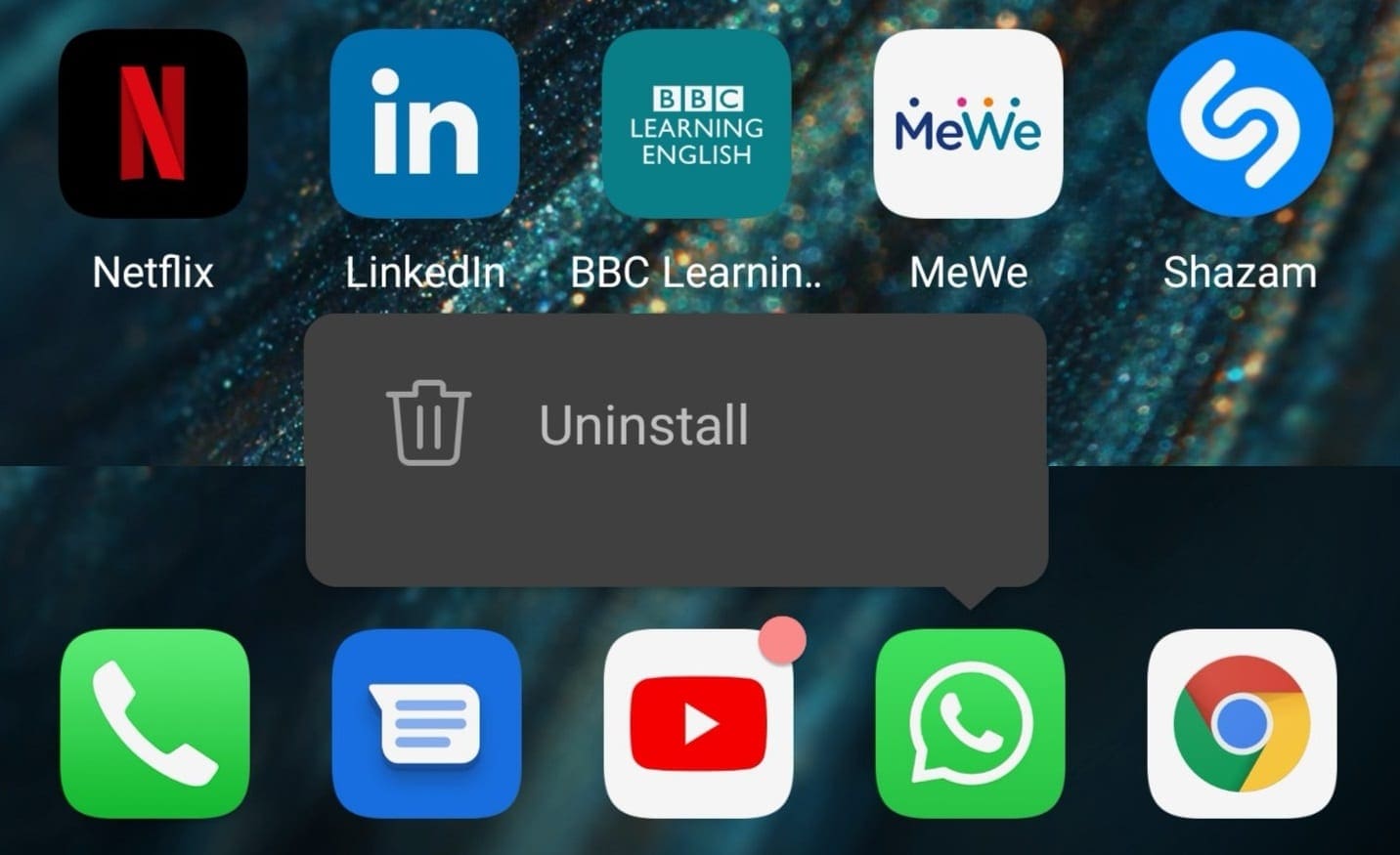
If the problem persists, uninstall WhatsApp. Long-press the WhatsApp app icon until the Remove option appears on the screen. Select it, uninstall the app and restart your phone. Then download and install the app again and check the results.
Additional Solutions
- Enable Airplane Mode, wait one minute and then disable the option.
- Disable your battery saver. Navigate to Settings, select Battery, and turn off the battery saver.
- Turn off Low data usage. Go to WhatsApp Settings, select Data and storage usage and switch off the option.
- Enable Background data usage. Go to WhatsApp Settings, tap Data Usage, and toggle on the background data option.
- Close background apps. Make sure WhatsApp is the only app actively running on your phone.
Conclusion
If you can’t place a new call on WhatsApp because the app says you’re already engaged in another call, clear the cache, delete junk files and restart your phone. Then update WhatsApp and install the latest Android version available for your phone. If nothing works, reinstall the app. Did these solutions help you troubleshoot the problem? Let us know in the comments below.




Why does when I call a person when they are in other call .. it’s not showing in an another call?
I have this problem that when someone calls me and i attend their call. Instead of their call suddenly shows #whatsapp call# instead of that person name. And after3-4 seconds, their name displays. Whats this error? There’s no answer to this on internet. The device is iphone.
Please how do I correct something here, a particular person can’t get to me on WhatsApp call , And he is accusing me of knowing anything about it… I’m confused because I don’t seem to understand why the call can’t go through but we always chat even with voice texting… please Help me
Thank you so much for sharing this information.I was looking for such a genuine solution keep it up writing such an informative articles.
I had this problem. Updated what’s app and it worked.
Thank you
Problem was resolved by going into storage and deleting Medea and restarting my iPhone. Thank you very much