

Did you know that Microsoft Word has a handy Transcribe tool that can automatically transcribe spoken words to text? The best part is that you can use the Transcribe feature to turn both audio recordings and live speaking into text.
Many people who work transcription jobs don’t really like this built-in feature fearing computers got one step closer to stealing their jobs. Well, that’s not yet the case, and you should actually think of Transcribe as a tool that can help you boost your productivity.
Well, it seems that the transcribers’ curse hit Word’s Transcribe feature after all. Many users complained the option is missing from Word while others said it randomly stops working.
Contents
Why Is There No Transcribe Option in Word?
Let’s start off by answering this frequently asked question. The Transcribe feature only works for Word online on the latest versions of Edge and Chrome.
You also need a stable Internet connection to use this feature. The only language that Transcribe currently supports is English US. This means that you cannot use this option if you’re using a different Office editing language.
This tool is not available on the desktop app, and it doesn’t work offline. Now that we’ve set things right, let see what you can do to fix this issue.
How to Fix Microsoft Word Transcribe Not Working
⇒ Quick Note: Before using any troubleshooting methods, go to the MS Office portal and check if this is a known bug. It wouldn’t be the first time Transcribe has disappeared from Word Online.
Change Your Language Settings
In order to use the Transcribe option, you need to change your Office language settings to English US. For the time being, that’s the only language the tool supports.
Log into your Microsoft 365 account and click on the cogwheel icon to go to Settings. Then select Change your language. Choose English US under Display language and save the changes.
Or click on your profile picture, select My Profile, scroll down to Language Info, and set the Display language to English US.
If your organization is using a different configuration, you may need to go to Settings, select Microsoft 365 settings and then click the Settings tab. Go to Language and time zone and select English US.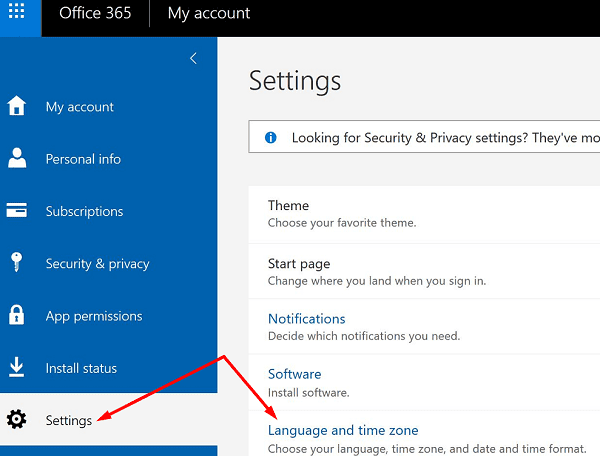
Check your desktop app language settings to avoid any language incompatibility issues. Launch your Word app, select File, go to Options, and select Language. Go to Office display language, select English US, and then click Set as Preferred.
If the issue persists, set your browser and OS language to English US as well. To change your Windows 10 language, go to Settings, select Time and Language and then select English US under Windows display language.
If you’re on Chrome, click on the browser menu, go to Settings, type “language” in the search bar and select English US as the language used to display the Chrome UI.
If you use Edge, go to Settings, select Languages in the left pane, and make sure the UI is set to English US.
Update Your Browser
Next on the list, make sure you’re running the latest Edge or Chrome version on your computer. Word for the Web works best on the latest versions of these two browsers.
To check for updates, click on your browser menu, go to Help and select About Google Chrome. If you’re on Edge, select Help and Feedback and then About Microsoft Edge.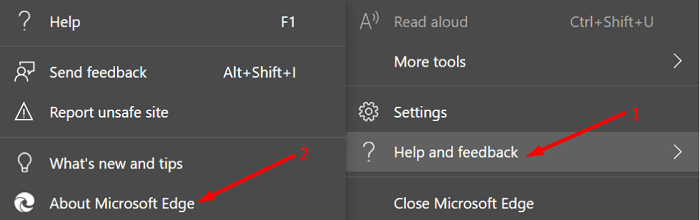
Use Incognito Mode
Click on your browser menu and select New incognito mode (Chrome) or New InPrivate window (Edge). Check if you can use Transcribe on Word Online. If the feature is available, this may indicate something’s blocking Word’s scripts.
Disable Your Extensions
Your browser extensions might be interfering with Word’s scripts blocking the Transcribe feature. As a matter of fact, ad blockers and other privacy extensions are known to do that. Click on your browser menu, go to Extensions and manually disable all your extensions. 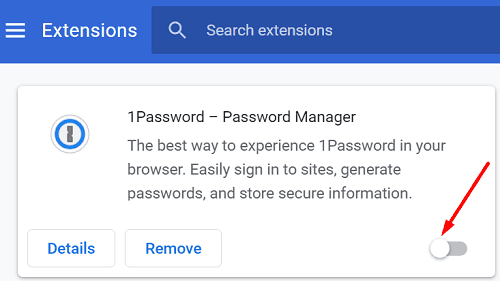
Clear the Cache
Additionally, click on your browser menu and select History. Click on Clear browsing data and clear your cache (Last 4 weeks). Restart your browser and check the results.
Conclusion
If the Transcribe feature is not available in Word, check if this is a known issue. Then make sure your Office, system, and browser language settings are set to English US. If the issue persists, update your browser, clear the cache and disable your extensions. Hit the comments below and let us know if this guide helped you troubleshoot the problem.




It. did. not.
No, I still have to see the error. I tried everything and all the options, but still all my attempts failed.
Why does Microsoft hire the worst software teams??? It is crazy to have to jump through all these hoops just to get an option that comes with a program we pay for. So ridiculous.
Yes, it helped but, what a crock of garbage that you have to go through all of this to change language and settings to use transcribe on a annual paid app just to suit Microsoft poor programming… pathetic and very customer unfriendly from Microsoft.
Your page is the only one who answered my questions on how to use transcribe in Microsoft 365.
Most of the page I visited dont mention that this word feature is only available online and that browsers (chrome and edge) should be updated or must be in their latest version.
This is really a big help learning things to make my life easier.
Hope you have a simpler way or method on doing pivot charts and dashboards for physician performance.
Thanks!