Skip to content
LogoTechnipages
LogoTechnipages
  • Topics
        • Android
        • Browsers
        • Gaming
        • Hardware
        • Internet
        • iPhone
        • Linux
        • macOS
        • Office
        • Reviews
        • Software
        • Windows
        • Definitions
        • All Recent Posts
  • Product Reviews
  • About

Fix: The Display Settings Could Not Be Saved

Madalina DinitaJanuary 21, 2021 Comments (0)
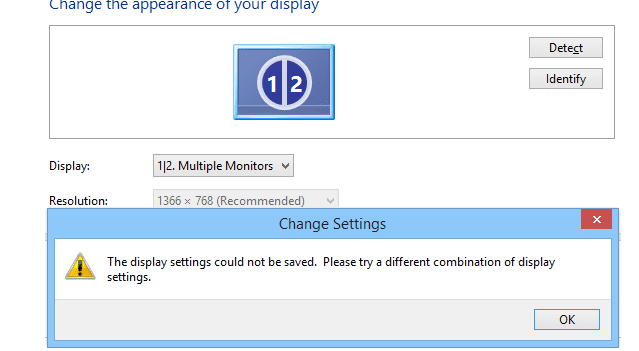
The display settings could not be saved

If you use a dual or multiple monitor setup, saving your display settings may not always work. It seems this problem often occurs after updating Windows 10.

The error message that pops on the screen reads as follows: “The display settings could not be saved. Please try a different combination of display settings“.

Contents

  • 1 Windows 10 Could Not save Your Display Settings
    • 1.1 Unplug the Monitors and Upgrade Your Drivers
    • 1.2 Change the Monitor Resolution
    • 1.3 Change the Monitor Order
    • 1.4 Run the Hardware and Devices Troubleshooter
    • 1.5 Uninstall the Latest Update

Windows 10 Could Not save Your Display Settings

Unplug the Monitors and Upgrade Your Drivers

Let’s start with some common-sense solutions. Disconnect and reconnect the power cable of your monitors. And then restart your computer. It seems that Windows Plug and Play sometimes fails to recognize your monitor because it forgets its current settings.

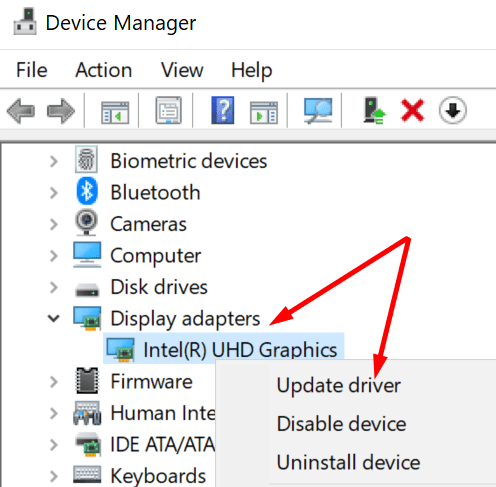
Then make sure your display drivers are not outdated or corrupted. The quickest way to do that is to update your drivers or reinstall them. Start with the first option. But if the problem persists, go ahead and uninstall and reinstall your drivers.

  1. Launch the Device Manager and expand your display drivers.
  2. Right-click on your driver and select Update Driver.update graphics driver windows 10
  3. Restart your computer and check if the error persists. If it does, select Uninstall device.
  4. Restart your machine again. Your PC will automatically install the latest drivers.
Change the Monitor Resolution

Using a different monitor resolution may be the key to solving this issue.

  1. Click on the main screen.
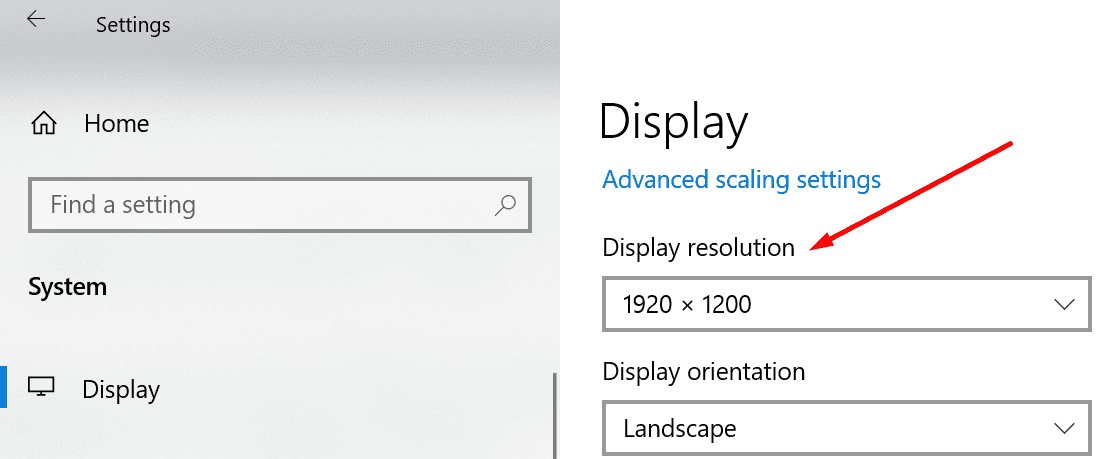
  2. Go to Settings → System → Display.
  3. Scroll down to Display resolution and play with the available options. Reduce the resolution on your secondary monitor(s).
change display resolution windows 10

Try different resolutions and check if this workaround did the trick for you.

Change the Monitor Order

Surprisingly, some users managed to solve this problem by changing the order of their monitors.

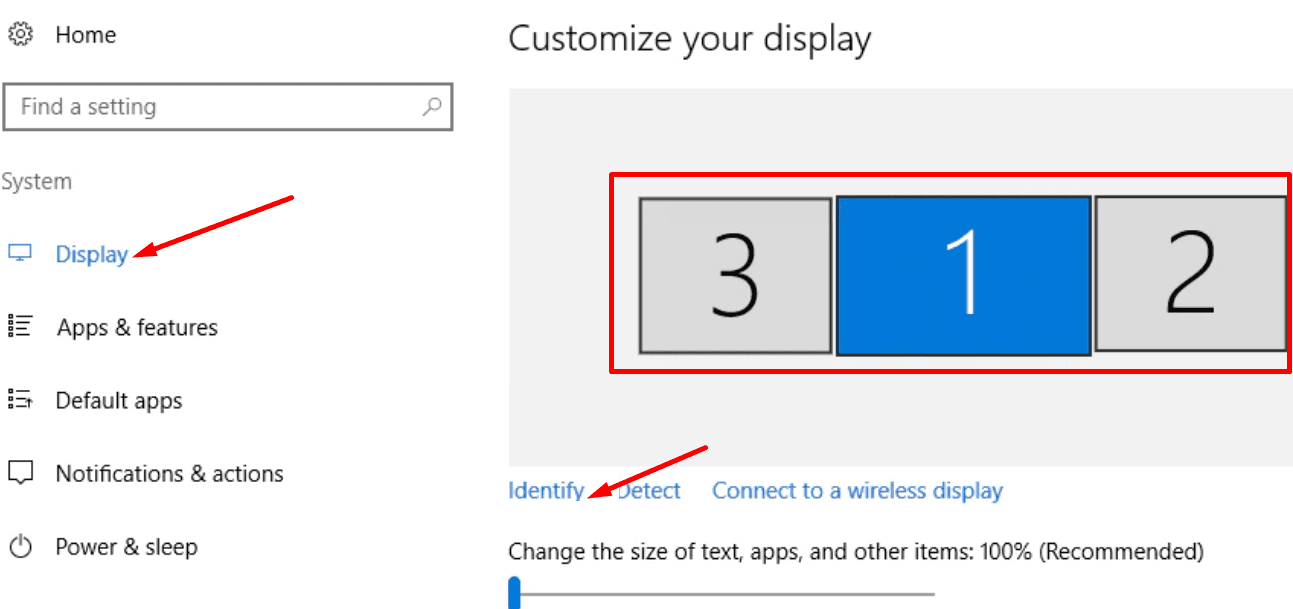
Go to Settings → System →Display and hit the Identify button. Then change the order of your displays.
change monitor order windows 10

If you’re using a different display management program, such as the NVIDIA Control Panel, you can change the monitor order there.

Run the Hardware and Devices Troubleshooter

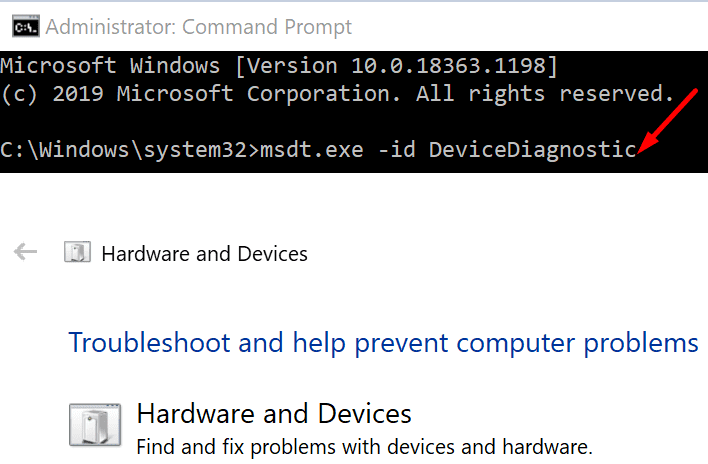
  1. Type cmd in the Windows Search bar, and right-click on Command Prompt to launch the tool with admin rights.
  2. Run the msdt.exe -id DeviceDiagnostic command.run hardware troubleshooter windows 10
  3. Click on the Hardware and Devices troubleshooter. Launch the tool.
  4. Restart your computer and check if the error persists.
Uninstall the Latest Update

If using your multi-monitor setup is crucial to you, uninstall the latest OS updates. Many users noticed their display settings failed to save after updating Windows.

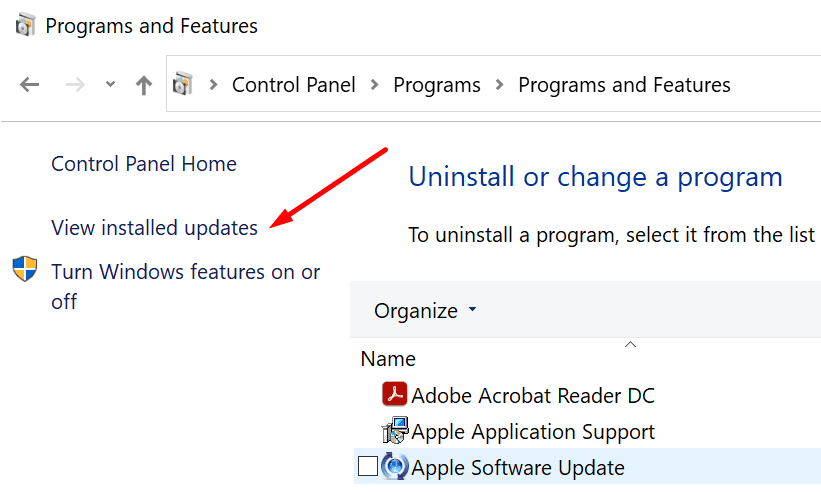
  1. Launch the Control Panel and go to Programs.
  2. Then click on View installed updates.view installed updates control panel
  3. Select and remove the updates you recently installed on your machine.
We hope this guide helped you to fix your display problem.

Categories: Windows

Author Madalina Dinita

Madalina has been a Windows fan ever since she got her hands on her first Windows XP computer. She is interested in all things technology, especially emerging technologies -- AI and DNA computing in particular.

You Might Also Like

  • Windows 11 22H2 Download The Ultimate Guide (Photo: Courtesy of Microsoft)

    How to Enable Live Captions in Windows 11

    Judy SanhzWindows
  • Windows Header

    Windows 11: How to Enable/Disable “Manage” Selection Under “This PC”

    Judy SanhzWindows
  • Enable Login Header

    Windows 11: How to Turn on Auto Login

    Judy SanhzWindows
  • Fix Dynamic Lock Not Working on Windows 11

    Judy SanhzWindows

Leave a Reply

Your email address will not be published. Required fields are marked *

  • battery issues after windows 11 update

    Battery Issues After Windows 11 Update? Here’s the Fix

  • why is ram so expensive

    Why Is RAM Suddenly So Expensive?

  • how to fix error code 0x800f0922 windows 11

    How to Fix Error Code 0x800f0922 in Windows 11

  • service outage message on Xbox

    What to Do With a Service Outage Message on Xbox

  • signs your hdd is failing

    Signs That Your HDD Is Failing

profile pic

The Experts Behind Technipages

My name is Mitch Bartlett. I've been working in technology for over 20 years in a wide range of tech jobs from Tech Support to Software Testing. I started this site as a technical guide for myself and it has grown into what I hope is a useful reference for all.

Learn More

technipages logo white
linkedin icon

Technipages is part of Guiding Tech Media, a leading digital media publisher focused on helping people figure out technology. Learn more about our mission and team here.

© 2026 Guiding Tech Media All Rights Reserved

  • About Us
  • Contact
  • Terms of Use
  • Privacy Policy

© 2026 Guiding Tech Media All Rights Reserved

Information from your device can be used to personalize your ad experience.
Do not sell my personal information.

Last Updated on January 21, 2021 by Judy Sanhz