Skip to content
LogoTechnipages
LogoTechnipages
  • Topics
        • Android
        • Browsers
        • Gaming
        • Hardware
        • Internet
        • iPhone
        • Linux
        • macOS
        • Office
        • Reviews
        • Software
        • Windows
        • Definitions
        • All Recent Posts
  • Product Reviews
  • About

Fix Sublime Text Error Trying to Parse Settings

Madalina DinitaOctober 13, 2020 Comments (1)
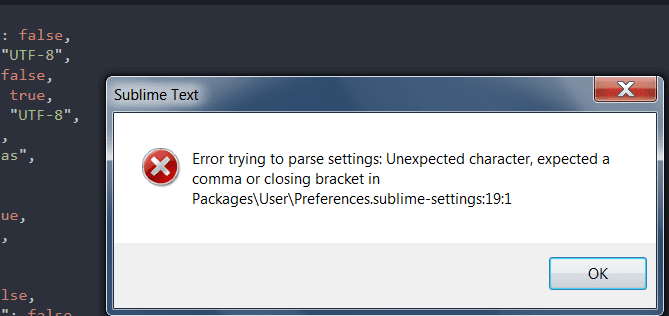
sublime text error trying to parse settings error

In this guide, we’re going to cover the following Sublime Text error message: ‘Error trying to parse settings’. We’ll list three simple troubleshooting methods you can use to iron out this error.

Contents

  • 1 Troubleshooting Sublime Text Parse Settings Error
    • 1.1 1. Enable default preferences
    • 1.2 2. Return Sublime Text to a freshly installed state
    • 1.3 3. Delete the settings file

Troubleshooting Sublime Text Parse Settings Error

⇒ Quick Fix: Check your syntax to make sure you’re not missing any comma.

If you get the parsing error, ensure there’s either a comma or a closing bracket after each setting. This informs the program there are more configuration parameters remaining.

When adding new settings, double-check your code to make sure all the parameters are separated by commas.

1. Enable default preferences

One way to fix this error is to tweak your Preferences file and bring it to default settings.

Go to Preferences > Settings to locate the file that’s having problems.
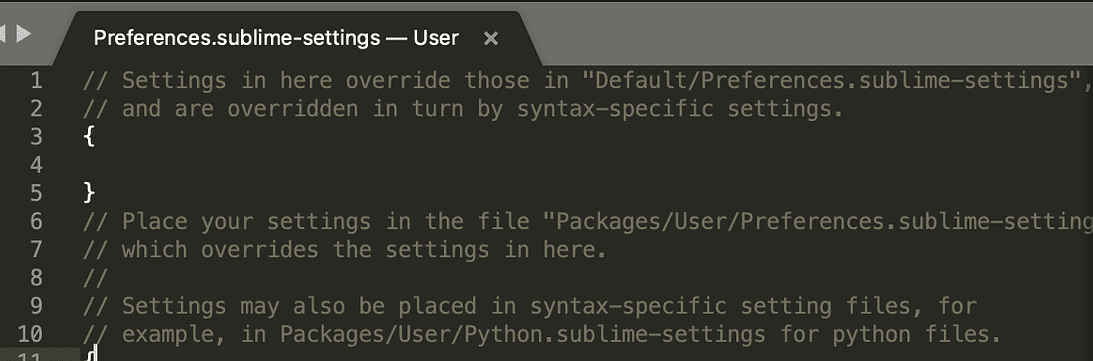
sublime text preferences settings

Copy over the default settings and check if the error persists.

Your custom user preferences override the default settings. If certain items are not defined in your custom user settings, then your default settings will be used automatically.

As a matter of fact, this is the reason why the default user settings consist in an empty { } JSON dictionary.

2. Return Sublime Text to a freshly installed state

In order to revert the program to a freshly installed state, you need to remove the data folder.

Its location is different depending on the operating system you’re using:

  • If you’re on Windows, go to %APPDATA%\Sublime Text
  • On Mac computers, go to ~/Library/Application Support/Sublime Text
  • If you’re on Linux, go to ~/.config/sublime-text

After you located the data folder, close Sublime Text and then move the data folder to your desktop.

Sublime Text will automatically re-created the data folder when you load it again.

3. Delete the settings file

Other users suggested that deleting the settings file from Packages (C:// Users /Packages/PHP.sublime-settings) solved the problem.

If you choose to use this method, don’t forget to backup that file first.

We hope you managed to fix the parse settings error in Sublime Text.

Categories: Software

Author Madalina Dinita

Madalina has been a Windows fan ever since she got her hands on her first Windows XP computer. She is interested in all things technology, especially emerging technologies -- AI and DNA computing in particular.

You Might Also Like

  • How To Integrate Monday.com Into Microsoft Teams

    MonaSoftware
  • How to Move the Install Folder for a Steam Game

    Mel HawthorneSoftware
  • How to Add a Friend in Discord

    Mel HawthorneInternet
  • 100+ Best Snapchat Lenses for Cool Selfies in 2023

    100+ Best Snapchat Lenses for Cool Selfies in 2023

    Tamal DasAndroid

Comments

  1. John Sampson says:
    November 17, 2022 at 11:06 am

    Does one not need to be a JSON expert to change settings in Sublime Text? I am not one, so I cannot change settings in Sublime Text.

Leave a Reply

Your email address will not be published. Required fields are marked *

  • roblox error 280

    Having Trouble With Roblox Error 280? Here’s What to Do

  • hard disk smart command error

    Hard Disk SMART Command Failed – How to Fix 

  • files automatically deleted on click

    Files Getting Deleted Automatically? Here Are Some Reasons Why

  • error 400 when signing in

    Encountered Error 400 When Signing In to Microsoft? Here’s What You Can Do 

  • unable to create notebook error in onenote

    We Were Unable to Create Your Notebook Error in OneNote – Common Fixes 

profile pic

The Experts Behind Technipages

My name is Mitch Bartlett. I've been working in technology for over 20 years in a wide range of tech jobs from Tech Support to Software Testing. I started this site as a technical guide for myself and it has grown into what I hope is a useful reference for all.

Learn More

technipages logo white
linkedin icon

Technipages is part of Guiding Tech Media, a leading digital media publisher focused on helping people figure out technology. Learn more about our mission and team here.

© 2026 Guiding Tech Media All Rights Reserved

  • About Us
  • Contact
  • Terms of Use
  • Privacy Policy

© 2026 Guiding Tech Media All Rights Reserved

Information from your device can be used to personalize your ad experience.
Do not sell my personal information.