When you launch Microsoft Outlook, you may occasionally get the following error message: The time limit for logging on was reached while waiting for system resources. Try again. MAPI 1.0 [000004C2]. But if you hit the OK button to close the error window, your email client crashes unexpectedly. Follow the steps below to get rid of this error.
Contents
How to Fix Time Limit Login Errors in Outlook
Restart Your PC
If you’re getting this error after installing the latest Office updates, restart your system and check if the issue persists. Many users confirmed that simply restarting the system took care of this annoying error. A simple restart can work wonders.
Launch Outlook in Safe Mode
Try launching Outlook in Safe Mode and check if you notice any improvements. If the error disappears, this indicates something’s interfering with Outlook. Most likely, one of your add-ins, probably Salesforce, is interfering with the app.
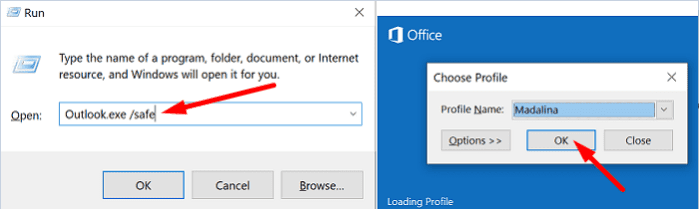
- Open a new Run window by pressing the Windows and R keys.
- Then type the Outlook.exe /safe command.

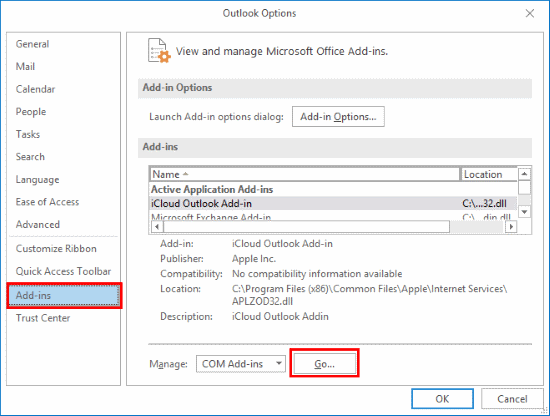
- Go to File and select Options.
- Then click on Add-ins, and hit the Go button next to Manage COM Add-ins.

- Clear the checkmark next to Salesforce for Outlook.
- Hit OK to save the settings.
- Exit Safe Mode and restart Outlook. Check if the error persists.
If you’re no longer getting time limit errors, this confirms the Salesforce add-in was the culprit. Update the add-in to the latest version and check if this solves the problem.
Reinstall the Salesforce Add-in
Uninstall Salesforce, restart your computer, and install a new add-in version.
- Exit Outlook completely.
- Then right-click the sync icon and select Exit.
- Go to Add or Remove Programs, select Salesforce and uninstall it.
- Then go to C:\Users\Username\AppData\Roaming\salesforce.com\Salesforce for Outlook\DB and delete the Salesforce database.
- Restart your computer.
- Reinstall Salesforce, launch Outlook, and check if the issue persists.
Don’t forget to delete your old Salesforce database before reinstalling the tool. If you skip this step, Salesforce will continue to sync using your old settings.
Update and Repair Outlook
Make sure Outlook is working correctly. Update your email client to the latest version and repair your files.
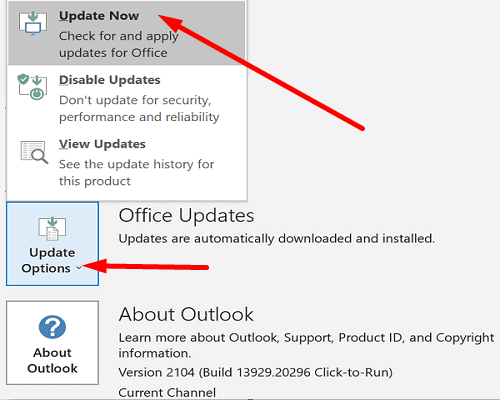
- Launch Outlook and go to File.
- Then click on Office Account.
- Select Update Options.
- Hit the Update Now button.

- Then launch Control Panel.
- Go to Programs, and select Programs and Features.
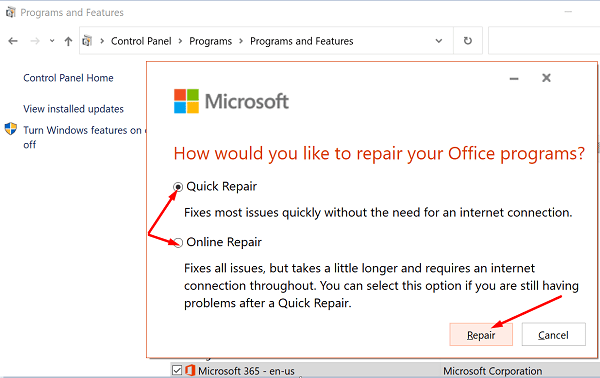
- Select Office 365 or Microsoft 365 and hit the Change button.
- Run Quick Repair.

- If the error persists, run the Online Repair tool as well.
- Restart your computer, launch Outlook, and check the results.
Conclusion
If Outlook says, the time limit for logging on was reached, launch Outlook in Safe Mode and disable the Salesforce add-in. Then update or reinstall the add-in. Additionally, update Outlook to the latest version. If the issue persists,
repair your Office files.
Did you manage to solve the problem? Which of the methods above did the trick for you? Let us know in the comments below.