

Microsoft Teams and Outlook are two excellent productivity tools. If you use both of them, you can integrate Teams with Outlook for an extra productivity boost. You can then convert Outlook meetings into Teams meetings, export the list of team members or use Outlook to change the first day of the week on Teams.
All that sounds great, doesn’t it? Well, sometimes Teams may fail to integrate with Outlook and certain features may not be available. Let’s see how you can fix this problem. Use the solutions below if the Microsoft Teams Meeting Add-in for Outlook won’t show up or doesn’t work properly on the desktop app.
How to Fix Teams Integration Issues with Outlook
Install Teams and Outlook as an Admin
When you install the Teams add-in, be sure to have admin permissions. Outlook COM add-ins edit your Registry and add new keys to it. But you need to be an admin for the changes to take full effect.
The same is valid when you’re running Teams. Running the app with admin rights gives you full access to all the features.
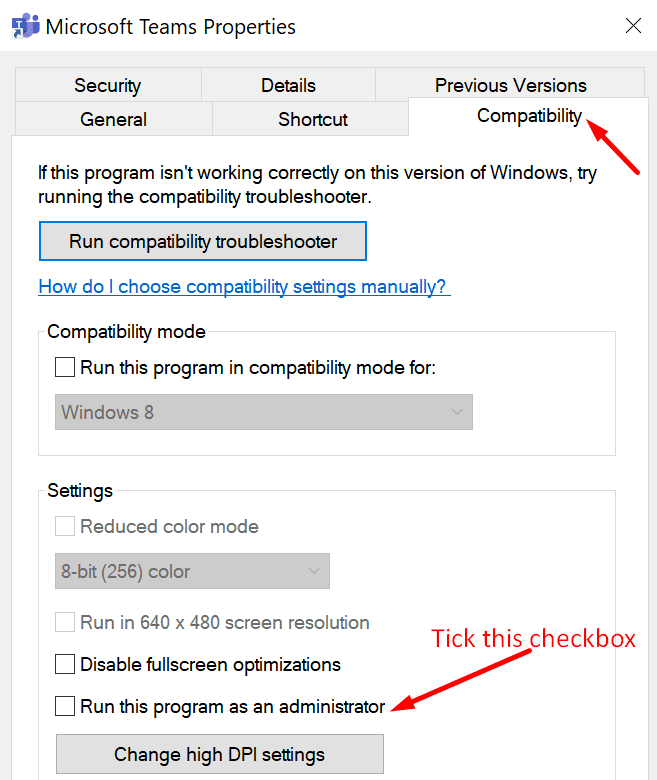
- Right-click on the Teams desktop shortcut and select Properties.
- Then click on the Compatibility tab.
- Check Run this program as an administrator.

- Save the changes. And this is how you can automatically run Teams with admin rights.
As for Outlook, it’s best to run the app in normal user mode. If you launch it as an administrator, the elevated permissions may interfere with the registered COM add-ins.
Launch the Apps in a Specific Order
It seems that the order in which you install and launch Teams and Outlook actually matters a lot. Microsoft recommends that users first download, install and log in to Teams. Then, you can restart Teams. After you do that, restart Outlook. Restart the apps in exactly this precise order.
After you install the Teams add-in, restart both the Teams desktop app and Outlook.
Manually Enable the Add-In
If the Teams add-in is not visible in Outlook, you need to integrate it manually.
- Launch Outlook, go to File, and click Options.
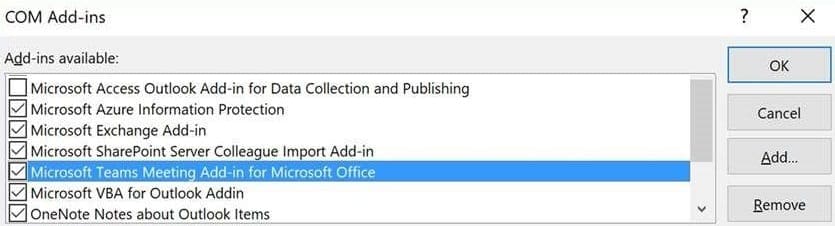
- Select the Add-ins tab and make sure the Microsoft Teams Meeting Add-in for Office is visible in the list of Active Application Add-ins.
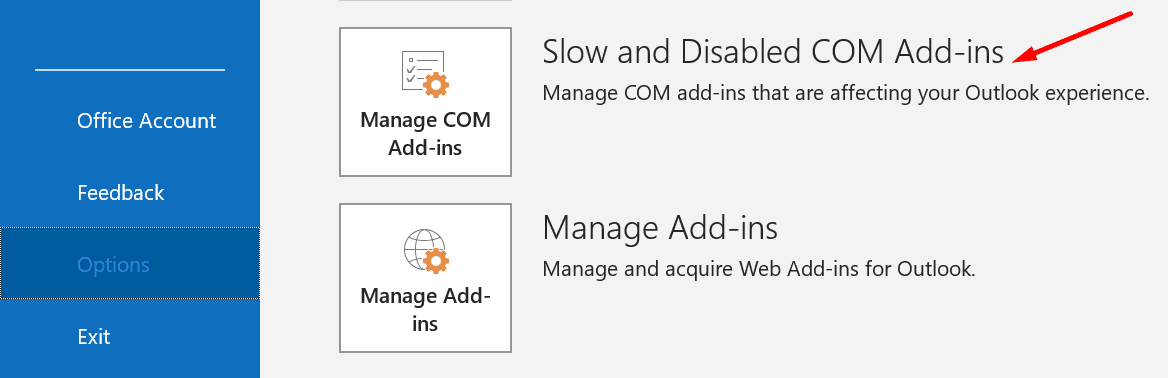
- If the Teams add-in is disabled, go to Manage add-ins, select COM Add-ins.

- Tick the checkbox next to Microsoft Teams Meeting Add-in.

- Save the changes and check if this solution fixed your Teams and Outlook integration issues.
Enable the Outlook Add-in in Teams Admin Center
Another reason why Teams doesn’t appear in Outlook is that someone disabled the Outlook add-in under Meeting policies. If you’re the admin, access the admin center, go to Meetings, select Meeting policies, and toggle on Allow the Outlook add-in.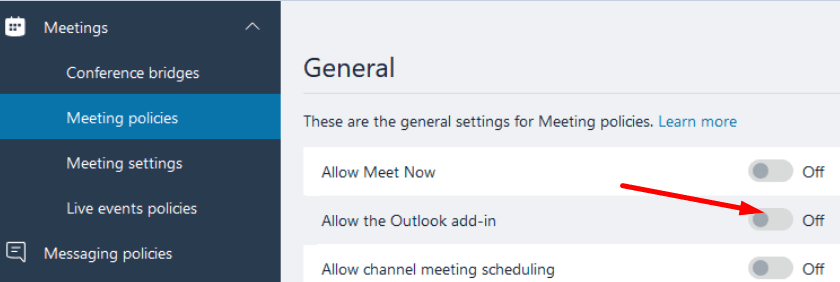
Otherwise, ask your admin to make the necessary changes.
Edit User Profile Disk Settings
A number of users managed to solve this issue by excluding the following directories from the user profile disk:
- AppData\Local\Microsoft\Teams
- AppData\Local\Microsoft\TeamsMeetingAddin
- AppData\Local\Microsoft\TeamsPresenceAddin
- AppData\Roaming\Microsoft\Teams.
Basically, the computer reinstalls Teams at each login. Check if this solution works for you as well.
Repair Office
Repairing your Office installation package helps you to fix all sorts of file corruption issues.
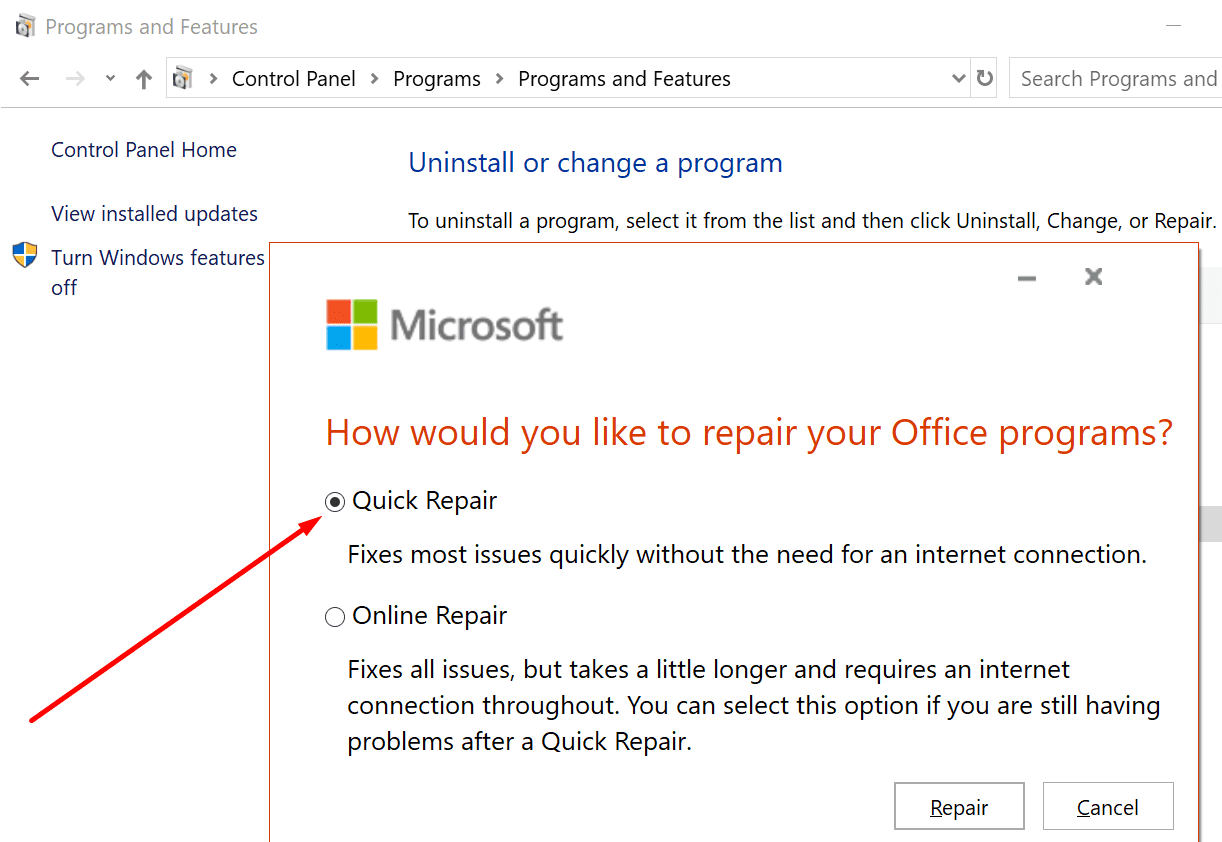
- Go to Control Panel, select Programs, and then Programs and Features.
- Select Office 365 and hit the Change button.
- First, select the Quick Repair option. If the issue persists, run an Online Repair.
Prevent Teams from Running in the Background
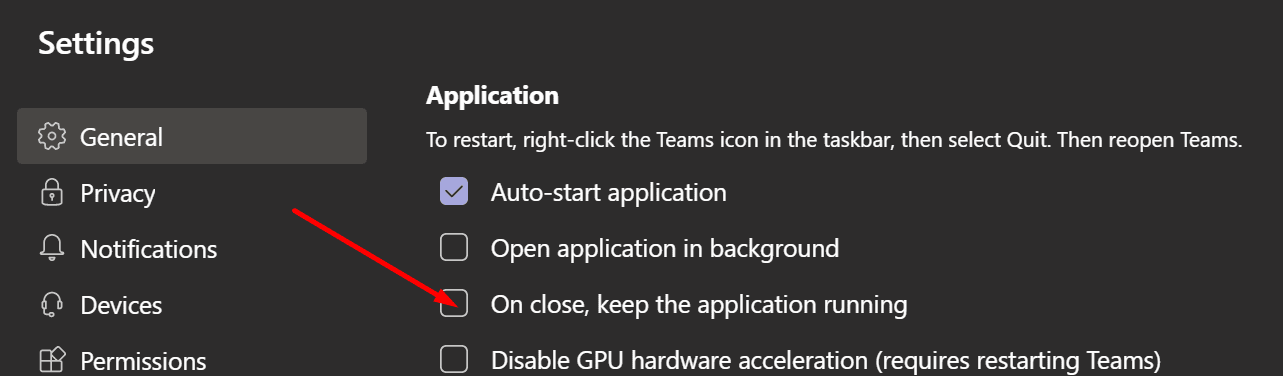
Some users managed to fix their Teams and Outlook integration issues by disabling the option that says “On close, keep the application running“. So, click on your profile picture, go to Settings, select General and untick this option. Check the results.
Conclusion
To ensure your Teams and Outlook integration works seamlessly, install the apps with admin rights. Then manually enable the Teams add-in and repair your Office installation files.
Did you manage to fix your Teams and Outlook integration issues? Share your feedback in the comments below.





Bit late to the party – however have you tried third party software? Something like oneplacemail or colligo?
Afraid not! Basically, my problem is that the teams meeting button in outlook is there, but when i click on it i get a message telling me to sign out of teams and sign in again. I tried all the fixes above that i could (i couldn’t adjust the meetings policies one or the user profiles one as i didn’t know how) but the problem persists. If you know how to fix it it would be much appreciated! Thanks
Excellent information, Thank you…
No matter how many times I tell my manager and co-workers to always install applications by Right Click/Run as Administrator they disagree being all our users are system admins. Prevents so many issues on certain apps,
I have found closing Outlook by File/Exit or Close depending on the version than manually close Teams by the system taskbar icon, once both are closed than uninstall Teams & the Teams Machine Installer from Co0ntrol Panel / Programs & Features, once removed head to > %localappdata%\Microsoft, delete the folders: SquirrelTemp, Teams, TeamsMeetingAddin and TeamsPresenceAddin then reinstall Teams fresh from Microsoft Teams, depending on what version of Office you have (64/32) they must match. This has helped me many times.
Thank you for all this great information.