Did you know that login errors are some of the most frequent issues affecting Teams users? They come second after server connection problems. As a matter of fact, it’s safe to say that all Teams users have experienced various login errors and issues at a given moment. Error code caa5009d is one of them, so let’s see how you can fix it.
Contents
4 Solutions to Fix Teams Error CAA5009D
⇒ Quick Fix: Use the Teams web client to quickly gain access to your account. The good news is that error caa5009d only affects the desktop app.
Contact Your IT Admin
This error may actually be caused by the settings your organization is currently using. Contact your IT admin and ask them to check if your organization has set up conditional access for Teams. If this is the case, admins can also check what conditions have been set and tweak them if necessary.
Run Teams in Compatibility Mode
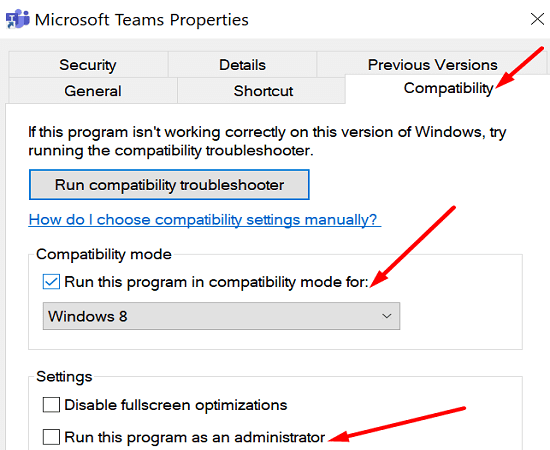
Many users solved this problem by launching Teams in Compatibility Mode with admin rights.
- Right-click on your Teams desktop app icon and select Properties.
- Then click on the Compatibility tab and go to Run this program in compatibility mode for.
- Select Windows 7 or Windows 8 from the drop-down menu.

- After that, check the Run the program as an administrator option.
- Launch Teams and check the results.
Clear Your App Cache and Credentials
The Teams app cache might be interfering with your login attempt. Or maybe the Credential Manager failed to retrieve your login information in a timely manner.
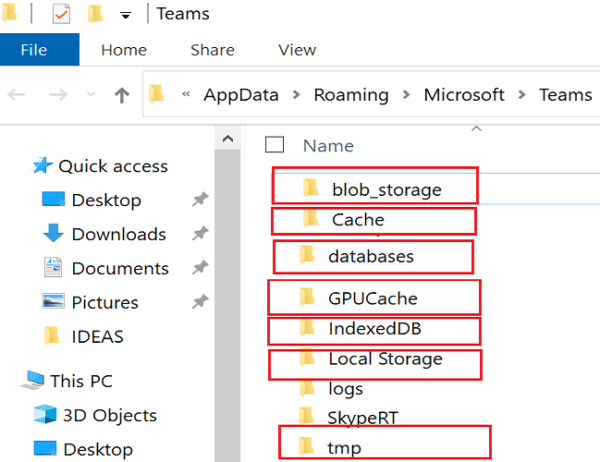
- Exit Teams and type %appdata% in the Windows Search bar. Navigate to %appdata%\Microsoft\teams.
- Delete all the files form the following folders (keep the folders):
- %appdata%\Microsoft\teams\application cache\cache
- %appdata%\Microsoft\teams\blob_storage
- %appdata%\Microsoft\teams\Cache
- %appdata%\Microsoft\teams\databases
- %appdata%\Microsoft\teams\GPUcache
- %appdata%\Microsoft\teams\IndexedDB
- %appdata%\Microsoft\teams\Local Storage
- %appdata%\Microsoft\teams\tmp

- Then, launch the Control Panel and navigate to the Credential Manager.

- Click on Windows Credentials, go to Generic Credentials, and remove your Microsoft Teams credentials (msteams_adalsso).
- Restart your computer, launch Teams again, and try to log in again.

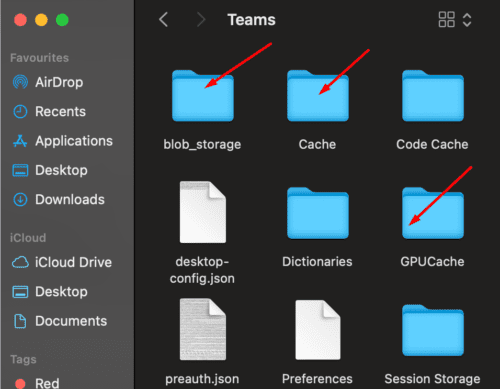
If you’re on Mac, close Teams and go to “~/Library/Application Support/Microsoft/Teams. Delete the files from the folders indicated above.
Close Background Apps or Enter Safe Mode
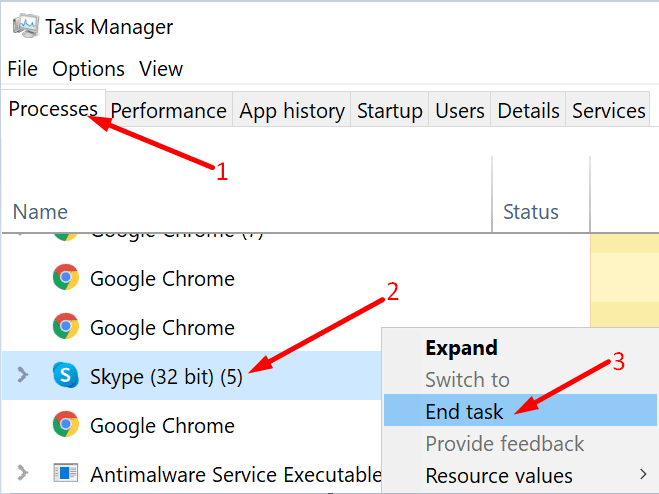
Background apps may sometimes interfere with Teams. To avoid this issue, launch the Task Manager, click on the Processes tab, right-click on the app(s) you want to close, and select End Task. Launch Teams only after you made sure there are no other active apps running on your machine.
On Mac, press the Option + Command + Esc keys simultaneously. Alternatively, click on the Apple menu and select Force Quit. Then select the app(s) you want to exit and hit the Force Quit option.

If this stubborn error persists, uninstall and reinstall Teams.
Conclusion
To sum up, Teams error code caa5009d indicates the login process failed and the app could not connect to Microsoft’s servers. To fix this issue, run Teams in compatibility mode, clear the cache and reinstall the app. Additionally, you may need to contact your IT admin as well to check if there are any conditional access settings in place. Did these solutions help you troubleshoot this issue? Let us know in the comments below.