Skip to content
LogoTechnipages
LogoTechnipages
  • Topics
        • Android
        • Browsers
        • Gaming
        • Hardware
        • Internet
        • iPhone
        • Linux
        • macOS
        • Office
        • Reviews
        • Software
        • Windows
        • Definitions
        • All Recent Posts
  • Product Reviews
  • About

Fix d3dx File Missing Error in Windows 11 

Evan MercerAugust 28, 2025 Comments (0)
fix d3dx file missing error

There was a time when it seemed like you were constantly being asked to install some version of DirectX with every other program. These days, Windows takes care of everything. But if you suddenly find yourself with the error message, “The program can’t start because d3dx9_43.dll is missing from your computer,” you might be wondering what to do.

This article will be your guide to getting DirectX fixed on your machine and fix d3dx file missing error.

Contents

  • 1 The Meaning Behind the Message
  • 2 How to Fix the d3dx Missing Error
    • 2.1 Download the DirectX End-user Runtime Web Installer
    • 2.2 Reinstall the Problem Program
    • 2.3 Update your Graphics Driver
    • 2.4 Copy and Paste

The Meaning Behind the Message

DirectX is the magic API that interfaces with various graphics-intensive programs and processes, handling multimedia tasks. If a part of it is missing (like a “.dll” file), then Windows won’t be able to launch these programs.

The “d3dx9_43.dll” file in question might be corrupted, misplaced, or accidentally deleted from the runtime library. Let’s look at how to remedy this.

How to Fix the d3dx Missing Error

There are a few possible solutions that can fix this error:

Download the DirectX End-user Runtime Web Installer

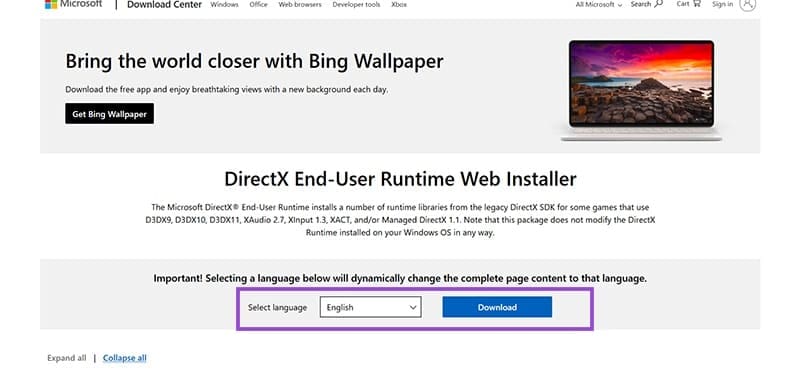
The best and easiest way to fix the missing file problem is by letting DirectX reinstall it for you. This software can be found quite easily on the Microsoft site. Here’s how to install it.

Step 1. Visit the Microsoft page (in the link above).

Step 2. Choose the language of the page, and then click the “Download” button.
Fix d3dx File Missing Error in Windows 11 1

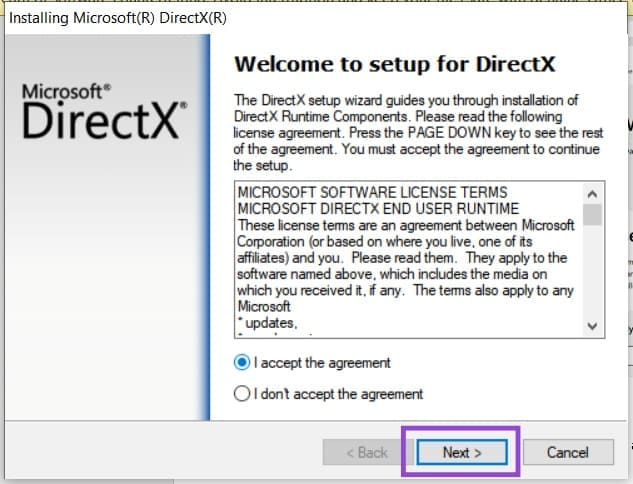
Step 3. Open the downloaded executable file and accept the license agreement.
Fix d3dx File Missing Error in Windows 11 2

Step 4. Let the program run, and click the “Finish” to Exit.

Step 5. Try to run the problematic program again, and see if things are fixed.

Reinstall the Problem Program

If just one app is giving you grief with this error message, then perhaps the problem lies with the app itself. The files that interface with the “.dll” file might be to blame. Simply uninstall and reinstall the app and see if this solves the problem.

Update your Graphics Driver

Seeing as DirectX is related to graphical matters, ensuring that your graphics card drivers are updated to their latest version is important too. You can download and install updates via your graphics client (AMD and Nvidia both have one) or do so manually through Device Manager. Simply locate your display adapter, right-click it, and choose “Update driver.”

Copy and Paste

If you have another PC or laptop, then odds are this machine has the missing “.dll” file in question. All you have to do is copy it over. Here’s how to find the file:

Step 1. Open up a new File Explorer window (Win + E) and choose “This PC” from the sidebar menu.

Step 2. Double-click your Local Disk (“C:” in most cases) and navigate to the “Windows” folder.
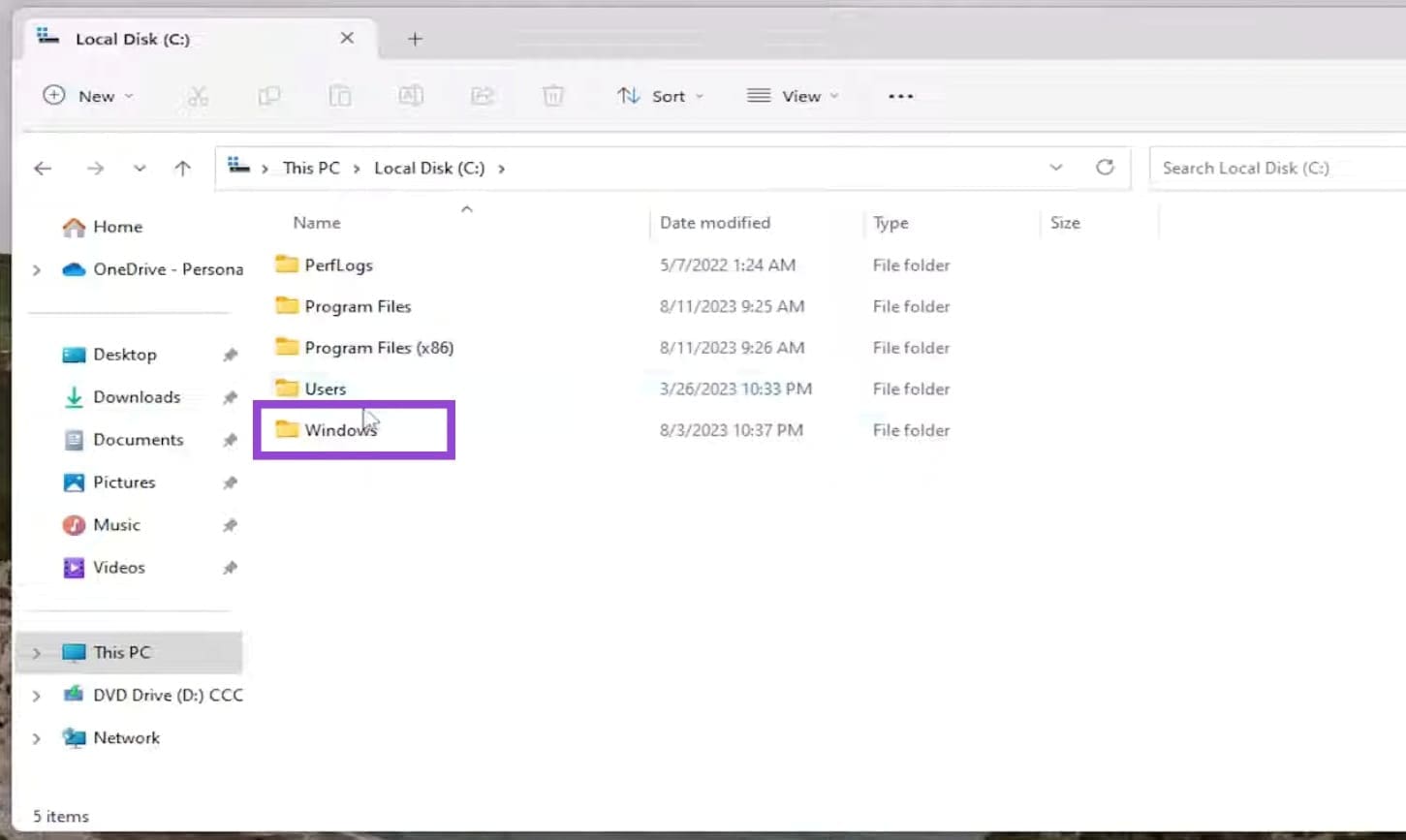
Fix d3dx File Missing Error in Windows 11 3

Step 3. Scroll down to the “System32” folder and double-click it too.
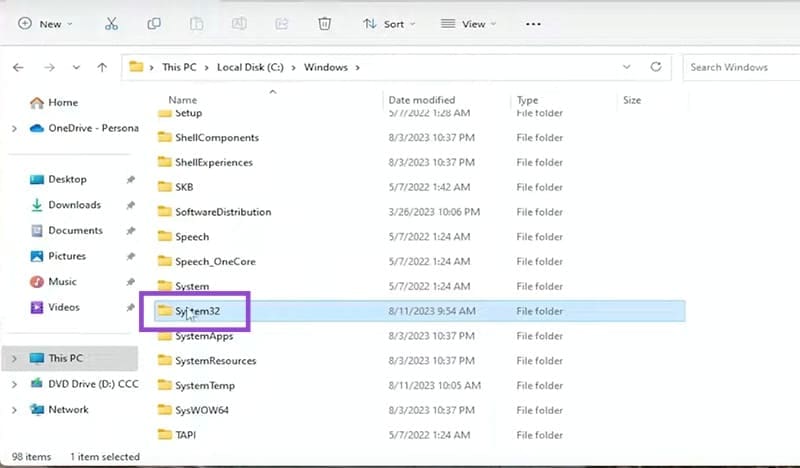
Fix d3dx File Missing Error in Windows 11 4

Step 4. Once in the folder, type “d3dx9_43.dll” into your search bar and wait for the file to pop up.

Step 5. Copy this folder onto an external device and paste it in the same location on your problem machine.

Note that for ideal results, your two machines should share the same version of Windows 11.

Categories: Windows

Author Evan Mercer

I’m a computer science grad who loves to tinker with smartphones and tablets in my spare time. When I’m not writing about how to fix techy problems, I like hanging out with my dogs and sipping nice wine after a tough day.

You Might Also Like

  • windows 10 registry filter driver exception error

    Fix Windows 10 Registry Filter Driver Exception

    Madalina DinitaWindows
  • Windows 11 Shut Down Menu

    Windows 11: How to Add/Remove Hibernate Option

    Judy SanhzWindows
  • Excel Window Fix Header

    Fix: Excel Opens in Tiny Window

    Mitch BartlettOffice
  • cant sign in with this account fix

    “You Can’t Sign in With This Account” Error Fix 

    Evan MercerWindows

Leave a Reply

Your email address will not be published. Required fields are marked *

  • unable to create notebook error in onenote

    We Were Unable to Create Your Notebook Error in OneNote – Common Fixes 

  • error code 0x800704f8 fix

    Error Code 0x800704f8 – How to Fix 

  • back button in browsers doesnt work

    What to Do if the Back Button in Browser Doesn’t Work 

  • could not find this item

    “Could Not Find This Item” When Trying to Remove Files

  • no graphics signal on first boot

    No Graphics Signal on First Boot – How to Fix

profile pic

The Experts Behind Technipages

My name is Mitch Bartlett. I've been working in technology for over 20 years in a wide range of tech jobs from Tech Support to Software Testing. I started this site as a technical guide for myself and it has grown into what I hope is a useful reference for all.

Learn More

technipages logo white
linkedin icon

Technipages is part of Guiding Tech Media, a leading digital media publisher focused on helping people figure out technology. Learn more about our mission and team here.

© 2026 Guiding Tech Media All Rights Reserved

  • About Us
  • Contact
  • Terms of Use
  • Privacy Policy

© 2026 Guiding Tech Media All Rights Reserved

Information from your device can be used to personalize your ad experience.
Do not sell my personal information.

Last Updated on August 28, 2025 by Evan Mercer