
Your Bluetooth headset may sometimes show up as two devices on your Windows computer. When this issue occurs, audio quality is negatively affected. Turn off your computer and headset, wait for a few seconds, and then turn your devices back on. If the issue persists, follow the troubleshooting steps below.
Contents
What to Do If Your Bluetooth Headset Appears as Two Devices on PC
Disable Bluetooth
Go to Settings, click on Bluetooth & devices and toggle off the Bluetooth option. Then, go to Network & Internet and enable Airplane Mode for 30 seconds to reset your computer’s connection to all external devices.
Then, disable Airplane Mode, re-enable Bluetooth, and check if your headset still shows up twice on your list of connected devices.
Remove Bluetooth Headset
If the issue persists, try removing the problematic Bluetooth headset. Navigate to Settings, click on Bluetooth & devices, and locate your headset. Click on the three dots, and select Remove device. Then, restart your computer, and pair your devices.

Run the Bluetooth Troubleshooter
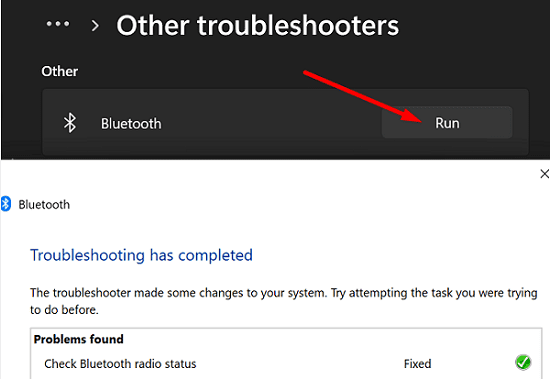
You can also use Windows 11’s built-in Bluetooth troubleshoot to automatically detect and fix Bluetooth-related issues. Go to Settings, click on System, and then scroll down to Troubleshoot. Scroll down to Other, click on Other troubleshooters and run the Bluetooth Troubleshooter.
Install the Latest Updates
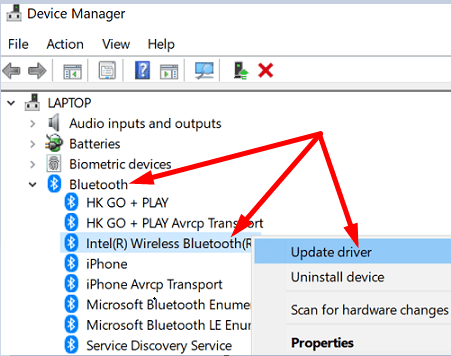
Be sure to install the latest Bluetooth driver version on your computer. Don’t forget to check for OS updates as well.
- Launch the Device Manager.
- Click on the Bluetooth arrow.
- Right-click on your Bluetooth driver.
- Select Update Driver.

- Then, go to Windows Update and check for updates.
- Restart your computer after installing the latest updates.
If the problem persists, try reinstalling your Bluetooth adapter. Relaunch the Device Manager, right-click on the Bluetooth adapter, and select Uninstall device. Confirm your choice, and restart your computer to automatically reinstall the driver.
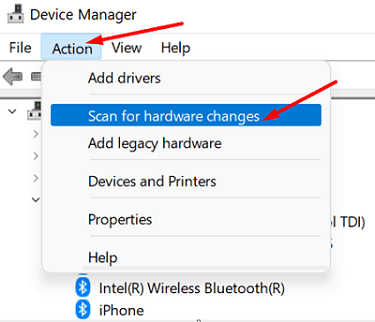
If your machine fails to reinstall the Bluetooth adapter, open the Device Manager, click on the Action tab, and select Scan for hardware changes.
Disable Audio Enhancements and Check Sound Settings
- Go to Settings.
- Select System.
- Then, click on Sound.
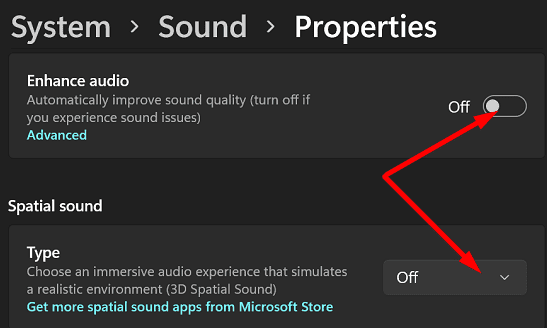
- Select Speakers to open the Properties window.
- Disable Enhance Audio and Special Sound.

- Turn off Bluetooth for 30 seconds, and then re-enable the option.
- Go back to Sound and make sure your headset is your default input and output device.
Conclusion
If your Bluetooth headset shows up twice on your computer, disable Bluetooth and enable Airplane Mode for 30 seconds. Then, go to Bluetooth settings, and remove your Bluetooth headset. Additionally, run the Bluetooth troubleshooter, and install the latest OS and driver updates. If the glitch persists, disable audio enhancements.
Is your Bluetooth headset still showing up as two devices? Let us know in the comments below.



I’ve seen this last fix and tried it on a windows 11 laptop. Problem was I tried right clicking and double clicking on bt headset icon with no response. Ergo, no “properties” to click on. Any idea on this?
Hi,
These tips didn’t help, but I found a fix and figured it would be helpful to share – especially since this article is fairly new (this year).
The reset didn’t work, at all.
The issue seems to be that the Bluetooth speaker has a setting that allows it to be accepted as a keyboard/mouse/& Pen, which for some reason creates another audio option with terrible quality.
Here’s the fix: (Windows 10)
Go to Devices & Printers
Right click on (your) BT speaker and select “Properties”
Go to “Services” tab, and deselect “Drivers for Keyboard, mice, etc (HID)”, and “Handsfree Telephony”
Apply settings, and the issue should be resolved.